You can manage the following aspects of your Covata user account through the My Account feature of the Safe Share web application:
Edit your Account Details such your first, last and other names, as well as your mobile number and default language settings.
Modify your Security settings, such as your Password and Two-factor authentication settings, as well as Terminate all of your currently active (i.e. signed in) sessions with the Covata Platform.
View information about your last sign-in to the Covata Platform.
View information about your remote storage usage and quota for each organization you are a member of.
Revoke passcodes set on registered devices. Currently, passcodes (used to rapidly authenticate a Covata user to the Covata Platform) are only supported on iOS and Android devices running their native Safe Share applications.
Revoke the right that non-Safe Share-based client applications were initially granted by you to access the Covata Platform's resources through your Covata user account.
Managing your contacts
Whenever you share personally owned content with other people, their email addresses are automatically added to your list of Contacts, which makes it easier to specify these people as collaborators the next time you share your content with them.
You can also manually add, edit or delete any of these personal contacts through Safe Share for Window's Contacts feature.
To access the 'Contacts' feature:
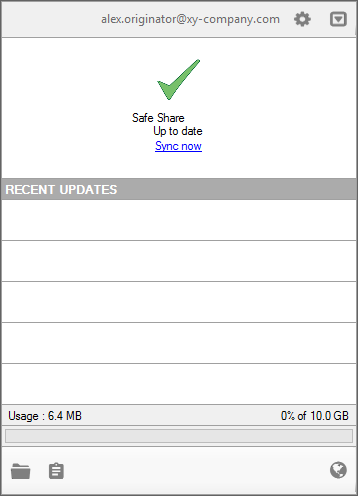
Ensure that Safe Share for Windows has been started.
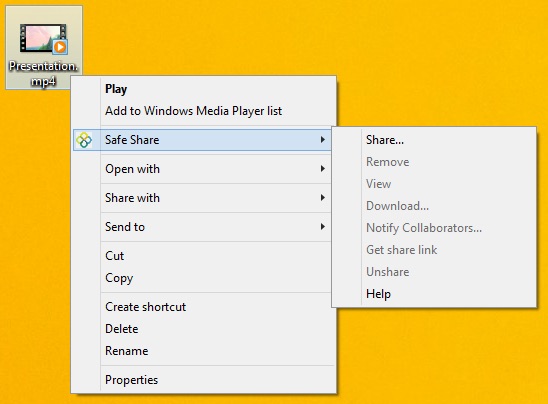
Open the Safe Share dialog box by right-clicking any file or folder on your desktop or elsewhere within Windows Explorer and choosing Safe Share from the pop-up menu:
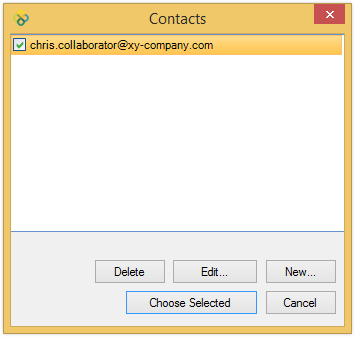
On the Safe Share dialog box, click the Contacts button to open the Contacts dialog box:
To manually add a new 'Contact':
Access the Contacts feature.
In the Contacts dialog box, click the New button.
In the resulting New Contact dialog box, specify an optional First name and Last name and mandatory Email address fields.
Click Save on this dialog box to add your new Contact.
To edit an existing 'Contact':
Access the Contacts feature.
In the Contacts dialog box, select the Contact's email address and click the Edit button.
In the resulting Edit Contact dialog box, edit the optional First name and Last name and mandatory Email address fields as required.
Click Save on this dialog box to update your existing Contact.
To delete an existing 'Contact':
Access the Contacts feature.
In the Contacts dialog box, select the email address(es) of the Contact(s) to be deleted and click the Delete button.
Verify the deletion on the Delete Contacts message box.
The contact's email address will no longer be available for selection when sharing your content.
To add multple contacts to the 'Safe Share' dialog box from the 'Contacts' dialog box:
Access the Contacts feature.
In the Contacts dialog box, select the email address(es) of the Contact(s) to be added to the Safe Share dialog box.
Click the Choose Selected button, which closes the Contacts dialog box and returns you to the Safe Share dialog box, with these contacts added. Note: Continue on with specifying the permissions that these contacts will have on the item you are sharing.