Safe Share for Windows User's Guide
Toggle TOC panel
Starting Safe Share for Windows and signing in

Starting Safe Share for Windows

Safe Share for Windows automatically starts when Windows boots up or restarts.

  • When Safe Share for Windows is running, its icon appears in the Windows taskbar notification area (either
    Safe Share for Windows - signed out
    or
    Safe Share for Windows - signed in
    ).

After starting, Safe Share for Windows may automatically prompt you to sign in with your Covata user account by opening the 'Sign in' dialog box, which would normally appear if you had never signed in to the application or you had signed out from a previous Safe Share for Windows session. If you had not signed out from a previous Safe Share for Windows session, then Safe Share for Windows retains your session when the application is restarted (and you will not be required to sign in).

If you need to sign in but the 'Sign in' dialog box is not visible, you can always sign in manually to access this dialog box.

If you happen to exit Safe Share for Windows or the application does not start after Windows boots up/restarts, you can manually start Safe Share for Windows.

To start Safe Share for Windows manually:

  • Double-click the Covata Safe Share icon on the desktop or choose Covata Safe Share from the Windows start menu. When running, the application's icon appears in the Windows taskbar notification area (either
    Safe Share for Windows - signed out
    or
    Safe Share for Windows - signed in
    ).

Signing in manually

The Safe Share for Windows icon in the Windows taskbar notification area indicates:

  • Safe Share for Windows - signed out
    (i.e. a gray Safe Share icon with a red x sign) if you are not yet signed in to the application.
  • Safe Share for Windows - signed in
    if you are already signed in.

Once you are signed in, any Covata-secured files and folders associated with your Covata user account in remote storage (managed by the Covata Platform) are synchronized with your computer's file system and can be accessed locally through Windows Explorer.

To sign in to Safe Share for Windows manually:
  1. Ensure Safe Share for Windows has been started.
  2. Click the application's icon
    Safe Share for Windows - signed out
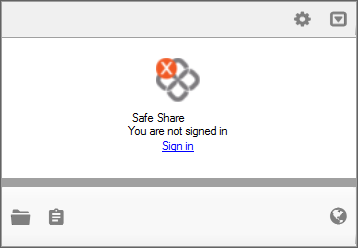
    in the taskbar notification area to open the Safe Share for Windows application pane (which appears at the lower-right of the screen) and then click the Sign in link on this pane:
    Signing in

    Tip: Alternatively, right-click the application's icon
    Safe Share for Windows - signed out
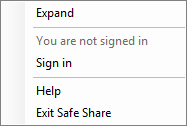
    in the taskbar notification area and choose Sign in from the pop-up menu:
    Signing in
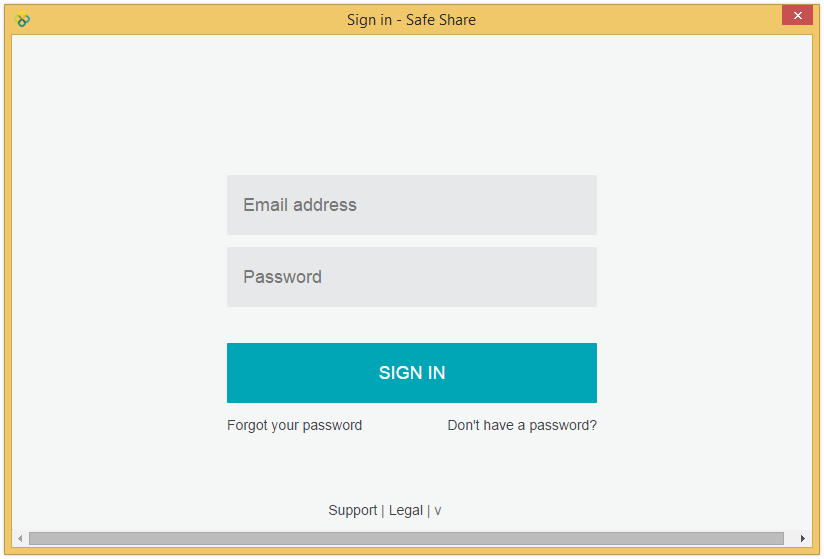
  3. In the Sign in - Safe Share dialog box, enter your Covata user account's Email address and Password into the relevant fields:
    Sign-in dialog box

    Notes:
    • The email address of the last Covata user account to sign in to Safe Share for Windows is automatically entered into the Email address field.
    • If you have forgotten your password, leave the Password field blank, click the Forgot your password link, follow the instructions on the subsequent page and then in your email notification to reset your password.
  4. Click the SIGN IN button (or type 'Enter'/'Return').
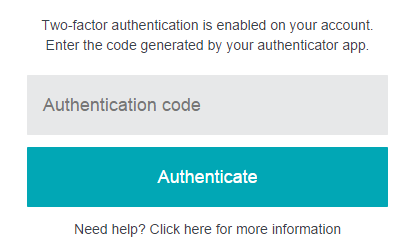
    • If the Sign in - Safe Share dialog box requests you to enter your Authentication code, then either you have configured your Covata user account with two-factor authentication (2FA) (via Account Management) or at least one of your Safe Share Organization administrators has enforced this feature on your account.
      Safe Share 2FA authentication code
      1. If you have not yet configured a mobile device with your Covata user account for 2FA, then refer to the Configuring a mobile device for two-factor authentication procedure below before continuing on.
      2. Open the authenticator app on your mobile device.
      3. In the Authentication code field, enter the code from the authenticator app that relates to your Covata user account.
      4. Click the Authenticate button to complete the authentication process.
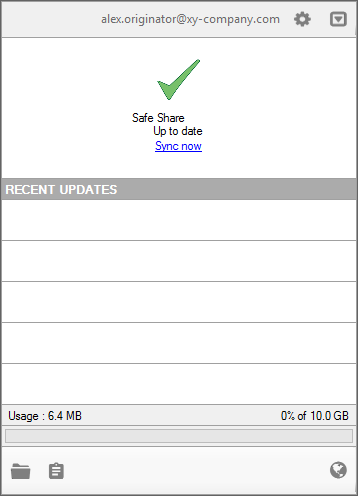
    To verify that you are signed in to Safe Share for Windows, the application pane automatically appears after signing in, with your Covata user account's email address indicated at the top and the application's icon in the taskbar notification area changes to
    Safe Share for Windows - signed in
    :
    Checking your sign-in status

    Tips:
    • If the application pane does not appear, click its icon
      Safe Share for Windows - signed in
      to access it.
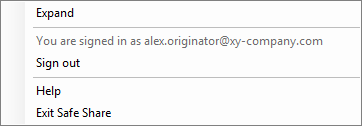
    • Alternatively, you can verify that you are signed in by right-clicking its icon
      Safe Share for Windows - signed in
      and observing in the pop-up menu:
      • 'You are signed in as your@email.address', or
      • 'You are not signed in'.
    • At any time while Safe Share for Windows is running, if you right-click the application's icon
      Safe Share for Windows - signed in
      or
      Safe Share for Windows - signed out
      in the taskbar notification area and the application pane is not visible, you can quickly access the application pane by choosing Expand from the pop-up menu - e.g.
      Signing in

Notes:

  • When signing in to Safe Share for Windows for the very first time after installing or upgrading the application, the Welcome to Safe Share for Windows web page is shown, containing a short tutorial of basic operation.
  • If you signed in to Safe Share for Windows either for the first time or with a different Covata user account to the one used previously, then the following Safe Share folders are (re)created within the Safe Share folder (which in turn is contained within your Windows home folder):
    • My Secured Files
    • Shared With Me
  • If the My Secured Files folder does not appear, then your account does not have the Originator role. This role can be granted to your account by the Organization administrator/s for your relevant organization/s.
  • Each time you sign in to Safe Share for Windows as a different Covata user (on the same computer), the My Secured Files and Shared With Me folders of the previous Covata user are moved to the Recycle Bin and the contents of the newly recreated My Secured Files and Shared With Me folders are updated to reflect the items in remote storage of this different Covata user.
  • Once you are signed in, Safe Share for Windows immediately begins synchronizing any files and folders in remote storage (associated with your Covata user account and accessible through the Safe Share web application), with those in the My Secured Files and Shared With Me folders. If the Covata-secured files within these folders appear with a size of 1 KB (or less) and have the extension .covl as opposed to .cov, then the file's content has not been cached. For more information about this file caching feature, see Managing cache policy settings.
  • A shortcut to the My Secured Files subfolder (above) as well as a shortcut to start the Safe Share for Windows application itself (called Covata Safe Share) are automatically created on your desktop. Be aware that if you initially signed in as a Covata user without the Originator role, then the My Secured Files shortcut is not created.

Configuring a mobile device for two-factor authentication

If either you or one of your Organization administrators has configured your Covata user account with two-factor authentication (2FA), then you require a mobile device (i.e. an Android-, iPhone-, iPad-, iPod Touch- or Microsoft Windows-based one) running an authenticator application (from Google or Microsoft) to be able to sign in to Safe Share for Windows.

This authenticator application (aka authenticator app) that runs on your mobile device provides the 2nd authentication factor for your account, where your password is the 1st authentication factor.

To configure your mobile device with your Covata user account for 2FA:

  1. Open your Covata Notification email message containing the subject line 'Two-factor authentication has been enabled for your account'.
  2. Follow the instructions in this email message - i.e. click the link to open the two-factor authentication configuration pages.
    Follow the remaining instructions on these pages to complete the process for configuring your mobile device and then continue with entering your authentication code (i.e. from the 2nd step of completing the 2FA authentication process above) to sign in to Safe Share for Windows.

Accessing the web application

Safe Share for Windows provides easy access to the Safe Share web application for better integration between these two products.

To access the Safe Share web application:

  1. Ensure Safe Share for Windows has been started and that you are signed in.
  2. Click the application's icon
    Safe Share for Windows - signed in
    in the taskbar notification area and then click the 'Safe Share web' icon
    Opening Safe Share web
    at the lower-right of the application pane:
    Opening the web application

    After signing in to the web application (if necessary), the main Safe Share page of the Safe Share web application opens in your default web browser (configured in Windows).

Notes about using this feature:

  • The Safe Share web application is a complementary product to Safe Share for Windows. For example:
    • The Safe Share web application allows you to manage your Covata user account through Safe Share for Windows and access some file/folder information features of this web application which are not accessible through Windows Explorer.
    • Microsoft imposes a file and path size limit of 260 characters. Hence, if you need to work with secure content in a heavily-nested folder hierarchy, the Safe Share web application can be used to provide access to this content.
  • If you are not signed in before accessing this feature, then the Safe Share Sign-in page is displayed. Be aware, however, that signing in through this page does not sign you in to Safe Share for Windows.
  • Your Safe Share for Windows installation may have been configured (typically by a systems administrator) to open the Safe Share Web window, which is an embedded web browser that is in effect a feature-restricted version of the Safe Share web application. For example:
    • The Download feature in the Safe Share Web window is not supported. This feature is only supported natively (i.e. with a compatible web browser) through the Safe Share web application.
    • When using the Safe Share Web window, it is not possible to navigate back and forward through pages. You can only navigate using the Safe Share web application's own navigation features.

Signing out

To sign out of Safe Share for Windows, either:

  • Right-click the application's icon
    Safe Share for Windows - signed in
    in the taskbar notification area and choose Sign out from the pop-up menu:
    Signing out

  • Click the application's icon
    Safe Share for Windows - signed in
    in the taskbar notification area, then click the 'Settings' icon
    Application pane settings icon
    at the top-right of the application pane ... :
    Accessing the application pane settings icon

    and choose Sign out from this icon's pop-up menu.

Note: Once you are signed out of Safe Share for Windows, any files or folders in the My Secured Files and Shared With Me subfolders of the Safe Share folder on your computer will no longer be synchronized with items in remote storage managed by the Covata Platform.

Exiting Safe Share for Windows

To exit Safe Share for Windows, either:

  • Right-click the application's icon
    Safe Share for Windows - signed in
    or
    Safe Share for Windows - signed out
    in the taskbar notification area and choose Exit Safe Share from the pop-up menu:
    Exiting Safe Share

  • Click the application's icon
    Safe Share for Windows - signed in
    or
    Safe Share for Windows - signed out
    in the taskbar notification area, then click the 'Settings' icon
    Application pane settings icon
    at the top-right of the application pane ... :
    Accessing the application pane settings icon

    and choose Exit Safe Share from this icon's pop-up menu.

Note: To sign in to Safe Share for Windows again, restart the application and if you are not automatically signed in, sign in manually.


Please provide your feedback here

comments powered by Disqus