 |
Safe Share for Windows User's Guide

|
|
Safe Share for Windows User's Guide
|
To maximise data security, Safe Share for Windows always encrypts or decrypts files locally on a Covata user's computer. Therefore, encrypted content within a Covata user's 'Safe Share' folder must be either:
My Secured Files subfolder whenever the user stores personally owned content securely.Shared With Me subfolder (for decryption) whenever another Covata user shares secure content (through any Safe Share application) with the currently signed-in Covata user. If this encrypted content is not locally available, Safe Share for Windows first downloads the content from remote storage managed by the Covata Platform before decryption.Caching encrypted content locally bypasses the need for Safe Share for Windows to download a file's content from remote storage each time the file needs to be decrypted. On the other hand, this caching can consume a significant amount of local disk/drive space over time.
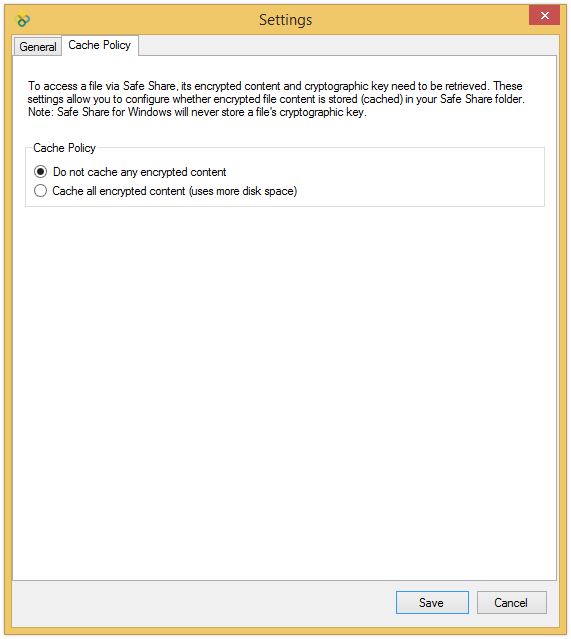
Therefore, the Safe Share for Windows cache policy feature allows a user to define whether or not all encrypted content within the Safe Share folders will be retained and stored (i.e. cached) locally on the computer.
By default, Safe Share for Windows does not cache encrypted content locally. This means that whenever encrypted content is either generated for upload to storage or downloaded for decryption, Safe Share for Windows automatically deletes its local encrypted content upon completing these actions (i.e. when the encrypted content is no longer required).
Tip: Within any 'Safe Share' folder, a Covata-secured file with the:
.covfile extension indicates a file whose content is cached locally and.covlfile extension indicates a file whose content is not cached locally. The size of any one of these files is < 1 KB. Each time a.covlfile is decrypted, Safe Share for Windows first downloads its encrypted content from remote storage.
Note: You do not need to be signed in to Safe Share for Windows to access this feature.
To access Safe Share for Windows' cache policy settings feature:


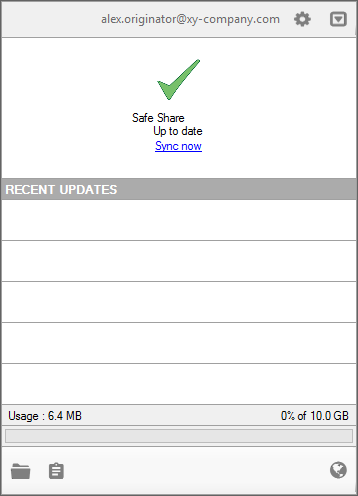
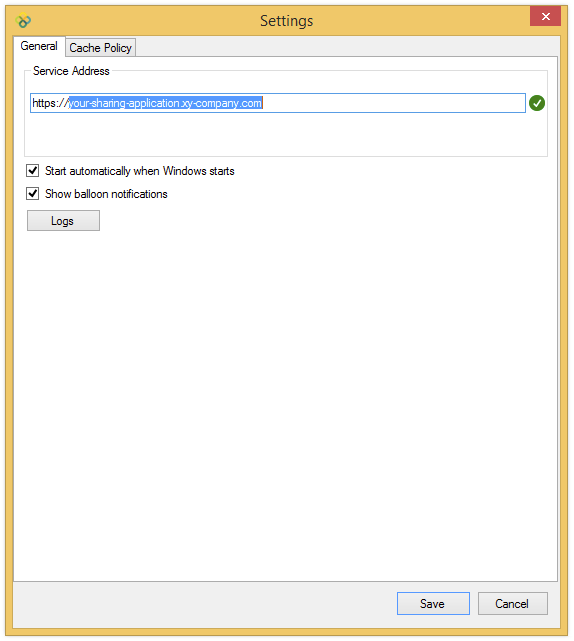
Cache policy settings are associated with (and tied to) the Windows user account with which you are currently signed in to Windows.
Note: This feature is independent of the Covata user account with which you are signed in to Safe Share for Windows. Therefore, signing in to Safe Share for Windows is not required when modifying these settings.
To modify Safe Share for Windows' cache policy settings:
Safe Share folders) being retained, such that whenever any file's encrypted content needs to be decrypted, its content does not need to be downloaded from remote storage. Safe Share folders) whose encrypted content is not (yet) stored locally, will be downloaded and subsequently cached when you next decrypt that file.