 |
Organization Administrator's Guide

|
|
Organization Administrator's Guide
|
The features of Safe Share Organization Administration are only available to Organization administrators, where an Organization administrator is any Covata user who has the Organization administrator role for one or more organization/s.
When signing in to Safe Share Organization Administration for one or more organizations, a Covata user's account must have the Organization administrator role (for each organization managed through this account) to access all Safe Share Organization Administration features for these organizations.
To sign in to Safe Share Organization Administration:
/#/selectOrganisation) in your browser's URL field - e.g: https://covata-platform.xy-company.com/#/selectOrganisation https://covata-platform.xy-company.com* Additional tip: If you manage multiple organizations but you would prefer to access a specific organization directly by URL, enter/bookmark the base URL of your Covata Platform instance (appended by
/#/orgAdmin/{orgGroupId}/dashboard) - e.g:
https://covata-platform.xy-company.com/#/orgAdmin/{orgGroupId}/dashboard
where{orgGroupId}is the numeric ID of the specific organization to access directly.
This URL and ID value can be obtained from your browser's URL field after successfully signing in to the organization's Organization Administration interface (using the procedure above).Upon entering this URL in your browser's URL field and successfully signing in, the Organization Administration interface for this organization is displayed immediately.
The Safe Share Organization Administration interface consists of a set of configuration pages, each of which is accessible from the options on the left (below).
The My Organization/Dashboard page for an Organization administrator's (chosen) organization is initially displayed upon this Covata user successfully signing in to Safe Share Organization Administration (above).
Note: If accessing Safe Share Organization Administration from a tablet or phone, tap the 'menu' icon in the top left hand corner of the screen to access these options.
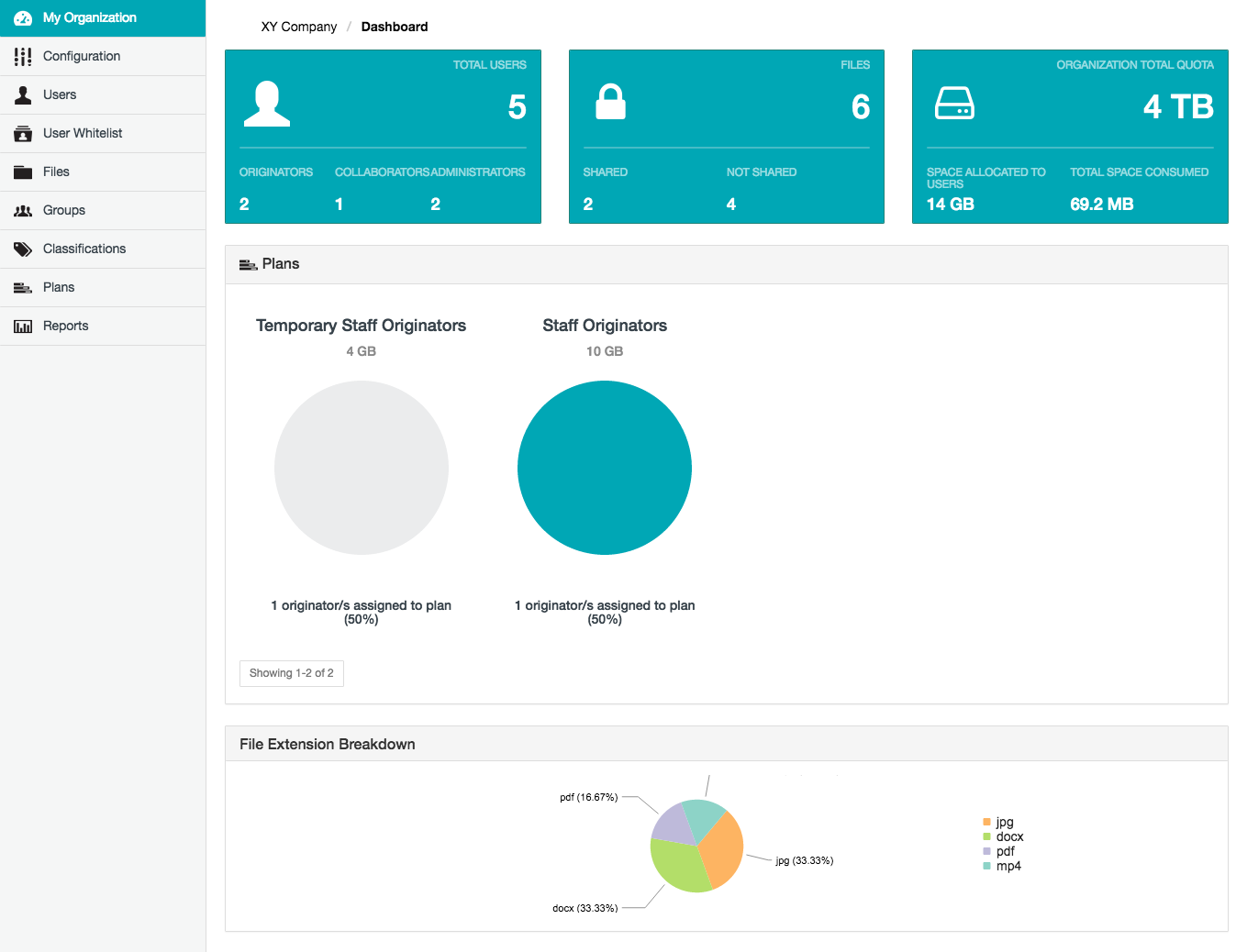
The table below describes each of these Safe Share Organization Administration pages, which can be accessed by clicking its option on the left of the interface.
| Safe Share Organization Administration page | Description |
|---|---|
| My Organization/Dashboard | Provides a single-page graphical overview of various aspects of your organization's current statuses (presented in panels) as well as a variety of system usage metrics involving user accounts, files and storage (presented in pie charts). |
| Configuration | Allows the modification of Safe Share Organization Administration properties that affect specific functional areas of your organization on the Covata Platform. |
| Users | Allows access to all Covata users who are members of your organization, from which any of these Covata users can be configured, including the ability to modify the roles of these users, which permits what the users in your organization can do with Covata technologies. |
| User Whitelist | Allows the management and configuration of the user whitelist, which defines the people (based on their email address or domain) that can be shared items by other Covata users within your organization. Any users whose email addresses do not match a user whitelist rule can no longer be shared files or folders (i.e. added as a collaborator to items) by other people. |
| Files | Allows any files encrypted using Covata technologies within your organization to be searched and filtered. From this filtered list, individual files can:
|
| Groups | Allows the creation of groups of Covata users, which in turn can be used in conjunction with classifications to restrict the people with whom files can be shared. |
| Classifications | Allows the definition of classifications that:
|
| Plans | Allows the definition of plans, each of which defines a storage quota that is used to limit the amount of storage (managed by the Covata Platform's Content Service) available to Covata user accounts. |
| Reports | Allows the generation of reports on activities (i.e. requests) within your organization made by client applications to the Covata Platform's API, which can be exported to either PDF or CSV formats. The activities for these reports can be filtered by a range of different criteria. Note: In this context, 'client applications' includes Safe Share Administration and Organization Administration (and the relevant administrators of these interfaces performing actions through them). |
The My Organization/Dashboard page is initially displayed upon a Organization administrator successfully signing in to Safe Share Organization Administration.
The following table describes each component of the My Organization/Dashboard page from left to right/top to bottom.
| Dashboard page component | Description |
|---|---|
| Total Users | This panel shows the total number of Covata users within your organization, including the numbers of these users with each of the roles that can be assigned through Safe Share Organization Administration. Clicking this panel opens the Users page. |
| Files | This panel shows the total number of encrypted files which have been created through the Covata Platform, including the number of these files which have either been shared or not been shared. Clicking this panel opens the Files page. |
| Organization Total Quota | This panel shows the total amount of storage space that a Safe Share administrator for your Covata Platform instance has granted to your organization, which the Covata Platform's Content Service utilizes to store content for all Covata users with the Originator role (i.e. users who have a plan) within your organization. Note: For more information about Safe Share Administration, refer to the Safe Share Administrator's Guide. |
| Plans | This section of the dashboard shows each plan configured in your organization. For each of these plans, the following information is indicated:
|
| File Extension Breakdown | This section of the dashboard shows a pie chart of all files in your organization, indicating the percentages of different file types (based on file name extensions). |
To sign out of Safe Share Organization Administration:
Important: After administering your organization through Safe Share Organization Administration, please ensure that you explicitly sign out using this procedure (above). If you just close the browser tab or window that contained your Safe Share Organization Administration session, then you will not be signed out, leading to the risk that your session may be compromised by someone else subsequently using your computer.