 |
Safe Share Administrator's Guide

|
|
Safe Share Administrator's Guide
|
A Safe Share administrator can add Covata users to their Covata Platform instance from an LDAP server/user directory by configuring an LDAP connection through Safe Share Administration.
The Covata Platform permits the configuration of more than one LDAP connection, thereby allowing the addition of users from multiple LDAP servers/user directories.
Notes:
- The Covata Platform only supports the configuration of LDAP connections on a Covata Platform instance with a single organization.
- LDAP connections are only recommended for on-site deployments of the Covata Platform. Covata does not support LDAP connections on cloud-deployed instances of the Covata Platform.
LDAP users have the following characteristics which are distinct from Local and External users (typically managed through Safe Share Organization Administration):
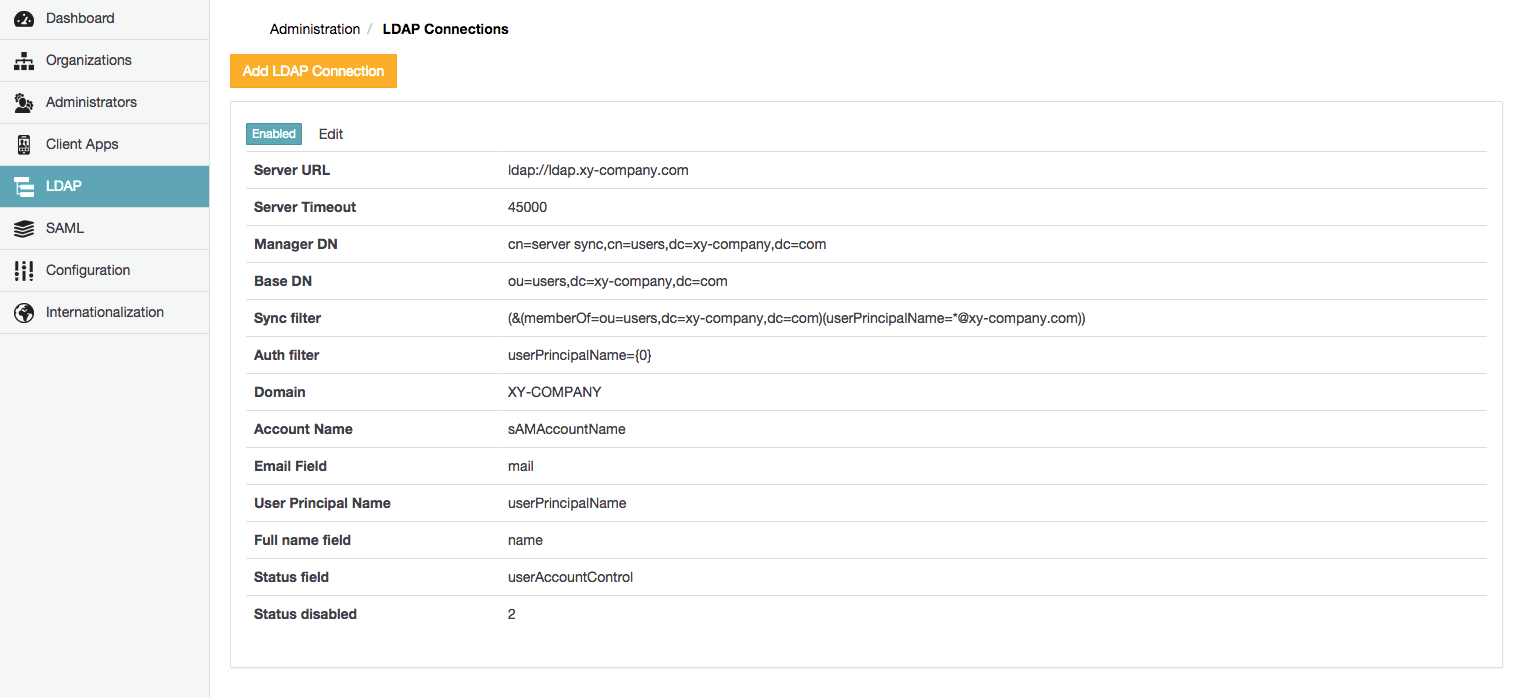
The LDAP Connections page of Safe Share Organization Administration (above) allows:
Important: Before continuing ...
- If you intend to administer more than one organization on your Covata Platform instance, then do not add an LDAP connection. If one or more LDAP connections are configured, then the ability to add more than one organization to your Covata Platform instance becomes permanently disabled.
- It is not possible to delete an LDAP connection once it has been added because:
- the authentication of Covata users (added to the Covata Platform through this LDAP connection) is handled by the LDAP server and therefore,
- this connection must remain in place to allow these LDAP users to continue being able to sign in.
- If you add an organization (resulting in two or more organizations on your Covata Platform instance), then the LDAP feature becomes disabled - i.e. the presence of more than one organization disables this feature. However, the LDAP feature can be re-enabled by removing all except one organization.
- Last, ensure that the Organization administrator of the one configured organization (on your Covata Platform instance) has added at least one plan to this organization. See Managing users' storage quotas through plans in the Safe Share Organization Administration section of this guide for more information.
To add a new connection to an LDAP server/user directory on the Covata Platform:
The following table describes all LDAP-related fields which are required by the Covata Platform for a successful connection to an LDAP server/user directory. All of these fields are mandatory.
Note: The content of the following table appears on the Add/Edit LDAP Connection dialog boxes. It is reiterated below for the convenience of LDAP server/user directory administrators who themselves are not a Safe Share administrator or Organization administrator, but need to provide the values of these fields to their Safe Share administrator/Organization administrator.
| Field | Description | Maximum Length (where applicable) |
|---|---|---|
| Server URL | The address of the server running LDAP. LDAP over TLS is also supported. Example: ldap://ldap.xy-company.com | |
| Server Timeout | The amount of time (in milliseconds) that the Covata Platform will wait when attempting to connect to or read data from the LDAP server. | |
| Manager DN | The Distinguished Name (DN) of the 'manager' user who has privileges to perform LDAP authentication and synchronization and browse the Base DN. | 512 |
| Manager password | The password for the 'manager' user who has privileges to perform LDAP authentication and synchronization and browse the Base DN. | 128 |
| Base DN | The root node in LDAP from which the Covata Platform finds users and groups. Example: ou=users,dc=xy-company,dc=com | 512 |
| Sync filter | The filter used to specify which Covata users will be synchronized based on their LDAP path and attributes. Examples:
| 512 |
| Auth filter | The LDAP field against which the Covata Platform matches the email address of a Covata user when they authenticate. Example: userPrincipalName={0} | 512 |
| Domain | The domain for the LDAP user directory. | 64 |
| Account Name | The LDAP field used to specify an additional/other name for Covata users. Note: This field is required for internal Covata Platform functionality. | 64 |
| Email Field | The LDAP field used to specify the email address for Covata users in Safe Share Administration or for an organization. Note: Each email address from this field defines a Covata user's identity and forms part of the Covata user's sign-in credentials. | 64 |
| User Principal Name | The LDAP field used to specify the external user identifier for Covata users. Note: This field is required for internal Covata Platform functionality. | 64 |
| Full name field | The LDAP field used to specify the first name for Covata users in Safe Share Administration or for an organization. Example: name | 64 |
| Status field | The LDAP field used by the Covata Platform to determine whether or not a user is disabled. Example: userAccountControl | 64 |
| Status disabled | The value of the Status field (in the LDAP directory) to indicate that a user is disabled. | 64 |
To edit an existing connection to an LDAP server/user directory on the Covata Platform:
Disabling an LDAP connection stops the Covata Platform from synchronizing with that LDAP connection's server/user directory. Once an LDAP connection has been disabled, however, the LDAP users (which had previously been added through this LDAP connection) can still sign in to the Covata Platform via delegated authentication. This is on the assumption that these user accounts have not been disabled or deactivated in their LDAP user directory.
Disabling an LDAP connection is useful if synchronization events between the Covata Platform and LDAP server impair network traffic. However, disabling an LDAP connection also prevents any updates (which have been made to LDAP accounts in their user directory) from being propagated through to the Covata Platform.
To disable, enable or re-enable an LDAP connection on the Covata Platform: