 |
Safe Share for Windows User's Guide

|
|
Safe Share for Windows User's Guide
|
Safe Share for Windows automatically starts when Windows boots up or restarts.


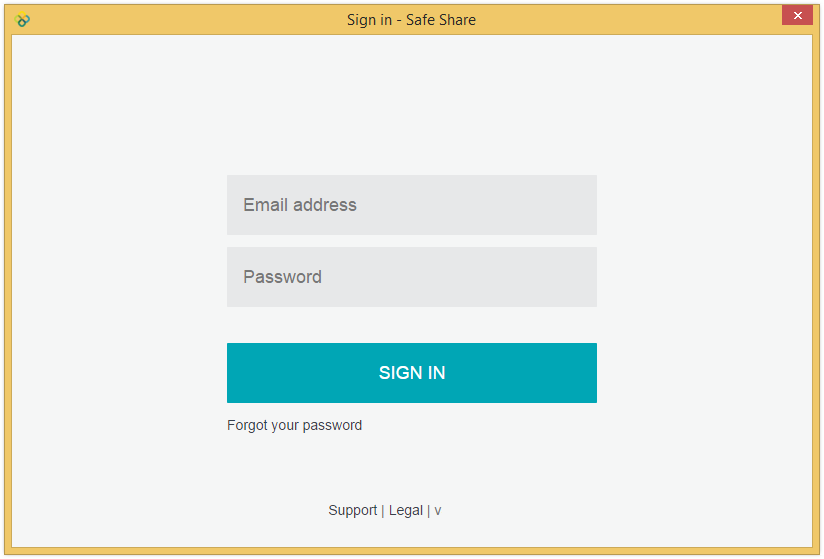
After starting, Safe Share for Windows may automatically prompt you to sign in with your Covata user account by opening the 'Sign in' dialog box, which would normally appear if you had never signed in to the application or you had signed out from a previous Safe Share for Windows session. If you had not switched users from a previous Safe Share for Windows session, then Safe Share for Windows retains your session when the application is restarted (and you will not be required to sign in).
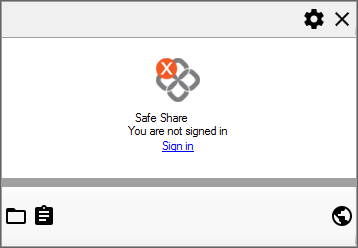
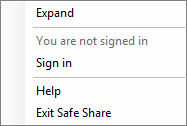
If you need to sign in but the 'Sign in' dialog box is not visible, you can always sign in manually to access this dialog box.
If you happen to exit Safe Share for Windows or the application does not start after Windows boots up/restarts, you can manually start Safe Share for Windows.
To start Safe Share for Windows manually:
The Safe Share for Windows icon in the Windows taskbar notification area indicates:
Once you are signed in, any Covata-secured files and folders associated with your Covata user account in remote storage (managed by the Covata Platform) are synchronized with your computer's file system and can be accessed locally through Windows Explorer.
To sign in to Safe Share for Windows manually:
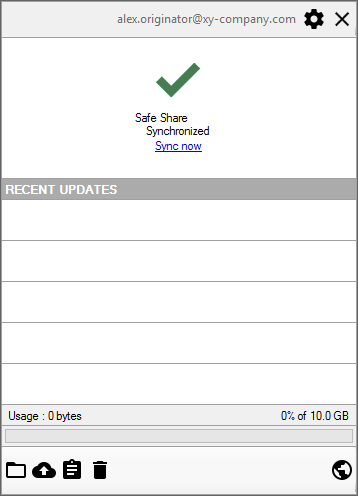
Notes:
- When signing in to Safe Share for Windows for the very first time after installing or upgrading the application, the Welcome to Safe Share for Windows web page is shown, containing a short tutorial of basic operation.
- If you signed in to Safe Share for Windows either for the first time or with a different Covata user account to the one used previously, then the following Safe Share folders are (re)created within the
Safe Sharefolder (which in turn is contained within your Windows home folder):
My Secured FilesShared With Me- If the
My Secured Filesfolder does not appear, then your account does not have the Originator role. This role can be granted to your account by the Organization administrator/s for your relevant organization/s.- Each time you sign in to Safe Share for Windows as a different Covata user (on the same computer), the
My Secured FilesandShared With Mefolders of the previous Covata user are moved to the Recycle Bin and the contents of the newly recreatedMy Secured FilesandShared With Mefolders are updated to reflect the items in remote storage of this different Covata user.- Once you are signed in, Safe Share for Windows immediately begins synchronizing any files and folders in remote storage (associated with your Covata user account and accessible through Safe Share for Web), with those in the
My Secured FilesandShared With Mefolders. Covata-secured files within these folders appear with a size of 1 KB (or less) and have the extension.covl. However, when a file's encrypted content is initially downloaded (before local decryption) or encrypted locally before uploading, then a copy of this file with the extension.covmay be present. This file represents the file's locally encrypted data. However, Safe Share for Windows automatically deletes these files once the downloading/uploading process is complete.- A shortcut to the
My Secured Filessubfolder (above) as well as a shortcut to start the Safe Share for Windows application itself (called Covata Safe Share) are automatically created on your desktop. Be aware that if you initially signed in as a Covata user without the Originator role, then theMy Secured Filesshortcut is not created.
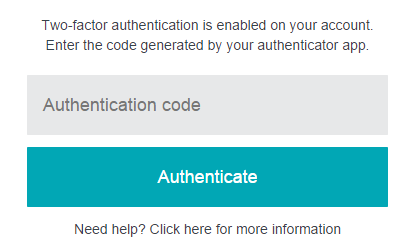
If either you or one of your Organization administrators has configured your Covata user account with two-factor authentication (2FA), then you require a mobile device (i.e. an Android-, iPhone-, iPad-, iPod Touch- or Microsoft Windows-based one) running an authenticator application (from Google or Microsoft) to be able to sign in to Safe Share for Windows.
This authenticator application (aka authenticator app) that runs on your mobile device provides the 2nd authentication factor for your account, where your password is the 1st authentication factor.
To configure your mobile device with your Covata user account for 2FA:
Safe Share for Windows provides easy access to Safe Share for Web for better integration between these two products.
To access Safe Share for Web:

Notes about using this feature:
- Safe Share for Web is a complementary product to Safe Share for Windows. For example:
- Safe Share for Web allows you to manage your Covata user account through Safe Share for Windows and access some file/folder information features of this web application which are not accessible through Windows Explorer.
- Microsoft imposes a file and path size limit of 260 characters. Hence, if you need to work with secure content in a heavily-nested folder hierarchy, Safe Share for Web can be used to provide access to this content.
- If you are not signed in before accessing this feature, then the Safe Share Sign-in page is displayed. Be aware, however, that signing in through this page and Safe Share for Windows are two independent processes (with independent sessions).
- Your Safe Share for Windows installation may have been configured (typically by a systems administrator) to open the Safe Share Web window, which is an embedded web browser that is effectively a feature-restricted version of Safe Share for Web. For example:
- The Download feature in the Safe Share Web window is not supported. This feature is only supported natively (i.e. with a compatible web browser) through Safe Share for Web.
- When using the Safe Share Web window, it is not possible to navigate back and forward through pages. You can only navigate using Safe Share for Web's own navigation features.
To switch Covata users in Safe Share for Windows:

Note: Once you are signed out of Safe Share for Windows, any files or folders in the
My Secured FilesandShared With Mesubfolders of theSafe Sharefolder on your computer will no longer be synchronized with items in remote storage managed by the Covata Platform.
You can exit Safe Share for Windows regardless of whether or not you are currently signed in to the application.
To exit Safe Share for Windows, either:
Note: To sign in to Safe Share for Windows again, restart the application and if you are not automatically signed in, sign in manually.