In the search box at the top of the main Safe Share page,
begin typing a series of characters contained in any of these item's fields:
Name
Owner's email address
Owner's first or last name
Click the search (i.e. magnifying glass) icon to the right of the search box (or type the 'Enter/Return' key) and the list of items is filtered to those whose name, owner's email address or owner's first/last name contains the subset of characters entered in the search box.
Tip: You can also sort items on the main Safe Share page by clicking the name (in the column header) of the relevant field by which you would like to sort your items. Clicking a field name multiple times toggles between sorting the items (according to that field) in ascending and descending order.
Sharing to filter for all items that you have shared with other people.
Note: If your user account does not have the Originator role, then you do not have your own storage space to upload, securely store and share personally owned content using Safe Share. Therefore, only the All Files filter is shown.
Organizing content with folders
To help organize your files in storage (managed by the Covata Platform), you can create folders, which also facilitates the ability to share multiple items of your securely stored content with a group of people.
To create a new folder:
Sign in to the Safe Share web application. Note: If you intend to create a subfolder, then from the main Safe Share page, click through to the folder that will become the parent of the subfolder you wish to create. This parent folder could be a folder that you own, or a folder owned by another Covata user (who has granted you the Manage permissions as a collaborator on this folder). Once you have clicked through one or more folders, a breadcrumb (e.g.
) appears near the top, from which you can click the:
Link of a parent folder's name (e.g. Shared Folder in the example above) to go to that folder's location.
Home link to go to the root location of your file area.
Click the top-left
(Create new folder) button.
Specify the name of the folder and click Save to create the folder. The folder is created in the current list of items area.
To add content to a folder:
Ensure you are signed in to the Safe Share web application and if necessary, click through to the folder to add content to.
Do either of the following:
If the folder is visible in the list of items area, drag one or more file(s) over the folder to upload the file(s) to it in storage. The folder highlights a different color to indicate that the file(s) will instead be uploaded to that folder instead of the file area's current location.
If the list of items area displays the contents of the current folder, then drag the file(s) onto this area. A message appears at the top, indicating that the file(s) is/are ready to upload.
If a folder was created by someone else who has not granted you (as a collaborator on this folder) either the Upload or Manage permissions (via the 'Share' dialog box - see Sharing secure content for more information), then you will not be able to upload any files to that folder.
You can filter your list of files and folders in the list of items area to show only items that you have created or uploaded and securely stored by clicking the My Filesfilter on the left of the main Safe Share page.
Unsharing secure content
'Unsharing' an item that you own effectively removes all or specific collaborators from the item and its contents, so that only you as the owner of this item can control who can access it.
Do one of the following to begin renaming this item:
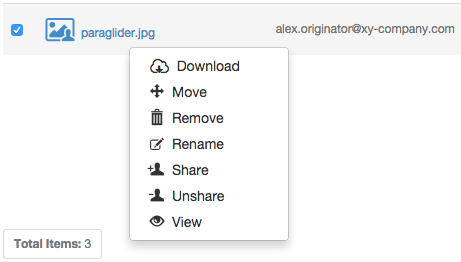
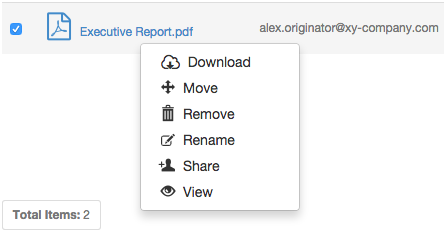
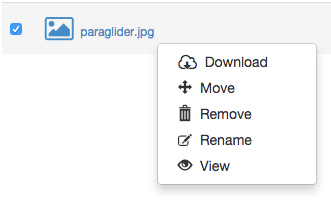
Right-click on the item's row and choose Rename from the pop-up menu:
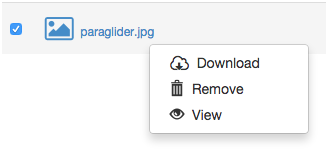
Note: If the Rename menu option is missing, then it is not possible to rename this item as its owner did not grant you Manage permissions when they shared the item (or one of its ancestral folders) with you. OR
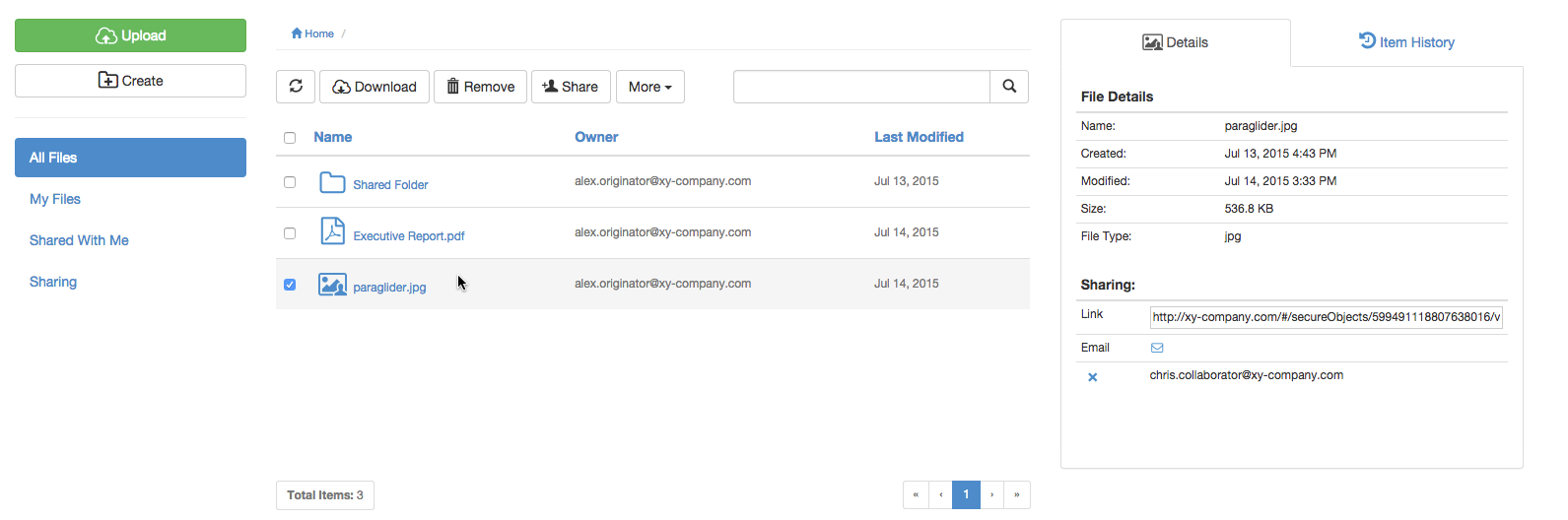
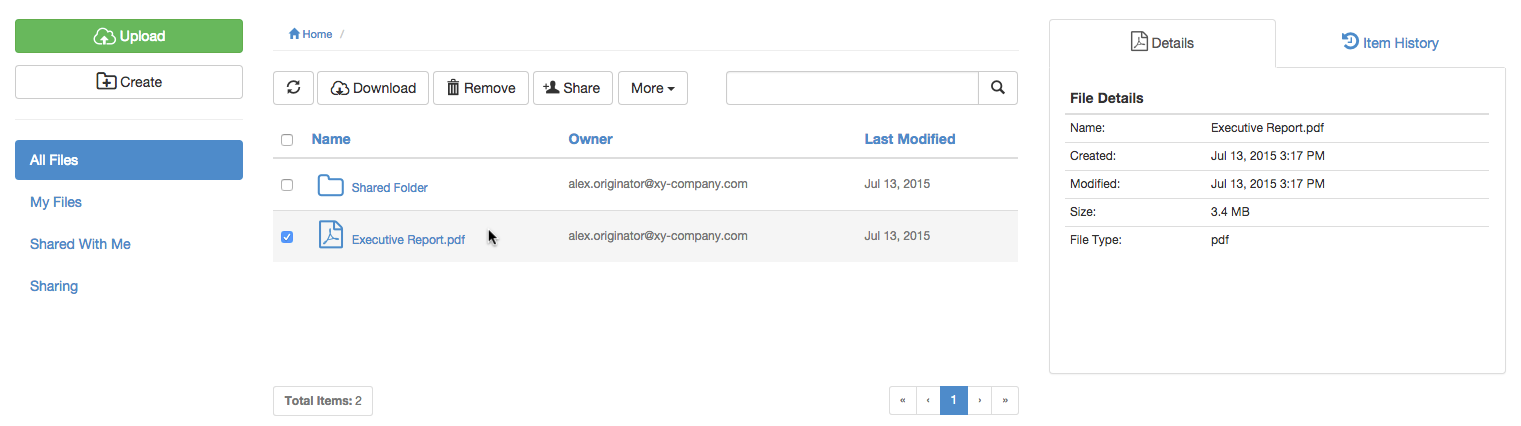
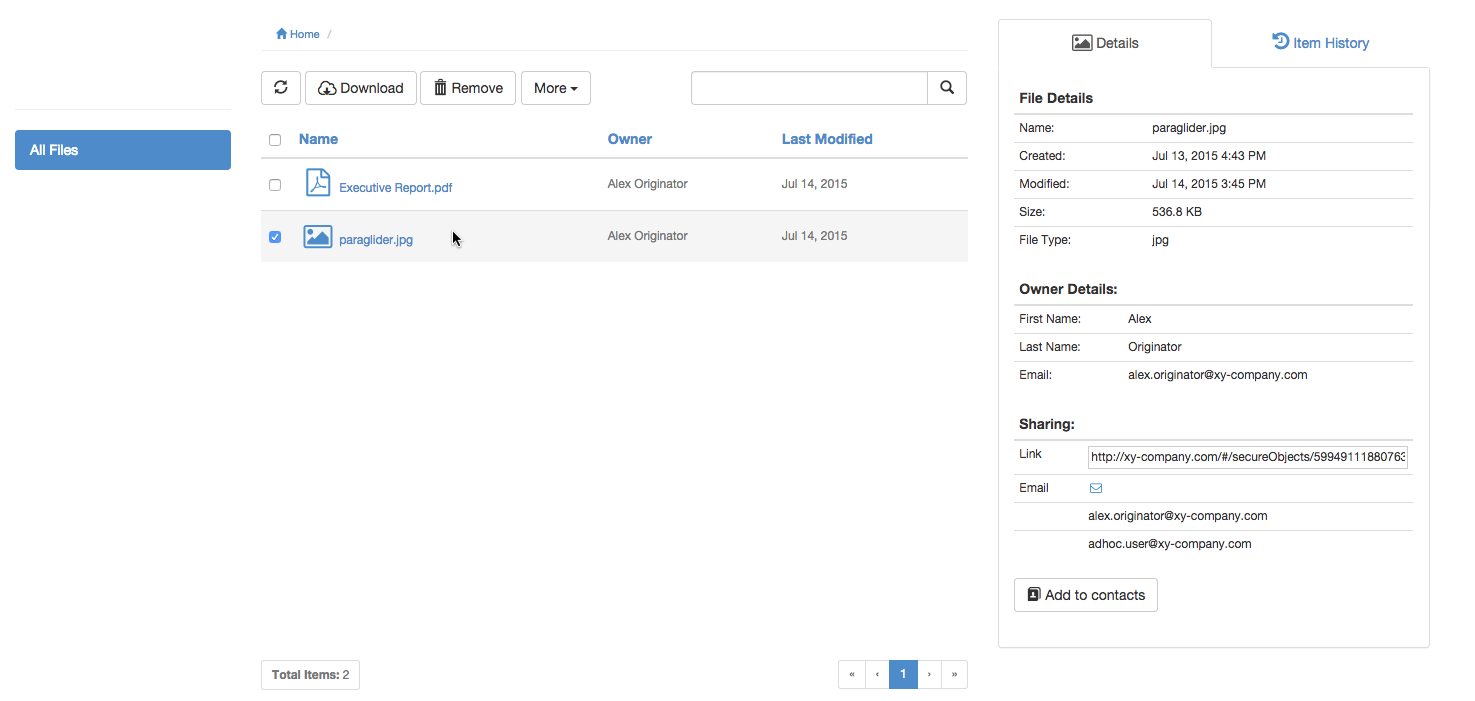
Highlight the item, by clicking on the item's row (to the right of its name):
In the toolbar above the list of items, click the More button and from the drop-down menu, choose Rename. Note that this option will not be available if the owner did not grant Manage permissions when they shared the item (or one of its ancestral folders) with you.
In the Rename File/Folder dialog box, specify a new name for the item. Note: If the item is a file, it is not possible to change the file's extension. It is only possible to alter a file name extension with the Safe Share web application before the file is uploaded to the application. Safe Share for Windows may also be used to alter file extensions.
Click Save to complete renaming the item.
Removing personally owned content
Removing personally owned secure content which you or a collaborator had previously uploaded (using any Safe Share application), both:
Removes this content from storage managed by the Covata Platform and also
Prevents other people you have shared this content with from being able to access it.
Locate the personally owned file (which you or a collaborator had previously uploaded) or folder to be removed.
Do one of the following to begin removing this item:
Right-click on the item's row and choose Remove from the pop-up menu:
OR
Highlight the item, by clicking on the item's row (to the right of its name):
In the toolbar above the list of items, click the Remove button.
The Safe Share web application prompts you to confirm this removal and upon clicking Yes, your item and its content is removed from storage. Any people you shared this item's content with will no longer be able to access the item.
Removing content shared through another user's folder
Removing secure content that you have Manage permissions on, which either you or someone else had previously uploaded to another user's folder or created (through any Safe Share application), both:
Removes this content from storage managed by the Covata Platform and also
Prevents other people who were collaborators on this content from being able to access it.
To remove secure content which you or someone else had uploaded to another user's folder through Safe Share:
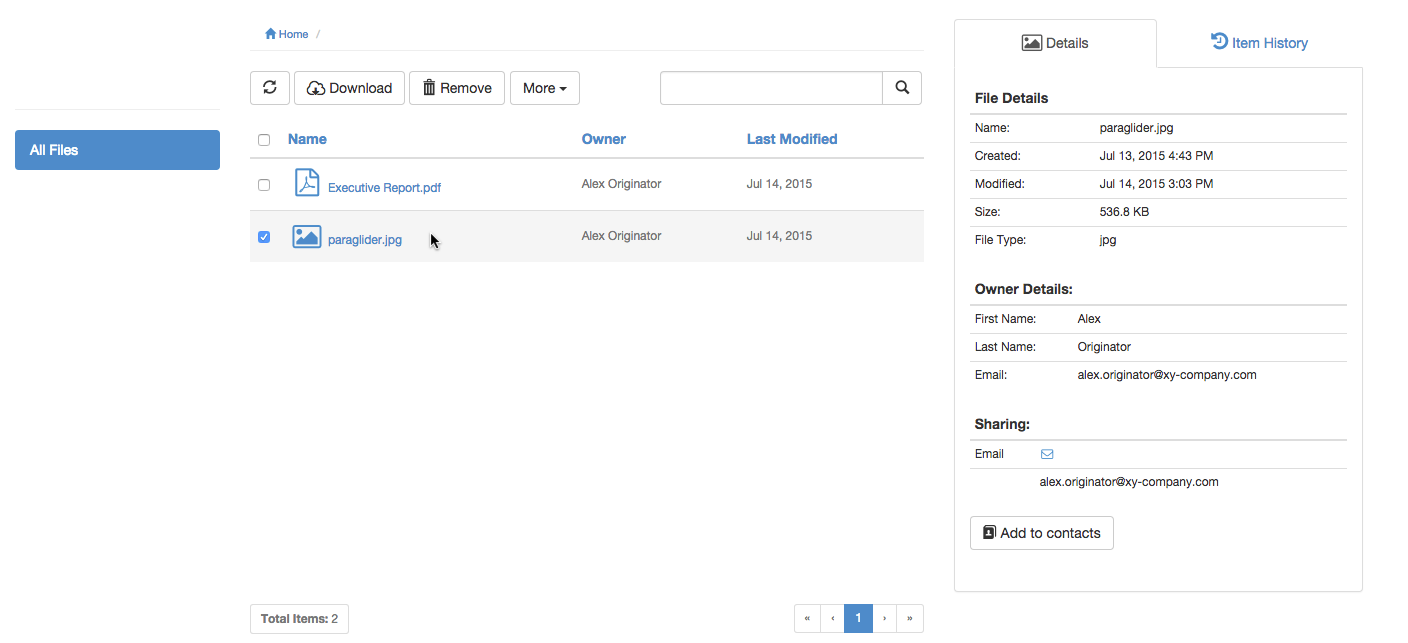
Highlight the item, by clicking on the item's row (to the right of its name):
In the toolbar above the list of items, click the Remove button. Note that if the Move or Rename options are missing from the More menu (as well as Link under the Sharing section on the Details tab), then the owner of this item did not grant you Manage permissions when they shared the item (or one of its ancestral folders) with you. Therefore, clicking Remove will instead remove your access to this content.
The Safe Share web application prompts you to confirm this removal and upon clicking Yes, the item and its content is removed from storage. Any people who had access to this item's content will no longer have access to it.
Removing your access to secure content (shared with you)
Removing your access to secure content which someone else has shared with you (through any Safe Share application):
Removes this content from your list of items only.
Is similar to the owner of this content removing you as a collaborator from it (see Unsharing secure content above for more information).
Note: The owner of this content (and anyone else they have shared it with) can still access this content from storage managed by the Covata Platform.
To remove your access to secure content which someone else has shared with you through Safe Share:
Do one of the following to begin removing this item:
Right-click on the item's row and choose Remove from the pop-up menu:
OR
Highlight the item, by clicking on the item's row (to the right of its name):
In the toolbar above the list of items, click the Remove button.
The Safe Share web application prompts you to confirm this removal and upon clicking Yes, your access to this item is removed and the item is removed from your list of items area.