Access the Safe Share Sign-in page by doing either of the following:
Open a compatible web browser and specify the base URL of your Safe Share web application instance (which is also the Covata Platform URL) into your browser's URL field - e.g: https://safe-share.xy-company.com Tip: You may wish to bookmark this URL. Note: If your Covata Platform administrator has configured the Safe Share web application with single sign-on, such that authentication is handled through a separate Identity Provider (IdP), refer to the Signing in using single sign-on procedure below instead.
Open one of your Covata Notification email messages (containing one the following subject lines) and click the Access file / Access folder / Click here link in the message's body to open the Sign-in page:
'A file/folder has been shared with you'
'Covata account created'
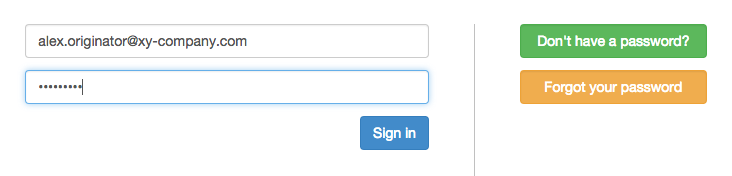
On the Safe Share Sign-in page, enter your Email address and Your password into the relevant fields:
Notes:
If you do not yet have a password, leave the Your password field blank and click the Don't have a password button to obtain a one-time access link/password. Follow the instructions in your email notification to complete the sign-in process. Be aware that this password is time-limited and can only be used once.
If you have forgotten your password, then again, leave the Your password field blank but click the Forgot your password button and follow the instructions in your email notification to reset your password.
Click the Sign in button (or type 'Enter'/'Return').
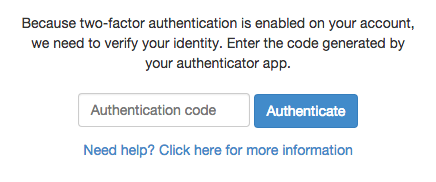
If you see the following page which requests you to enter your Authentication code, then your Covata Platform administrator has configured your Covata user account with two-factor authentication (2FA).
If you have not yet configured a mobile device with your Covata user account for 2FA, then refer to the Configuring a mobile device for 2FA procedure below before continuing on.
Open the authenticator app on your mobile device.
In the Authentication code field, enter the code from the authenticator app that relates to your Covata user account.
Click the Authenticate button to complete the authentication process.
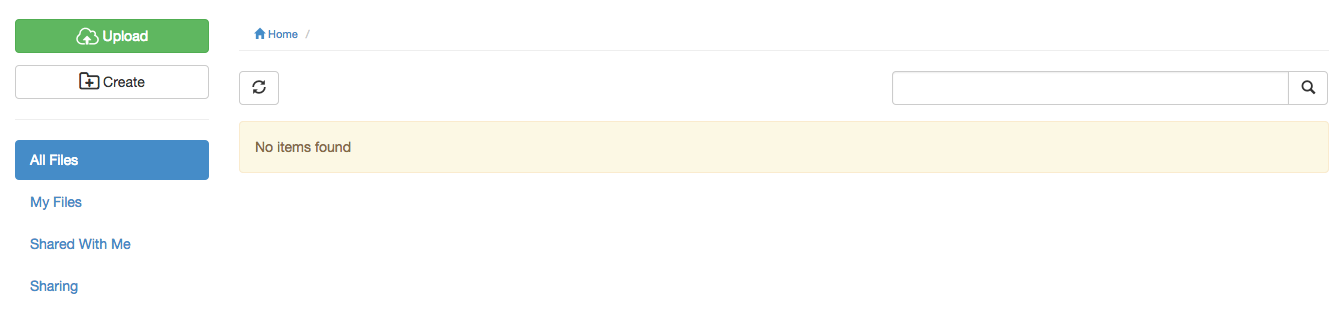
The main Safe Share page is displayed: Notes: If you accessed the Safe Share Sign-in page from a:
'file has been shared with you' email notification, you are taken directly to the file's content viewer instead of the main Safe Share page (above).
'Covata account created' email notification, you may be required to reset your password first before the main Safe Share page is displayed.
Tips and notes:
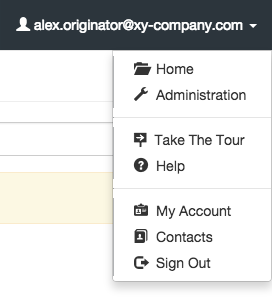
If you navigate to another page within the Safe Share web application, you can easily navigate back to the root location of the main Safe Share page by clicking your email address at the top-right and choosing Home from the drop-down menu:
See Organizing content with folders for more information about creating folders. Note: The Administration option is only present if your Covata Platform administrator has granted your user account either the System administrator or User administrator roles. For more information about Covata Platform user roles, please refer to the Covata Platform Administrator's Guide.
If changes have been made by another Covata user to any items you can access from the main Safe Share page (e.g. because this other Covata user shared content with you), then a number appears on the refresh button near the top-left of the page
. This number indicates how many of your accessible items have changed and accounts for all of your accessible items located in the root location, your current folder, as well as all other subfolders you can access from the main Safe Share page. Click this button to refresh all your accessible items in all of these locations and folders.
Configuring a mobile device for 2FA
If your Covata Platform administrator has configured your Covata user account with two-factor authentication (2FA), then you require a mobile device (i.e. Android-based, iPhone, iPad, iPod Touch or Microsoft Windows-based) running an authenticator application (from Google or Microsoft) to be able to sign in to the Safe Share web application.
This authenticator application (aka authenticator app) that runs on your mobile device provides the 2nd authentication factor for your account, where your password is the 1st authentication factor.
To configure your mobile device with your Covata user account for two-factor authentication:
Open your Covata Notification email message containing the subject line 'Two-factor authentication has been enabled for your account'.
Follow the instructions in this email message - i.e. click the link to open the two-factor authentication configuration pages.
Follow the remaining instructions on these pages to complete the process for configuring your mobile device and then continue with entering your authentication code to sign in to the Safe Share web application.
Signing in using single sign-on
If your Covata Platform administrator has configured the Safe Share web application with single sign-on, such that authentication is handled through a separate Identity Provider (IdP), you can begin the process of signing in to Safe Share by doing the following:
Specify the base URL of your Safe Share web application instance (appended by /sso) into your browser's URL field - e.g: https://safe-share.xy-company.com/sso
Click the Single Sign-on button.
Sign/log in through your IdP service's page by entering your credentials into this page. You should then be directed back to the Safe Share web application (in a signed in state), with the main Safe Share page being displayed:
See the Tips and notes above for more information about navigating the Safe Share web application.
Signing out
To sign out of the Safe Share web application:
Click your email address at the top-right of the page and choose Sign Out from the drop-down menu:
Notes:
If you do not yet have a password, you will only see the Set Password and Sign Out options in the drop-down menu (above). You can upgrade to a full account (to gain access to more of the features above) by choosing Set Password and following the instructions provided.
Be aware that if you signed in to the Safe Share web application using single sign-on, then accessing the Safe Share web application's single sign-on URL - e.g: https://safe-share.xy-company.com/sso
in your browser and clicking the Single Sign-on button will automatically sign you back in to the Safe Share web application (without you needing to enter your credentials into the IdP service's page). This is intentional behavior because your IdP service handles the signing/logging out process. If you are uncertain about how to sign out from your IdP service, consult your Covata Platform administrator or the system administrator who administers your IdP service for more information about this process.