Finding secure content
The Safe Share web application provides the following mechanisms for locating files and folders within your organization:
While these features work with items in your current organization only, they become useful as increasingly more items are added (either by yourself or shared with you by other people) within your organization/s.
To search for (a) specific item/s:
- Ensure you are signed in to the Safe Share web application.
- If the Home icon at the top-left indicates the word 'Home' and no drop-down icon is indicated, skip to the next step. (This indicates that you are a member of only one organization.)
Otherwise, the name of your current organization is indicated, from which you can either:
- skip to the next step to search an item from this organization, or
- search an item from a different organization (you are a member of) by changing your organization before continuing on.
- In the search box at the top of the main Safe Share page,
begin typing a series of characters contained in any of these item's fields:
-
Name
-
Owner's email address
-
Owner's first or last name
- Type the 'Enter/Return' key or click the search (i.e. magnifying glass) icon to the right of the search box and the list of items in your organization is filtered to those whose name, owner's email address or owner's first/last name contains the subset of characters entered in the search box.
Tips:
- To clear your search results, click the Clear search link at the top of the main Safe Share page.
- You can also sort items on the main Safe Share page by clicking the name (in the column header) of the relevant field by which you would like to sort your items (with the exception of Location). Clicking a field name multiple times rotates through sorting the items (according to that field) in ascending, descending, followed by natural order (which is descending order by the item's Name field).
To filter items:
- Ensure you are signed in to the Safe Share web application.
- If the Home icon at the top-left indicates the word 'Home' and no drop-down icon is indicated, skip to the next step. (This indicates that you are a member of only one organization.)
Otherwise, the name of your current organization is indicated, from which you can either:
- skip to the next step to filter items from this organization, or
- filter items from a different organization (you are a member of) by changing your organization before continuing on.
- At the top-left of the main Safe Share page, click the All files drop-down and choose:
-
My files to filter for all items (at/from the root level of your items area) that you own within your organization,
-
Shared with me to filter for all items that other people have shared with you as a collaborator or
-
Sharing to filter for all items within your organization that you have shared with other people.
Choose the default All files option to show all items within your organization you can access from the root level.
Notes:
- If your user account does not have the Originator role for your (current) organization, then the All files (and other filters) drop-down will not be available because you do not have your own storage space to upload, securely store and share personally owned content within this organization.
- If you upload and store files while the main Safe Share page displays the results of a search or filter (above), then your files are uploaded to the root level.
Organizing content with folders
To help organize files within your organization in storage (managed by the Covata Platform), you can create folders, which also facilitates the ability to share multiple items of your securely stored content with a group of people.
To create a new folder:
- Ensure you are signed in to the Safe Share web application.
- If the Home icon at the top-left indicates the word 'Home' and no drop-down icon is indicated, skip to the next step. (This indicates that you are a member of only one organization.)
Otherwise, the name of your current organization is indicated, from which you can either:
- skip to the next step to create a folder within this organization, or
- create a folder within a different organization (you are a member of) by changing your organization before continuing on.
- If you intend to create a subfolder within a folder (at the root level of your items area), then from the main Safe Share page, click through to the folder that will become the parent of the subfolder you wish to create.
This parent folder could be a folder that you own, or a folder on which you are a collaborator with the Upload, Modify or Manage permissions. Once you have clicked through one or more folders, a breadcrumb (e.g.
) appears near the top, from which you can click the:
- Ellipsis symbol ('...') to expand the entire folder hierarchy (i.e. to reveal Shared Folder in the example above), since only the root level and current folder locations (i.e. Other above) are indicated after each change in folder location.
- Link of a parent folder's name (i.e. Shared Folder from Other above) to go to that folder's location.
- The Home icon or its adjacent Home link (or the linked name of your current organization) to go to the root level/location of your items area.
- Click the top-left Folder button.
Note: If this button is not available, then either:
- your Covata user account does not have the Originator role for your organization, or
- you are currently within another user's folder that you do not have the Upload, Modify or Manage permissions on (which in turn grants you the individual create new subfolders permission).
- In the Create new folder dialog box, specify the name of the folder.
- ( Optional ) At this point, you can begin sharing this new folder with one or more collaborators by clicking the Add collaborators link. Doing so provides access to the Collaborators section of the Share dialog box, which can be used directly on the Create new folder dialog box (i.e. without you having to invoke the 'Share' dialog box in a separate action). Follow steps 5 through 8 of the Sharing secure content procedure to modify collaborators and their permissions on this Create new folder dialog box.
Notes:
- If the Add collaborators link is not available, then the folder you are creating will not be granted Manage permissions (inherited implicitly from the parent folder), which in turn grants you the individual share permission on this new folder.
- The Current Collaborators list which appears on the 'Share' dialog box does not appear on the Create new folder dialog box. Due to implicit inheritance of collaborators and their permissions throughout a folder hierarchy, any existing collaborators on the parent folder will be able to access the new folder once it is created. Therefore, to identify these collaborators and their permissions, go up one folder level and select the parent folder in the items area to identify the existing collaborators in the Sharing and Permissions section of the Details tab on the right.
- Click Save to create the folder. The folder is created in the current items area within your organization (and is shared immediately with any people you specified in the previous optional step).
To add content to a folder:
- Ensure you are signed in to the Safe Share web application, are in the appropriate organization and if necessary, click through to the folder to add content to. (This must be a folder that you own, or one which you are a collaborator on with Upload, Modify or Manage permissions.)
- Do either of the following:
-
If the items area displays the contents of the folder to add content to, drag one or more file/s onto the items area. A graphic with the accompanying 'Drag and drop files here to upload' message appears over this area (if not already shown), indicating that the file/s is/are ready to be added and uploaded to storage.
-
If the folder is visible in the items area, drag one or more file/s over the folder (to which the files will be added). The folder highlights a different color to indicate that the file/s will be added to that folder instead (and uploaded to storage) rather than being added to the item area's current location.
Due to implicit inheritance of collaborators and their permissions on items throughout a folder hierarchy, you can also use these drag and drop methods to add files to any subfolders you are a collaborator on with the Upload, Modify or Manage permissions. For more information about uploading content to your items area, see step 3 of Uploading and storing personally owned content, as well as Uploading content to share through another user's folder.
Tips:
- If you are a collaborator on someone else's folder and have only been granted the View or Download permissions on this folder, then you will not be able to upload any files to that folder. See Sharing secure content and Uploading content to share through another user's folder for more information.
- You can filter your list of files and folders in the items area to show only your items that you have uploaded and securely stored by choosing the My files filter (from the All files drop-down) at the top-left of the main Safe Share page.
Unsharing secure content
'Unsharing' an item that you own or are a collaborator on (with Manage permissions) effectively removes all or specific collaborators from the item and its contents.
Using Safe Share's Unshare feature on a folder removes all collaborators from not only this folder, but also all collaborators from every item contained within this folder (which had been set explicitly on these items). For more information about explicit versus implicit sharing, refer to the Note at the end of step 6 on selecting permissions for a collaborator (of the Sharing secure content procedure).
To unshare your securely stored content:
- Ensure you are signed in to the Safe Share web application.
- If the Home icon at the top-left indicates the word 'Home' and no drop-down icon is indicated, skip to the next step. (This indicates that you are a member of only one organization.)
Otherwise, the name of your current organization is indicated, from which you can either:
- skip to the next step to unshare an item from this organization, or
- unshare an item from a different organization (you are a member of) by changing your organization before continuing on.
- To unshare:
- Personally owned content, locate the file or folder (that you own) in your current organization to unshare.
Tip: To ensure you are only working with your own items in the items area, click the All files drop-down at the top-left of the main Safe Share page and choose the My files filter.
- Content owned by another Covata user, locate this other user's file or folder in your current organization to unshare.
Tip: To ensure you are only working with items that other users have shared with you as a collaborator, click the All files drop-down at the top-left of the main Safe Share page and choose the Shared with me filter.
- Do one of the following to begin unsharing this item:
- To remove all collaborators from the file or folder (including every item contained within this folder), either:
-
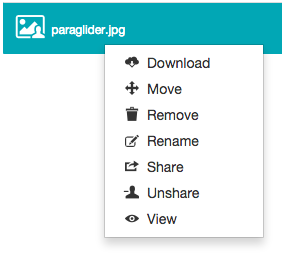
Right-click on the item's row and choose Unshare from the pop-up menu:
OR
-
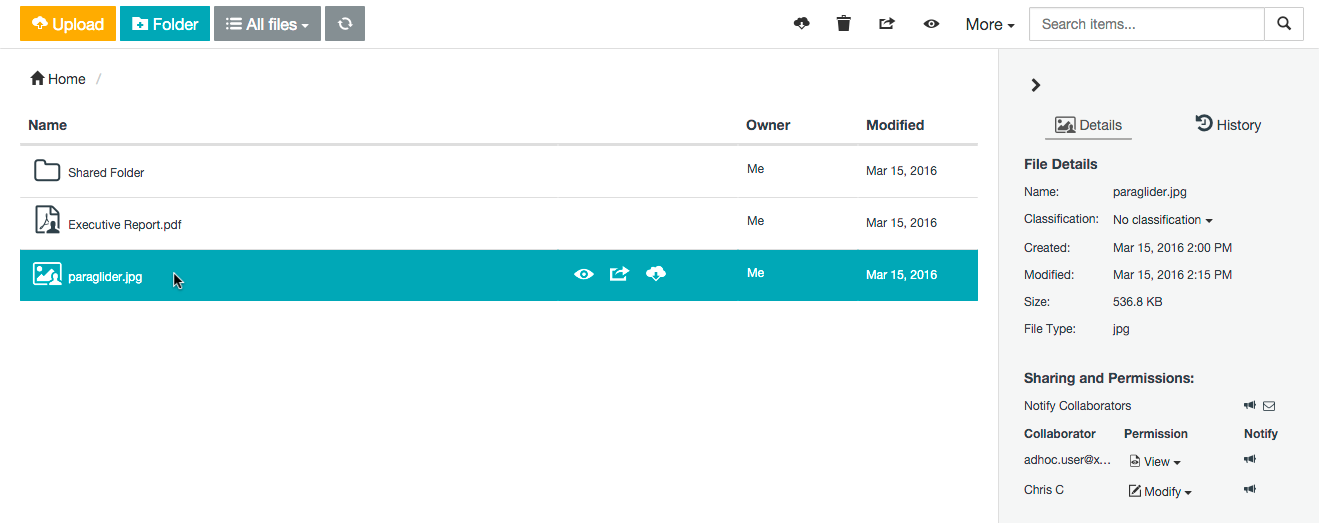
Select the item, by clicking on the item's row (to the right of its name if a folder):
-
In the toolbar area near the top of the page, click the More drop-down and choose Unshare.
- To remove specific collaborators from this item, either:
-
Select the item.
-
In the Sharing and Permissions section of the Details tab on the right, locate the appropriate collaborators' names / email addresses and from their respective Permission drop-downs, choose Remove user.
OR
-
Right-click on the item's row and choose Share from the pop-up menu.
-
On the Share dialog box, click the Remove link associated with the collaborator/s to remove from this item.
-
Click Update to record your modifications on this dialog box.
If the item was a folder, only the specific collaborators who were removed are removed from this folder. Any collaborators set explicitly on any other items contained within this folder remain unaltered.
Note: If you unshare content owned by another user and you remove all collaborators (via the Unshare menu options) or your own Covata user account from the Share dialog box (whose net result is equivalent to removing your access to content shared with you), then you will lose the ability to subsequently access the Share dialog box for this content. To regain this access, ask the owner of the content (or another collaborator on it with Manage permissions) to share this content with you again (with Manage permissions).
Renaming an item
An item can be renamed if:
- you own the item or
- a Covata user has shared the item with you (as a collaborator) with either Modify or Manage permissions on the item (which grants you the individual rename permission on the item).
To rename an item:
- Ensure you are signed in to the Safe Share web application.
- If the Home icon at the top-left indicates the word 'Home' and no drop-down icon is indicated, skip to the next step. (This indicates that you are a member of only one organization.)
Otherwise, the name of your current organization is indicated, from which you can either:
- skip to the next step to rename an item from this organization, or
- rename an item from a different organization (you are a member of) by changing your organization before continuing on.
- Locate the item to rename.
- Do one of the following to begin renaming this item:
-
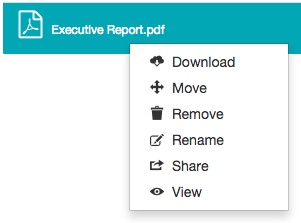
Right-click on the item's row and choose Rename from the pop-up menu:
Note: If this menu option is not available, then it is not possible to rename this item since you were not granted either Modify or Manage permissions when the file (or one of its ancestral folders) was shared with you.
OR
-
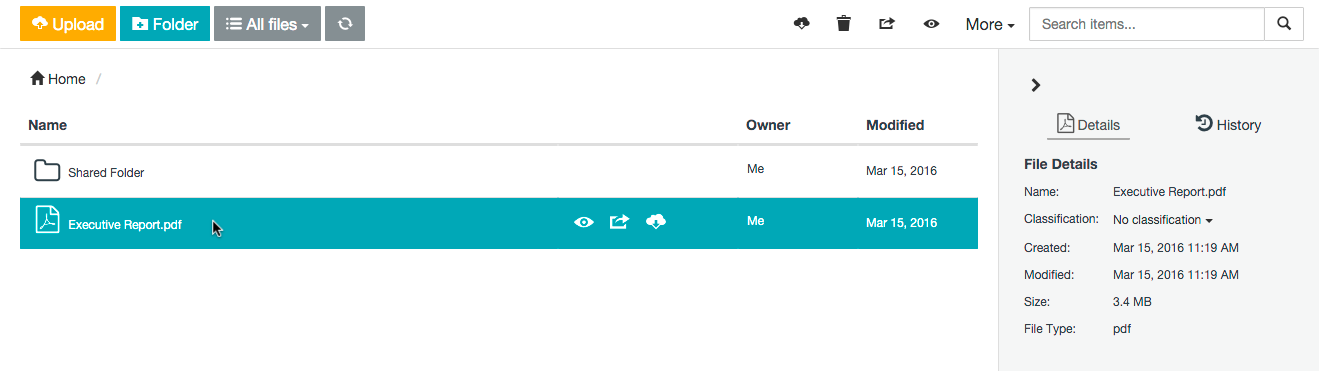
Select the item, by clicking on the item's row (to the right of its name if a folder):
-
In the toolbar area near the top of the page, click the More drop-down and choose Rename. Note that this option will not be available if you are a collaborator on the item (see Sharing secure content) and you were not been granted either Modify or Manage permissions on the item.
- In the Rename File/Folder dialog box, specify a new name for the item.
Note: If the item is a file, it is not possible to change the file's extension. It is only possible to alter a file name extension with the Safe Share web application before the file is uploaded to the application. Note that Safe Share for Windows may be used to alter file extensions after files have been uploaded.
- Click Save to complete renaming the item.
Moving an item
Files and folders (i.e. items) can be moved from one location to another, all of which are accessible from the items area of the main Safe Share page (within your organization).
As a Covata user, you can move:
- An item that you own to:
- another folder you own (or the root location of the items area) or
- a folder shared with you by another Covata user, who granted you either Modify or Manage permissions on this folder.
(These permissions, along with the implicit inheritance of collaborators and their permissions on items throughout a folder hierarchy would grant you the individual move permission on all items within this folder.)
- An item contained within a folder shared with you by another user (who granted you either Modify or Manage permissions on this folder) to any subfolder of this folder. You require either Modify or Manage permissions on the item being moved and the target folder to which you are moving the item - i.e. your permissions must not have been reduced on either the item being moved and the target folder.
Note: Although a Covata user may have granted you either Modify or Manage permissions on two separate folder hierarchies, it is not possible to move an item from one of these folder hierarchies to the other.
Removing personally owned content
Removing personally owned secure content which you or a collaborator had previously uploaded (using any Safe Share application), both:
- Removes this content from storage managed by the Covata Platform and also
- Prevents other people you have shared this content with from being able to access it.
To remove personally owned secure content:
- Ensure you are signed in to the Safe Share web application.
- If the Home icon at the top-left indicates the word 'Home' and no drop-down icon is indicated, skip to the next step. (This indicates that you are a member of only one organization.)
Otherwise, the name of your current organization is indicated, from which you can either:
- skip to the next step to remove an item from this organization, or
- remove an item from a different organization (you are a member of) by changing your organization before continuing on.
- Locate the personally owned file or folder (which you or a collaborator had previously uploaded/created).
Tip: To ensure you are only working with your own items in the items area, click the All files drop-down at the top-left of the main Safe Share page and choose the My files filter.
- Do one of the following to begin removing this item:
-
Right-click on the item's row and choose Remove from the pop-up menu:
OR
-
Select the item, by clicking on the item's row (to the right of its name if a folder):
-
In the toolbar area near the top of the page, click the 'Remove' icon
.
The Safe Share web application prompts you to confirm this removal and upon clicking Yes, your item and its content is removed from storage. Any people you shared this item's content with will no longer be able to access the item.
Removing content shared through another user's folder
You can remove a folder and/or (parts of) its secured content which has been shared with you by another Covata user who granted you either Modify or Manage permissions on this folder. The secured content within such a folder could be content that the owner uploaded, or content that you or someone else had previously uploaded to another user's folder and/or created through folders (using any Safe Share application).
Being granted the Modify or Manage permissions on a folder, along with the implicit inheritance of collaborators and their permissions on items throughout a folder hierarchy, grants you the individual remove permission on the items within this folder.
Removing such content removes it from storage managed by the Covata Platform and therefore prevents the owner, as well as other people who were collaborators on this content from being able to access it.
To remove secure content shared through another user's folder:
- Ensure you are signed in to the Safe Share web application.
- If the Home icon at the top-left indicates the word 'Home' and no drop-down icon is indicated, skip to the next step. (This indicates that you are a member of only one organization.)
Otherwise, the name of your current organization is indicated, from which you can either:
- skip to the next step to remove an item from this organization, or
- remove an item from a different organization (you are a member of) by changing your organization before continuing on.
- Locate the file (which you or someone else had previously uploaded to another user's folder) or subfolder (created within another user's folder) to be removed.
Tip: To ensure you are only working with items that other Covata users have shared with you, click the All files drop-down at the top-left of the main Safe Share page and choose the Shared with me filter to show only items (i.e. including folders) that other users have shared with you.
- Do one of the following to begin removing this item:
-
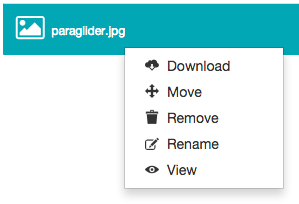
Right-click on the item's row and choose Remove from the pop-up menu:
Note: If the Move and Rename menu options are absent (and Access within the File/Folder Details section of the Details tab does not indicate Modify or Manage permissions), then you were not granted either of these permissions when the item (or one of its ancestral folders) was shared with you. Therefore, clicking Remove in this situation will instead remove your access to this content.
OR
-
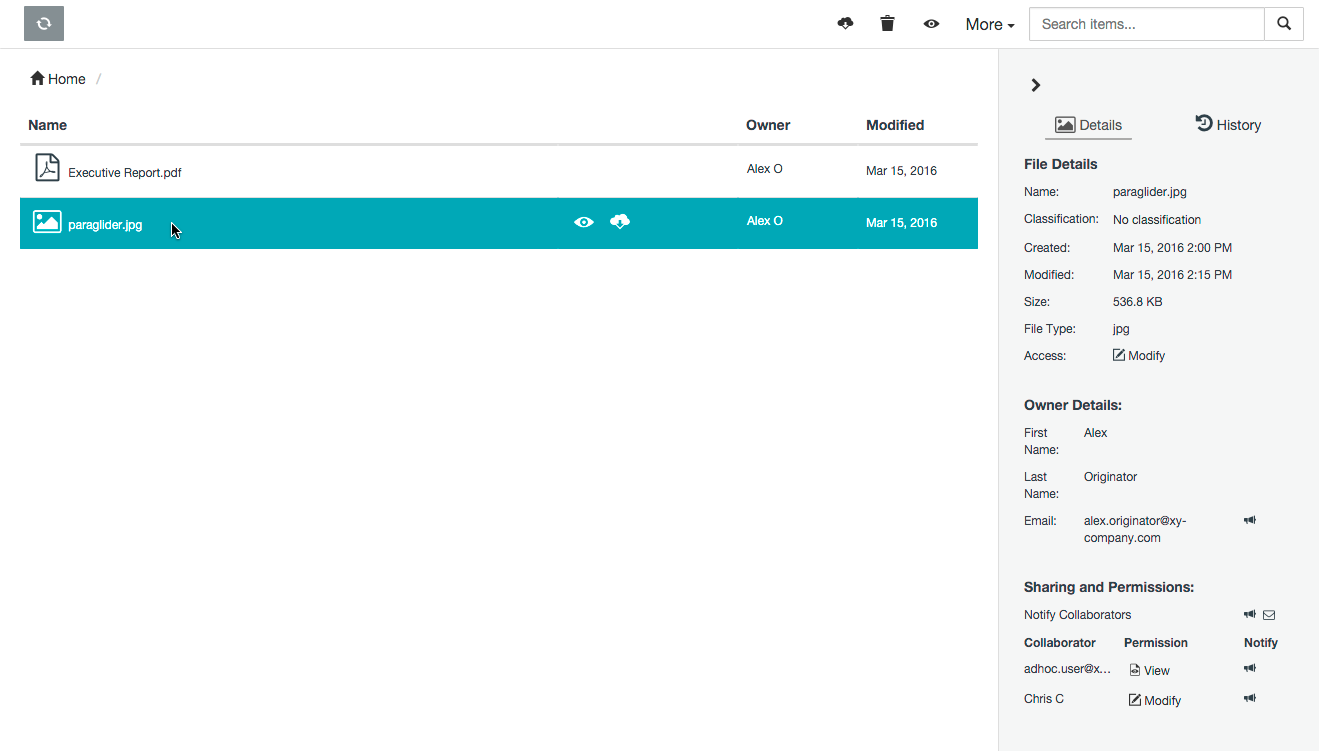
Select the item, by clicking on the item's row (to the right of its name if a folder):
-
In the toolbar above the items area, click the Remove button. Note that if the More menu's Move and Rename options are absent (and Access on the Details tab does not indicate Modify or Manage permissions), then you were not granted either of these permissions when the item (or one of its ancestral folders) was shared with you. Therefore, clicking Remove in this situation will instead remove your access to this content.
The Safe Share web application prompts you to confirm this removal and upon clicking Yes, the item and its content is removed from storage. Any people who had access to this item's content will no longer have access to it.
Removing your access to content (shared with you)
You can remove your access to a folder and/or (parts of) its secured content which has been shared with you by another Covata user who granted you View, Download or Upload permissions on this folder. The secured content within such a folder could be content that the owner uploaded, or content that you or someone else had previously uploaded to another user's folder and/or created through folders (using any Safe Share application).
Unlike the Modify or Manage permissions, being granted the View, Download or Upload permissions on a folder, along with the implicit inheritance of collaborators and their permissions on items throughout a folder hierarchy, does not grant you the individual remove permission on the items within the folder.
Therefore, removing your access to such content only removes it from your items area and is similar to the owner (or a collaborator with Manage permissions) unsharing or removing you as a collaborator from this content.
Note: After removing your access to content shared with you, the owner of this content (and anyone else it has been shared with) can still access this content from storage managed by the Covata Platform.
To remove your access to secure content which someone else has shared with you through Safe Share:
- Ensure you are signed in to the Safe Share web application.
- If the Home icon at the top-left indicates the word 'Home' and no drop-down icon is indicated, skip to the next step. (This indicates that you are a member of only one organization.)
Otherwise, the name of your current organization is indicated, from which you can either:
- skip to the next step to remove your access to an item from this organization, or
- remove your access to an item from a different organization (you are a member of) by changing your organization before continuing on.
- Locate the file or folder (which someone else had previously shared with you using the Safe Share web application, including Safe Share for Windows, OS X, iOS and Android applications) from which to remove your access.
Tips:
- To ensure you are only working with items that other Covata users have shared with you, click the All files drop-down at the top-left of the main Safe Share page and choose the Shared with me filter to show only items (i.e. including folders) that other users have shared with you.
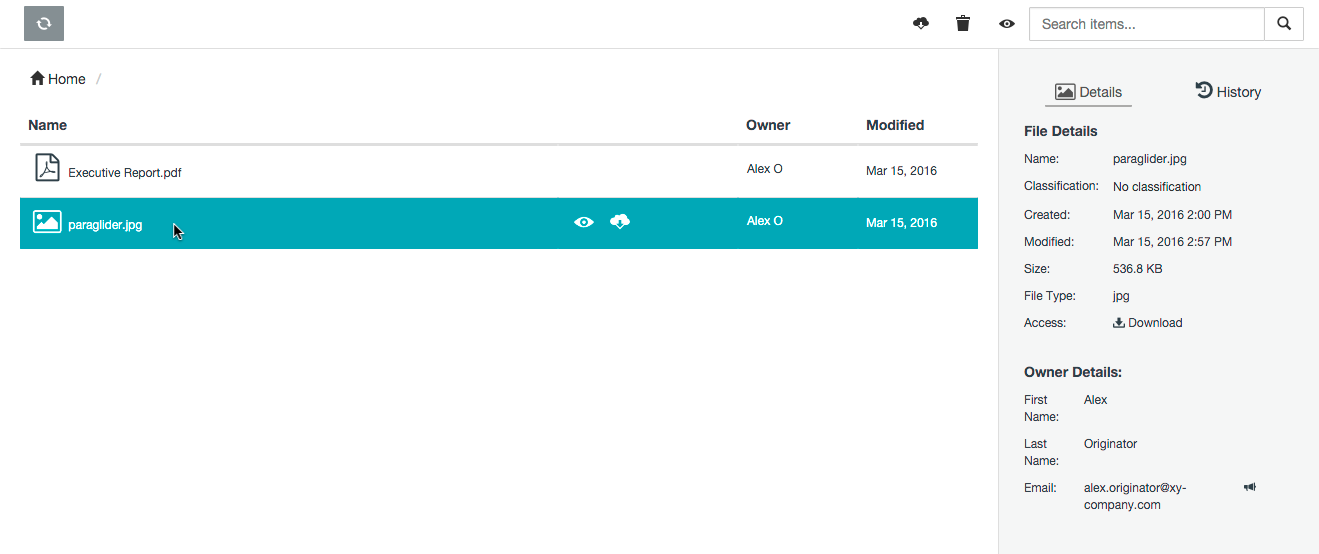
- Select the item from which to remove your access and verify that Access within the File/Folder Details section of the Details tab does not indicate Modify or Manage permissions. Otherwise, proceeding with the next step will instead remove this content.
- Do one of the following to begin removing this item:
-
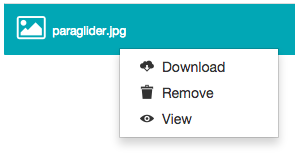
Right-click on the item's row and choose Remove from the pop-up menu:
Note: If the Move and Rename menu options are present, then you were granted either Modify or Manage permissions when the item (or one of its ancestral folders) was shared with you.
OR
-
Select the item, by clicking on the item's row (to the right of its name if a folder):
-
In the toolbar above the items area, click the Remove button. Note that if the More menu's Move and Rename options are present, then you were granted Modify or Manage permissions when the item (or one of its ancestral folders) was shared with you.
The Safe Share web application prompts you to confirm this removal and upon clicking Yes, your access to this item is removed and the item is removed from your items area.