 |
Safe Share for Windows User's Guide

|
|
Safe Share for Windows User's Guide
|
Use Windows Explorer's search features to search for a specific item by its name.
As mentioned earlier, within the Safe Share folder:
My Secured Files subfolder.Shared With Me subfolder. Within this folder, items are grouped into subfolders based on the owners who shared these items with you. The names of these subfolders contain the email addresses of their owners and are based on the format: Shared By <local-part-of-email-address> - <domain-part-of-email-address>To search for items that you have shared with other people:
To help organize your files in storage (managed by the Covata Platform), in the Safe Share folder, you can create folders within the My Secured Files subfolder, which also facilitates the ability to share multiple items of your securely stored content with a group of people. (You can also create folders within the Shared With Me subfolder, assuming you have the appropriate permissions to do so.)
These folders can be created using Windows Explorer's New > Folder feature and added to either:
My Secured Files subfolder for organizing your own content and also sharing it with groups of people.Shared By ... folder (of the Shared With Me subfolder), if you have been granted Upload, Modify or Manage permissions as a collaborator on the target subfolder. Safe Share folder and only then, copy or move this new folder into the target subfolder location. New Folder, New Folder (which you do not have permission to change) and you will receive the following warning messages:'Unsharing' an item that you own or are a collaborator on (with Manage permissions) effectively removes all or specific collaborators from the item and its contents.
Using Safe Share's Unshare feature on a folder removes all collaborators from not only this folder, but also all collaborators from every item contained within this folder (which had been set explicitly on these items). For more information about explicit versus implicit sharing, refer to the Note at the end of step 4 on selecting permissions for a collaborator (of the Sharing secure content procedure).
To unshare securely stored content you own or are a collaborator on:
Safe Share folder for your organization.My Secured Files subfolder, locate to the file or folder to unshare.Shared By ... folder (inside the Shared With Me subfolder), locate the file or folder (on which you have Manage permissions) to unshare.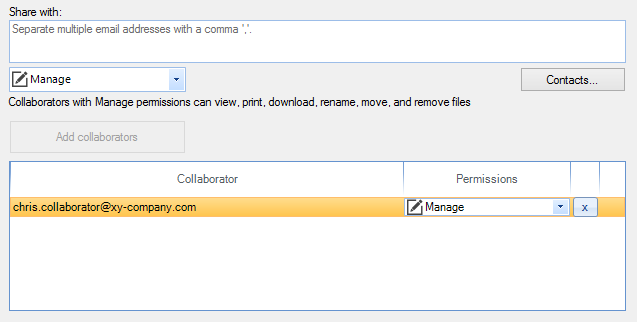
Note: If you unshare content owned by another user and you remove all collaborators (via the Safe Share > Unshare context menu option) or your own Covata user account from the Safe Share dialog box (whose net result is equivalent to removing your access to content shared with you), then you will lose the ability to subsequently access the Safe Share dialog box for this content. To regain this access, ask the owner of the content (or another collaborator on it with Manage permissions) to share this content with you again (with Manage permissions).
An item can be renamed if:
To rename an item:
Safe Share folder for your organization.My Secured Files or Shared With Me subfolders, locate the item to rename. Shared With Me, then you must have been granted either the Modify or Manage permissions (which in turn grants you the individual rename permission) when the file (or one of its ancestral folders) was shared with you. You can determine this by right-clicking the item and choosing Safe Share > Show permissions from the resulting pop-up menu: 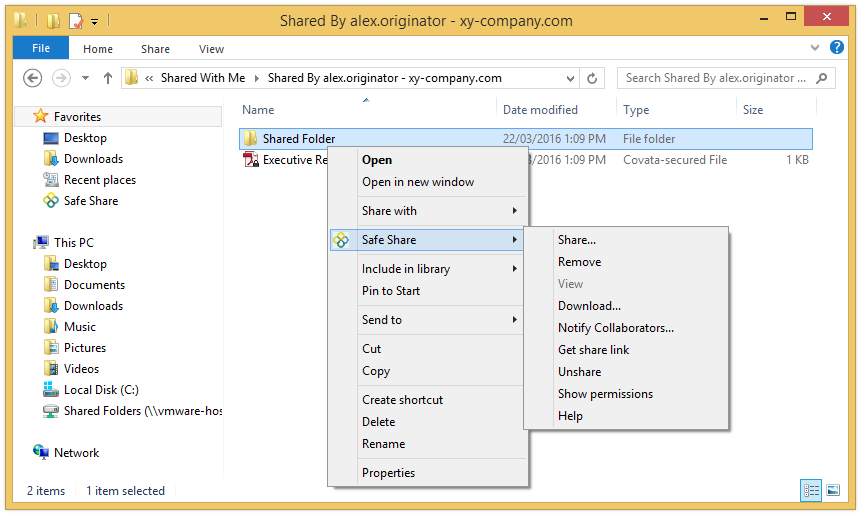
Shared With Me folder and you receive the following message 'You do not have permission to rename this item', then you were not granted either Modify or Manage permissions when the file (or its parent folder) was shared with you. Removing personally owned secure content which you or a collaborator had previously stored/uploaded (using any Safe Share application), both:
To remove personally owned secure content:
Safe Share folder for your organization.My Secured Files subfolder, locate the personally owned file or folder (which you or a collaborator had previously stored/uploaded) to be removed.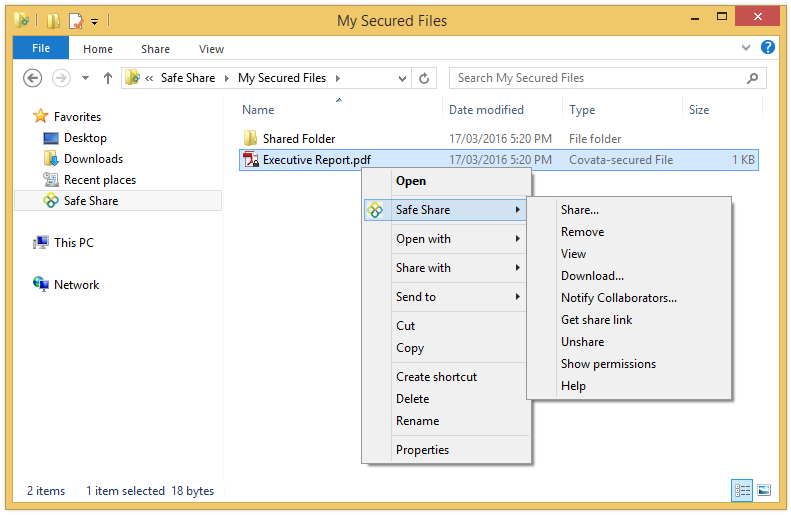
You can remove a folder and/or (parts of) its secured content which has been shared with you by another Covata user who granted you either Modify or Manage permissions on this folder. The secured content within such a folder could be content that the owner uploaded, or content that you or someone else had previously uploaded to another user's folder and/or created through folders (using any Safe Share application).
Being granted the Modify or Manage permissions on a folder, along with the implicit inheritance of collaborators and their permissions on items throughout a folder heirarchy, grants you the individual remove permission on the items within this folder.
Removing such content removes it from storage managed by the Covata Platform and therefore prevents the owner, as well as other people who were collaborators on this content from being able to access it.
To remove secure content shared through another user's folder:
Safe Share folder for your organization.Shared With Me subfolder, identify/locate the folder for this other Covata user who shared content with you.Shared By ... folder, locate the file (e.g. an item which you or someone else had previously uploaded to a folder of this other user) or subfolder to be removed.
You can remove your access to a folder and/or (parts of) its secured content which has been shared with you by another Covata user who granted you View, Download or Upload permissions on this folder. The secured content within such a folder could be content that the owner uploaded, or content that you or someone else had previously uploaded to another user's folder and/or created through folders (using any Safe Share application).
Unlike the Modify or Manage permissions, being granted the View, Download or Upload permissions on a folder, along with the implicit inheritance of collaborators and their permissions on items throughout a folder hierarchy, does not grant you the individual remove permission on the items within the folder.
Therefore, removing your access to such content removes it from your Safe Share folders and is similar to the owner (or a collaborator with Manage permissions) unsharing or removing you as a collaborator from this content.
Note: After removing your access to content shared with you, the owner of this content (and anyone else it has been shared with) can still access this content from storage managed by the Covata Platform.
To remove your access to secure content which another Covata user shared with you through any Safe Share application:
Safe Share folder for your organization.Shared With Me subfolder, identify/locate the folder for this other Covata user who shared content with you.Shared By ... folder, locate the file or folder (which someone else had previously shared with you using Safe Share for Windows or the web application) from which to remove your access.