Users of the Safe Share web application can view a history of specific activities performed on a file or folder.
To view the activities performed on a file or folder:
- Ensure you are signed in to the Safe Share web application.
- If the Home icon at the top-left indicates the word 'Home' and no drop-down icon is indicated, skip to the next step. (This indicates that you are a member of only one organization.)
Otherwise, the name of your current organization is indicated, from which you can either:
- skip to the next step to remove your access to an item from this organization, or
- remove your access to an item from a different organization (you are a member of) by changing your organization before continuing on.
- Locate the file or folder whose activity you wish to view.
- Ensure the Details/History tabs panel on the right is displayed. (If not, click the < icon at the top right of the items area to reveal this panel.)
- Select the item, by clicking on the item's row (to the right of its name if a folder):
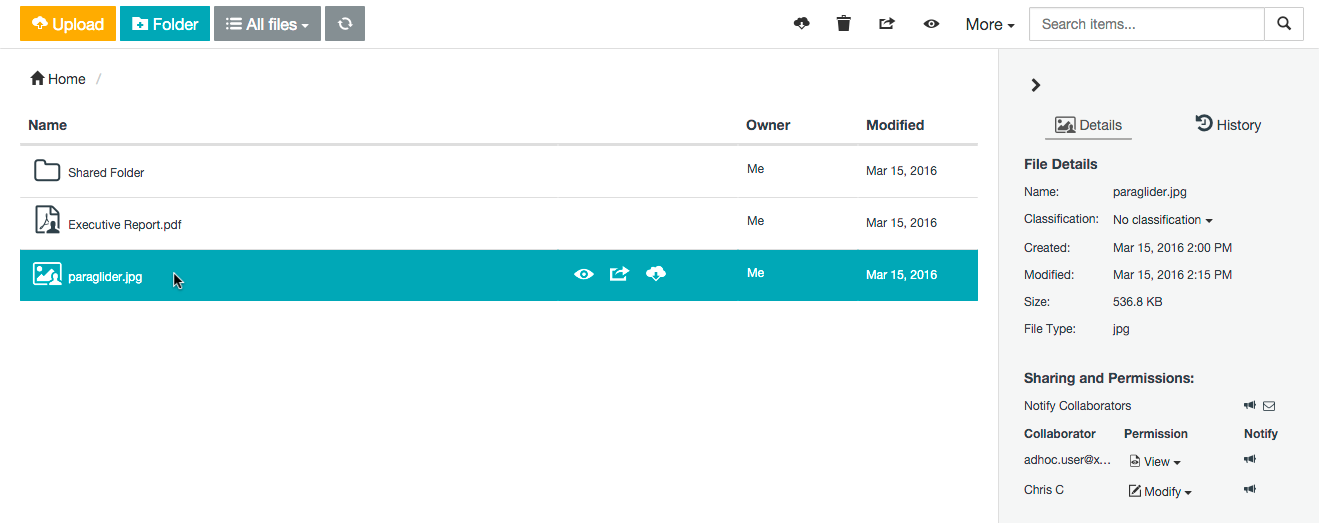
- Click the History tab to reveal a history of activities performed on the item in reverse chronological order:
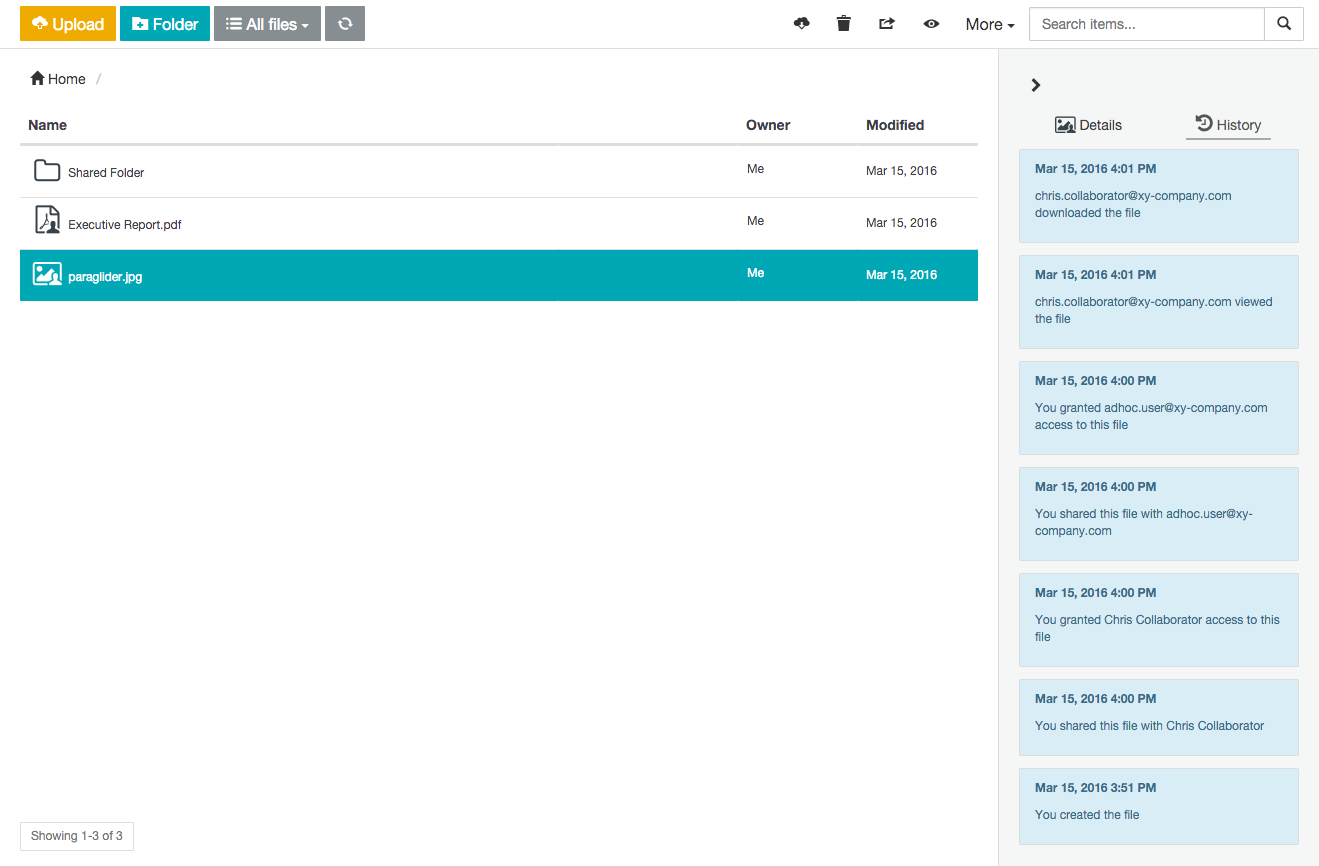
Types of activities indicated
The types of activities indicated on a file or folder (i.e. item) depend on the following conditions:
- As one of the following:
-
the owner of an item,
-
a collaborator 1 with Modify or Manage permissions on an item, or
-
a collaborator with Upload permissions on an item you created2,
the History tab shows when (and by whom) the item was created, as well as each time anyone with access to the item:
- Viewed or downloaded the item (if it is a file),
- Modified:
- the item's name or
- the item's location, or
- Modified:
(as the item's owner or a collaborator on the item with Manage permissions).
- As a collaborator with either Download or View permissions on a file you did not create, the History tab shows each time you either viewed or downloaded that file.
- As a collaborator with Upload, Download or View permissions on a folder you did not create, no activity is shown on the History tab.
1 A collaborator on an item is someone who has permission to access the item. However, the collaborator does not own this item because the item is located in a folder owned by someone else.
2 A collaborator in this context is yourself, having created a subfolder or uploaded a file within a folder owned by someone else. If the item is a file, then Safe Share implicitly downgrades its permissions from Upload to Download since conceptually, it is not possible to upload content to a file.