Whenever a file with the same name is uploaded to a particular location of the main Safe Share page's items area (or any other Safe Share application), a new version of that file is generated. This newly uploaded file could be one that you own or one that is owned by another Covata user.
The file versions feature of Safe Share allows you to access other versions of files (through the file's version management page), where a file's version can be:
Note: Each new version of a file consumes more of your allocated Safe Share storage quota. A file's complete size (including all of its versions) is indicated by the All versions size field in the File Details section of the Details tab (upon selecting the file from the main Safe Share page). For more information about your storage usage, see Viewing your storage usages and quotas.
Accessing other versions of a file
The owner of a file or a collaborator with either Modify or Manage permissions on a file can access the file's other versions. Collaborators on a file with lower permissions than these can only access the file's 'Active' version. However, a collaborator with Upload permissions on a file's parent folder can upload a new version of that file.
To access other versions of a file:
- Ensure you are signed in to Safe Share for Web.
- If the Home icon at the top-left (followed by your current organization's name) has no drop-down icon indicated, then you are a member of only one organization. Therefore, you can skip to the next step.
Otherwise, the name of your current organization is indicated, from which you can either:
- skip to the next step to continue with accessing a file's version from this organization, or
- access a file's version from a different organization (you are a member of) by changing your organization before continuing on.
- Locate the file whose other version/s you wish to access.
- Do one of the following to begin accessing this file's versions:
-
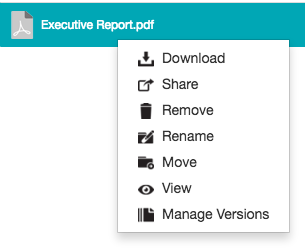
Right-click on the file's row and choose Manage Versions from the pop-up menu:
Note: If this menu option is not available, then it is not possible to share the item since you do not own this item or you were not granted Modify permissions on the item when it (or one of its ancestral folders) was shared with you. (Your current permissions on a selected item are indicated by the Access field's value in the File/Folder Details section of the Details tab to the right of the items area.)
OR
-
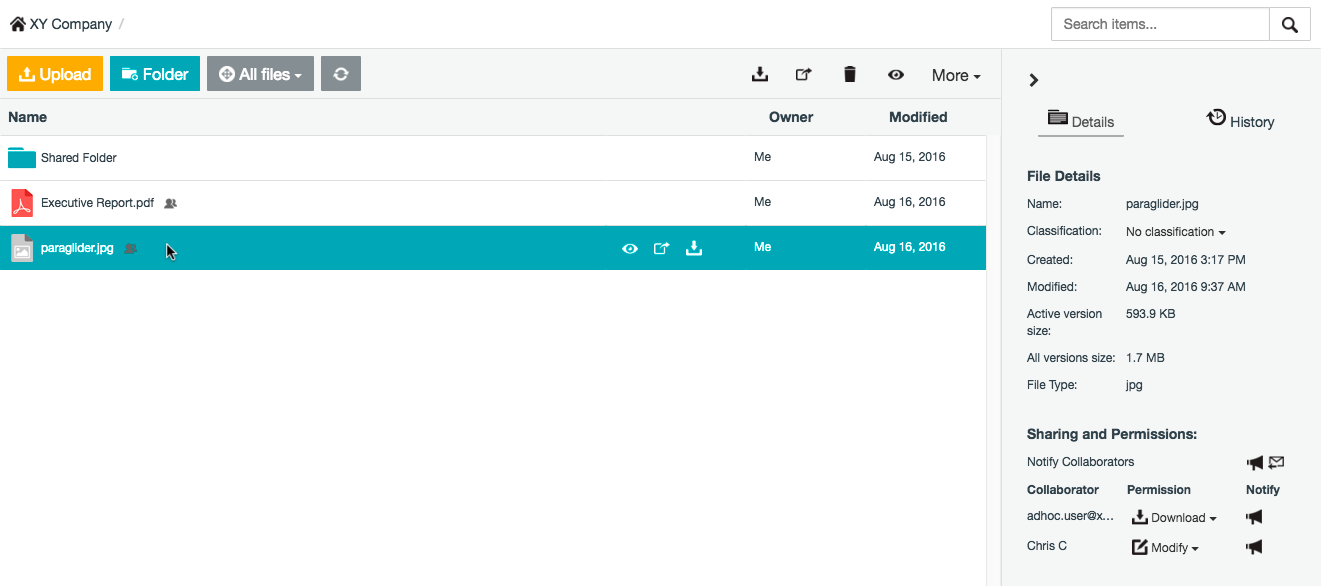
Select the item, by clicking on the item's row (to the right of its name if a folder):
-
Click the More drop-down (right-side of the toolbar near the top of the page) and choose Manage Versions. Note that the Manage Versions option will not be available if you are a collaborator on the item (see Sharing secure content) and you were not granted either Modify or Manage permissions on the item.
The file's version management page is displayed:
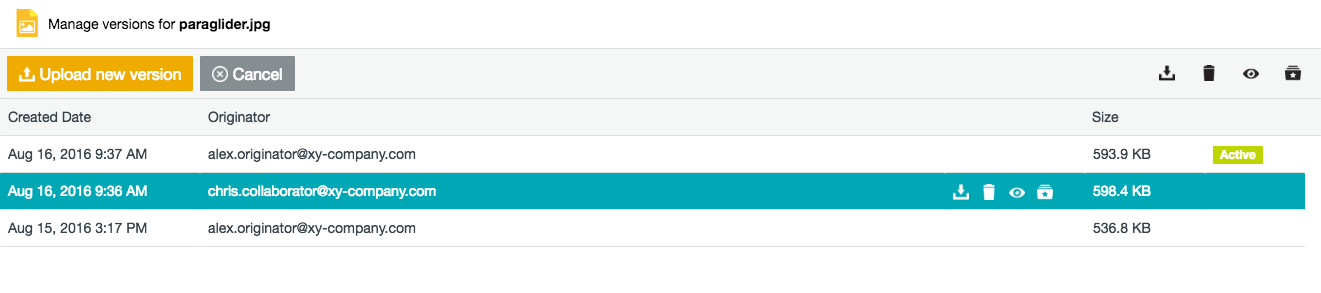
The version marked with the Active indicator is the file version which is immediately accessible from the user's items area of the main Safe Share page.
- From this page, you can:
- view and/or download other file versions,
- upload a new version of the file,
- delete other file versions permanently,
- set as the 'Active' version and
- click the Cancel button (left-side of the toolbar near the top of the page) to return to your previous view of the main Safe Share page.
Note: If you accessed the version management page directly (e.g. via a URL), then clicking the Cancel button takes you to the root location of the main Safe Share page (for your current organization).
Viewing and downloading another version of a file
These actions can be performed by any user (owner or collaborator) with access to a file's other versions.
To view and/or download another version of a file:
- Access the file's version management page.
- Do either of the following to begin viewing or downloading any other version of this file:
-
Right-click on the item's row and choose the respective View or Download option from the pop-up menu.
OR
-
Hover your mouse pointer over the item's row (or select/click the item's row) and click the respective 'View' icon
or 'Download' icon
in its row or the right-side of the toolbar near the top of the page (for the selected item).
Notes:
- If you chose to View a file's version, that file's version is opened directly in the content viewer.
- The View options will not be available if it is not possible to open this type of file in content viewer. See File formats supported by the content viewer for a list of file types that the content viewer supports.
Uploading a new version of a file
In addition to creating a new file version by dragging and dropping a file with the same name to a particular location (either as this file's owner or a collaborator with Modify or Manage permissions on the file or Upload permissions on its parent folder), a new file version can also be created by uploading the file directly through the file's version management page.
Using this alternative feature on the version management page, a new file version to be uploaded only requires the same file name extension as current file version/s - not initially the same file name itself.
To upload a new version of a file through the version management page:
- Access the file's version management page.
- Click the Upload new version button (left-side of the toolbar near the top of the page).
- In the resulting file selection dialog box, choose the new file (with the same file name extension). Be aware that the file name itself may be different from that of the file whose version management page you are currently viewing.
If the upload succeeds, the new file version is uploaded and becomes the Active version of this file.
Deleting a version of a file
You can delete a file's version (from the file's version management page), which results in this file version being deleted (i.e. the file version bypasses the Recycle Bin feature).
This action can only be performed by the owner of this file (not by any collaborator on it).
To delete other versions of a file:
- Access the version management page for the file you own.
- Do either of the following to begin deleting another version (other than the Active one) of this file:
-
Right-click on the item's row and choose the Delete option from the pop-up menu.
OR
-
Hover your mouse pointer over the item's row (or select/click the item's row) and click the 'Delete' icon
in its row or the right-side of the toolbar near the top of the page (for the selected item).
Safe Share for Web prompts you to confirm this deletion and upon clicking Yes, your file's version and its content is deleted from storage. Any people who had access to this file version and its content will no longer be able to access the file version.
Note: The Delete options will not be available if either the file version is Active and/or you are a collaborator on this item.
Changing a file's 'Active' version
The Active version of a file is the one which is immediately accessible from the owner's or a collaborator's items area of the main Safe Share page (including the equivalent interfaces of all other Safe Share applications), as well as file/folder links in Covata Notification or custom email messages.
This action can be performed by any user (owner or collaborator) with access to a file's other versions.
To change a file's 'Active' version:
- Access the file's version management page.
- Do either of the following to begin changing the Active version of this file to another version:
-
Right-click on the item's row and choose the Set this version as active option from the pop-up menu.
OR
-
Hover your mouse pointer over the item's row (or select/click the item's row) and click the 'Set this version as active' icon
in its row or the right-side of the toolbar near the top of the page (for the selected item).
Safe Share for Web prompts you to confirm this change and upon clicking Yes, your file's Active version is switched to the file version on which you performed this action. Any people who had access to this file from their files area of the main Safe Share page will now only be able to access the file's new Active version from their files area.
Note: The file's owner or a collaborator with Modify or Manage permissions on the file can still access the file's other versions through the file's version management page.