

System requirements
To install SafeShare for Windows, your Windows computer must meet the following minimum system requirements:Hardware requirements
- 1 GHz or faster CPU
- 1 GB RAM (32-bit) or 2 GB of RAM (64-bit)
- 1 GB of available drive space
Software requirements
Windows 7 with Service Pack 1 (32-bit and 64-bit versions) and later. SafeShare for Windows also depends on the following software libraries being installed on your operating system:- Microsoft .NET Framework 4.5.1 (minimum version)
- Microsoft Visual C++ Redistributable 2012 x86 Update 4 11.0.61030.0
- Microsoft Visual C++ Redistributable 2013 x86/x64 12.0.21005.1
Installing
These instructions are for user-driven/manual installations of SafeShare for Windows as opposed to remote/silent installations of the application, which would typically be conducted by a systems administrator (within your organisation).If SafeShare for Windows has already been installed on your computer (because it was installed remotely/silently by a systems administrator), then there is no need to follow this procedure, as is likely to be the case for configuring your Covata Platform instance and upgrading procedures. If SafeShare for Windows has already been installed and configured on your computer, continue on to Starting SafeShare for Windows and signing in.
-
Double-click the installer executable to start the SafeShare (for Windows) Setup Wizard, which will prompt you to select the most suitable language for your region (i.e. for the installer’s language) before presenting you with the intial installer welcome message:
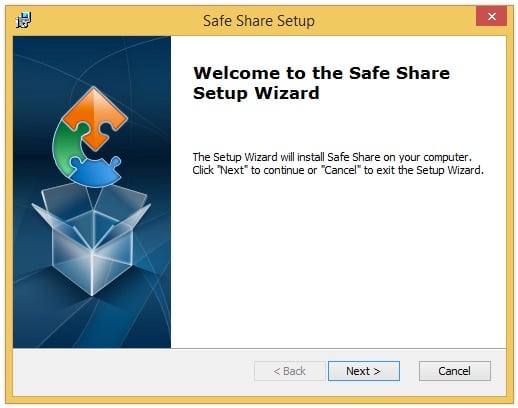
Notes:- If Windows’ User Account Control features are active, then allow the “Covata SafeShare” application to make changes to your computer.
- The language chosen at this step only affects the installer’s language - not that of the SafeShare for Windows application itself. The language of the SafeShare for Windows application is determined by the language and locale settings of your Windows operating system.
- If any anti-virus or anti-malware software prevents the installer executable from running, then follow the required actions to allow the Setup Wizard and SafeShare for Windows installation to continue.
-
Click Next to specify where SafeShare for Windows will be installed:
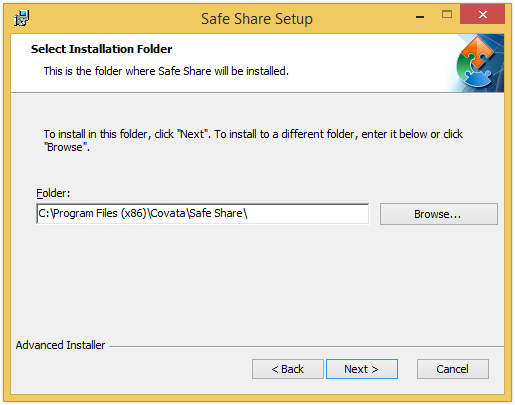
Note: An appropriate installation directory will be specified by default. -
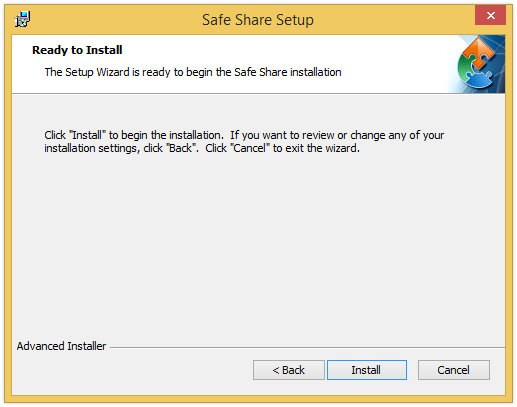
Click Next to verify that you are ready to install SafeShare for Windows with your previously specified options:
-
Click Install to begin installing SafeShare for Windows:
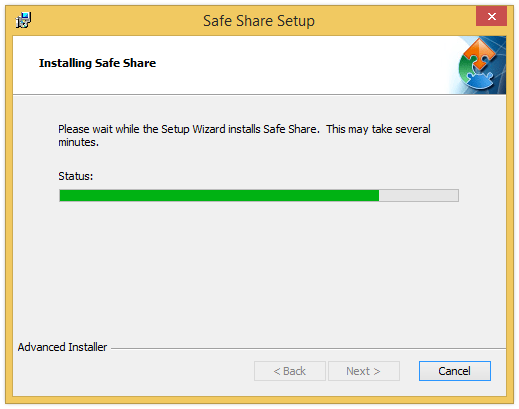
Notes:- During this step, the Setup Wizard may ask you to shut down Windows Explorer. Proceed with this action as Windows Explorer automatically restarts once installation is complete.
- If running the
.exeversion of the SafeShare for Windows installer and certain prerequisites (i.e. software library requirements for SafeShare for Windows) are missing from your computer, the Setup Wizard will automatically begin installing them before continuing on with the SafeShare installation itself (above). You may be asked to restart your computer before the actual SafeShare Setup Wizard (above) continues; this should happen automatically after your computer restarts.
-
Once the installation process is complete, click Finish to close the Setup Wizard:
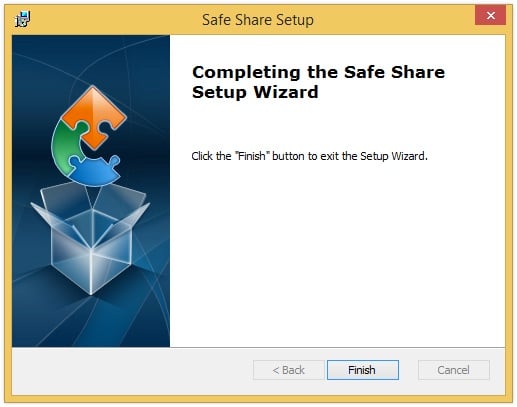
You are then required to restart your computer: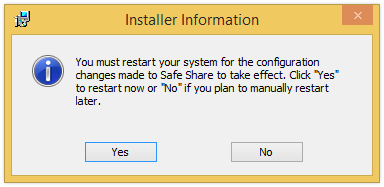
- After restarting your computer, configure SafeShare for Windows to work with your Covata Platform instance (if this has not already been done). See Configuring your Covata Platform instance below for more information.
Configuring your Covata Platform instance
If your computer has just restarted after the installation process, SafeShare for Windows displays the Configure Service Address dialog box to configure your Covata Platform instance (which SafeShare for Windows integrates with to upload your secured data to remote storage, share this data and download data from storage):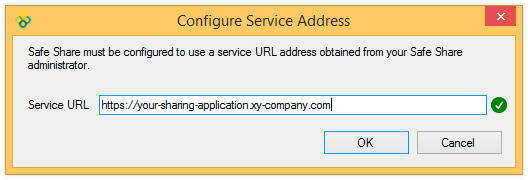
If SafeShare for Windows has already started but this dialog box still does not appear, then it is possible that SafeShare for Windows was previously installed on your computer without the complete removal of its registry keys (following an uninstall). If you need to update the Covata Platform instance that SafeShare for Windows will use, see Modifying the Covata Platform URL.
- from your SafeShare administrator, Organisation administrator or the systems administrator who installed and configured your Covata Platform instance, or
- directly from Covata (for Covata-hosted instances of the Covata Platform).
Upgrading
These instructions are for user-driven/manual upgrades of SafeShare for Windows as opposed to remote/silent upgrades of the application, which would typically be conducted by a systems administrator. To upgrade SafeShare for Windows:-
Double-click the newer version of the installer executable for SafeShare to start the Setup Wizard.
The steps for upgrading SafeShare for Windows are the same for installing the product. However, you will not need to:- Install prerequisites (assuming they have not been uninstalled in the meantime)
- Re-configure your Covata Platform instance.
Uninstalling
These instructions are for a user-driven/manual removal of SafeShare for Windows as opposed to remote/silent removals of the application, which would typically be conducted by a systems administrator. To uninstall SafeShare for Windows:-
Do either of the following:
- Choose Uninstall SafeShare from the Windows Start menu.
- From Windows’ ‘Uninstall or change a program’ feature, select Covata SafeShare and choose Uninstall.
- Follow the remaining prompts to uninstall SafeShare for Windows.
The registry keys for SafeShare for Windows (one of which contains the URL of your configured Covata Platform instance) are not removed as part of this process. To completely remove SafeShare for Windows from your computer, delete the registry key:
Important: Modifying the Windows registry can irreparably damage your operating system if you are uncertain of what you are doing. If you are unfamiliar with modifying the Windows registry, ask someone who is (e.g. a systems administrator) to assist you with this process.
HKEY_CURRENT_USER\Software\Covata\SafeShare
Important: Modifying the Windows registry can irreparably damage your operating system if you are uncertain of what you are doing. If you are unfamiliar with modifying the Windows registry, ask someone who is (e.g. a systems administrator) to assist you with this process.
Modifying the Covata Platform URL
To modify the Covata Platform URL:- Ensure SafeShare for Windows has been started.
-
Click the application’s icon


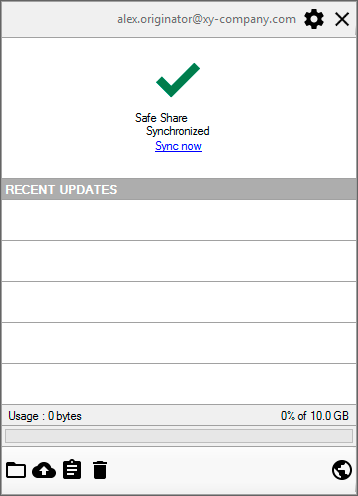
and choose Application settings from this icon’s pop-up menu to open the Settings dialog box:
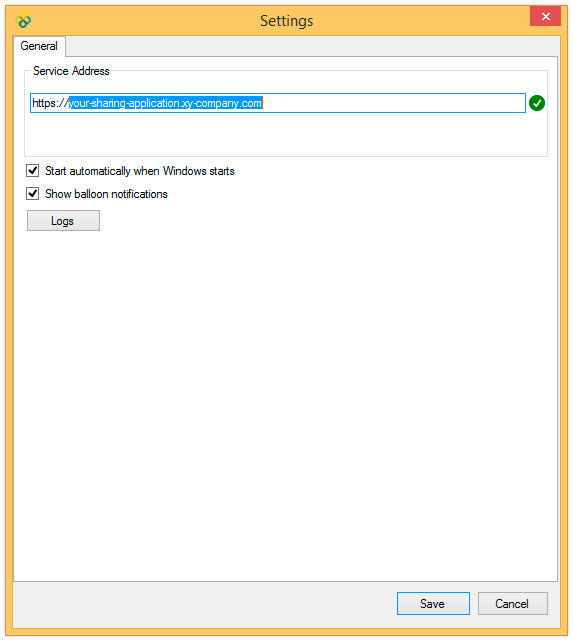
- Specify the URL of your new/modified Covata Platform instance in the Service Address field.
- Click Save to save the updated Covata Platform URL.