

Starting SafeShare for Windows
SafeShare for Windows automatically starts when Windows boots up or restarts.-
When SafeShare for Windows is running, its icon appears in the Windows taskbar notification area (either


-
Double-click the Covata SafeShare icon on the desktop or choose Covata SafeShare from the Windows start menu. When running, the application’s icon appears in the Windows taskbar notification area (either
Signing in manually
The SafeShare for Windows icon in the Windows taskbar notification area indicates:-
-
- Ensure SafeShare for Windows has been started.
-
Click the application’s icon
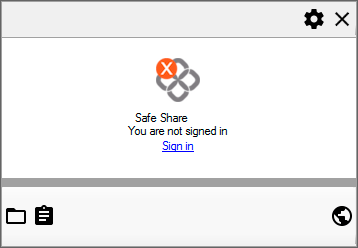
Tip: Alternatively, right-click the application’s icon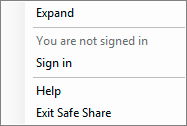
-
In the Sign in - SafeShare dialog box, enter your Covata user account’s Email address and Password into the relevant fields:
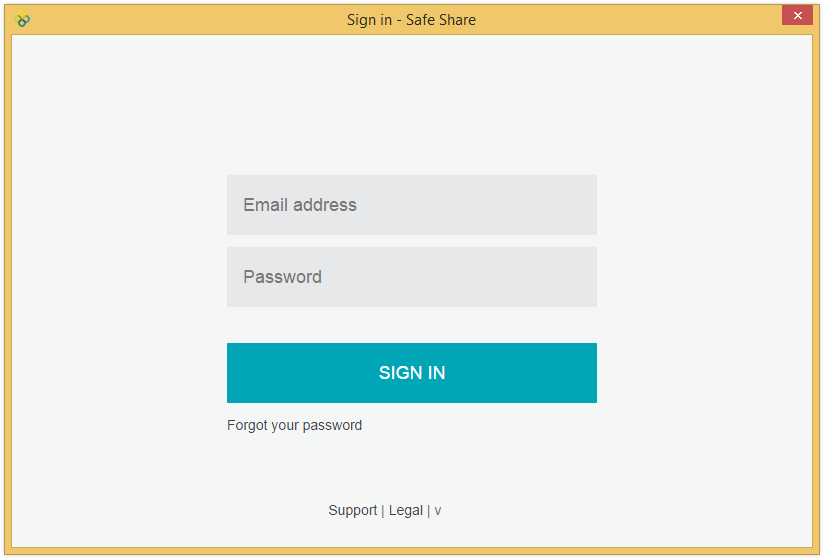
Notes:- The email address of the last Covata user account to sign in to SafeShare for Windows is automatically entered into the Email address field.
- If you have forgotten your password, leave the Password field blank, click the Forgot your password link, follow the instructions on the subsequent page and then in your email notification to reset your password.
-
Click the SIGN IN button (or type ‘Enter’/‘Return’).
-
If the Sign in - SafeShare dialog box requests you to enter your Authentication code (see below), then either you have configured your Covata user account with two-factor authentication (2FA) (via Account Management) or at least one of your SafeShare Organisation administrators has enforced this feature on your account.
If you see the following page for the first time or you need to (re-)configure a mobile device with your Covata user account for 2FA, refer to the Configuring a mobile device for two-factor authentication procedure below before continuing on.
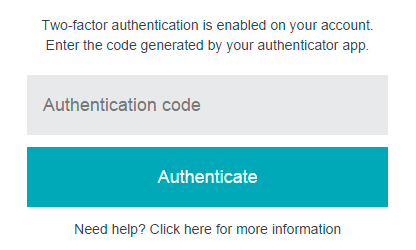
To complete the authentication process:- Open the authenticator app on your mobile device.
- In the Authentication code field, enter the code from the authenticator app that relates to your Covata user account.
- Click the Authenticate button to complete the authentication process.
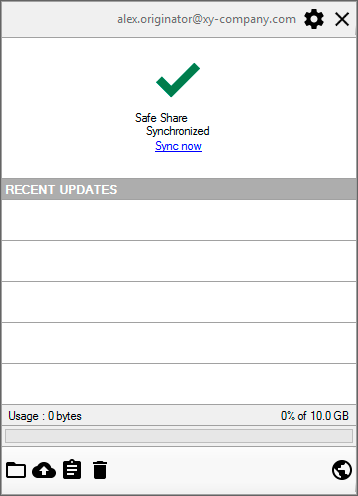
Tips:-
If the application pane does not appear, click its icon
-
Alternatively, you can verify that you are signed in by right-clicking its icon
- ‘You are signed in as your@email.address’, or
- ‘You are not signed in’.
-
If the Sign in - SafeShare dialog box requests you to enter your Authentication code (see below), then either you have configured your Covata user account with two-factor authentication (2FA) (via Account Management) or at least one of your SafeShare Organisation administrators has enforced this feature on your account.
- When signing in to SafeShare for Windows for the very first time after installing or upgrading the application, the Welcome to SafeShare for Windows web page is shown, containing a short tutorial of basic operation.
-
If you signed in to SafeShare for Windows either for the first time or with a different Covata user account to the one used previously, then the following SafeShare folders are (re)created within the
SafeSharefolder (which in turn is contained within your Windows home folder):My Secured FilesShared With Me
-
If the
My Secured Filesfolder does not appear, then your account does not have the Originator role. This role can be granted to your account by the Organisation administrator/s for your relevant organisation/s. -
Each time you sign in to SafeShare for Windows as a different Covata user (on the same computer), the
My Secured FilesandShared With Mefolders of the previous Covata user are moved to the Recycle Bin and the contents of the newly recreatedMy Secured FilesandShared With Mefolders are updated to reflect the items in remote storage of this different Covata user. -
Once you are signed in, SafeShare for Windows immediately begins synchronising any files and folders in remote storage (associated with your Covata user account and accessible through SafeShare for Web), with those in the
My Secured FilesandShared With Mefolders. Covata-secured files within these folders appear with a size of 1 KB (or less) and have the extension.covl. However, when a file’s encrypted content is initially downloaded (before local decryption) or encrypted locally before uploading, then a copy of this file with the extension.covmay be present. This file represents the file’s locally encrypted data. However, SafeShare for Windows automatically deletes these files once the downloading/uploading process is complete. -
A shortcut to the
My Secured Filessubfolder (above) as well as a shortcut to start the SafeShare for Windows application itself (called Covata SafeShare) are automatically created on your desktop. Be aware that if you initially signed in as a Covata user without the Originator role, then theMy Secured Filesshortcut is not created.
Configuring a mobile device for two-factor authentication
If either you or one of your Organisation administrators has configured your Covata user account with two-factor authentication (2FA), then you require a mobile device (i.e. an Android-, iPhone-, iPad-, iPod Touch- or Microsoft Windows-based one) running an authenticator application (from Google or Microsoft) to be able to sign in to SafeShare for Windows. This authenticator application (aka authenticator app) that runs on your mobile device provides the 2nd authentication factor for your account, where your password is the 1st authentication factor. To configure your mobile device with your Covata user account for 2FA:- Check for a Covata Notification email message containing the subject line ‘Two-factor authentication has been enabled for your account’.
- Open this email message and follow its instructions - i.e. click the link to open the two-factor authentication configuration pages.
Follow the remaining instructions on these 2FA configuration pages to complete the process for configuring your mobile device and then continue with entering your authentication code to complete the authentication process and sign in to SafeShare for Windows.
Accessing the web application
SafeShare for Windows provides easy access to SafeShare for Web for better integration between these two products. To access SafeShare for Web:- Ensure SafeShare for Windows has been started and that you are signed in.
-
Click the application’s icon

After signing in to the web application (if necessary), the main SafeShare page of SafeShare for Web opens in your default web browser (configured in Windows).
Notes about using this feature:
-
SafeShare for Web is a complementary product to SafeShare for Windows. For example:
- SafeShare for Web allows you to manage your Covata user account through SafeShare for Windows and access some file/folder information features of this web application which are not accessible through Windows Explorer.
- Microsoft imposes a file and path size limit of 260 characters. Hence, if you need to work with secure content in a heavily-nested folder hierarchy, SafeShare for Web can be used to provide access to this content.
- If you are not signed in before accessing this feature, then the SafeShare Sign-in page is displayed. Be aware, however, that signing in through this page and SafeShare for Windows are two independent processes (with independent sessions).
-
Your SafeShare for Windows installation may have been configured (typically by a systems administrator) to open the SafeShare Web window, which is an embedded web browser that is effectively a feature-restricted version of SafeShare for Web. For example:
- The Download feature in the SafeShare Web window is not supported. This feature is only supported natively (i.e. with a compatible web browser) through SafeShare for Web.
- When using the SafeShare Web window, it is not possible to navigate back and forward through pages. You can only navigate using SafeShare for Web’s own navigation features.
Switching users
To switch Covata users in SafeShare for Windows:-
Click the application’s icon

and choose Switch user from this icon’s pop-up menu. - In the Sign in - SafeShare dialog box, enter your new Covata user account’s Email address and Password into the relevant fields.
- Click the SIGN IN button (or type ‘Enter’/‘Return’).
Once you are signed out of SafeShare for Windows, any files or folders in the
My Secured Files and Shared With Me subfolders of the SafeShare folder on your computer will no longer be synchronised with items in remote storage managed by the Covata Platform.Exiting SafeShare for Windows
You can exit SafeShare for Windows regardless of whether or not you are currently signed in to the application. To exit SafeShare for Windows, either:-
Right-click the application’s icon
-
Click the application’s icon
and choose Exit SafeShare from this icon’s pop-up menu.
To sign in to SafeShare for Windows again, restart the application and if you are not automatically signed in, sign in manually.