

- The addition of new contact groups.
- Existing contact groups to be edited or removed.
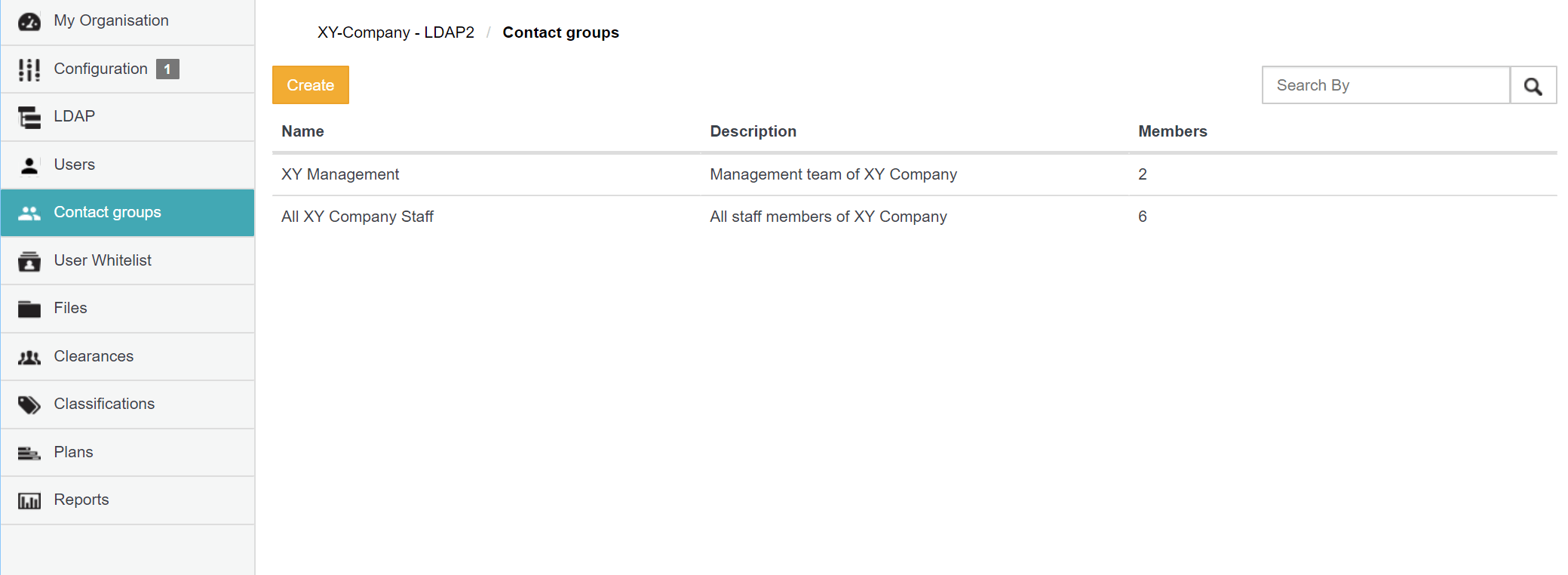
Adding a new contact group
- Ensure you are signed in to Organisation Administration.
- Click the Contact groups option on the left of the Organisation Administration interface to open the Contact groups page.
- Click the Create button.
-
In the New contact group dialog box, specify the:
- Name - A name that best describes the contact group’s members. This is the name of the contact group that Covata users would specify when sharing an item with this contact group.
- Description ( Optional ) - A longer description to provide more information about the contact group.
-
Manage conctacts - In this section, any Covata users (with the Originator role) whose email addresses appear in the Selected users section on the right will be members of the contact group:
To do the following: Do this: Which results in this: Add a user to the contact group Click the email address of that user in the Available users section. Transfers that user to the Selected users section. Remove a user from the contact group Click the email address of that user in the Selected users section. Transfers that user to the Available users section. Find specific users by filtering them (making it easier to add or remove them above) In either the Available users or Selected users sections, begin typing (into its respective Filter box) a series of characters contained in the Covata users’ email addresses. The list of users (in their respective section/s) being filtered to those whose email address contains the subset of characters entered into its Filter box. Add all users to the contact group Click the 
(Add all) button in the Available users section.Transfers all remaining users in this section to Selected users. Remove all users from the contact group Click the 
(Remove all) button in the Selected users section.Transfers all remaining users in this section to Available users.
Editing an existing contact group
- Ensure you are signed in to Organisation Administration.
- Click the Contact groups option on the left of the Organisation Administration interface to open the Contact groups page.
- Locate/scroll to the relevant contact group and click its row.
- Click the Edit button.
-
In the Edit contact group dialog box, modify the:
- Name - A name that best describes the contact group’s members. This is the name of the contact group that Covata users would specify when sharing an item with this contact group.
- Description ( Optional ) - A longer description to provide more information about the contact group.
-
Manage conctacts - In this section, any Covata users (with the Originator role) whose email addresses appear in the Selected users section on the right will be members of the contact group:
To do the following: Do this: Which results in this: Add a user to the contact group Click the email address of that user in the Available users section. Transfers that user to the Selected users section. Remove a user from the contact group Click the email address of that user in the Selected users section. Transfers that user to the Available users section. Find specific users by filtering them (making it easier to add or remove them above) In either the Available users or Selected users sections, begin typing (into its respective Filter box) a series of characters contained in the Covata users’ email addresses. The list of users (in their respective section/s) being filtered to those whose email address contains the subset of characters entered into its Filter box. Add all users to the contact group Click the
(Add all) button in the Available users section.Transfers all remaining users in this section to Selected users. Remove all users from the contact group Click the
(Remove all) button in the Selected users section.Transfers all remaining users in this section to Available users.
Removing an existing contact group
- Ensure you are signed in to Organisation Administration.
- Click the Contact groups option on the left of the Organisation Administration interface to open the Contact groups page.
- Locate/scroll to the relevant contact group and click its row.
- Click the Remove button.
- On the Remove contact group message box, click Yes to proceed with the contact group’s removal.