 |
Administrator's Guide
|
|
Administrator's Guide
|
The Configuration page allows Covata Platform administrators to modify a restricted set of properties on their Covata Platform instance, which are used to tweak the behavior and specific functions of their Covata Platform instance.
Note: Other properties in configuration files can be modified by system administrators responsible for setting up on-site deployments of the Covata Platform.
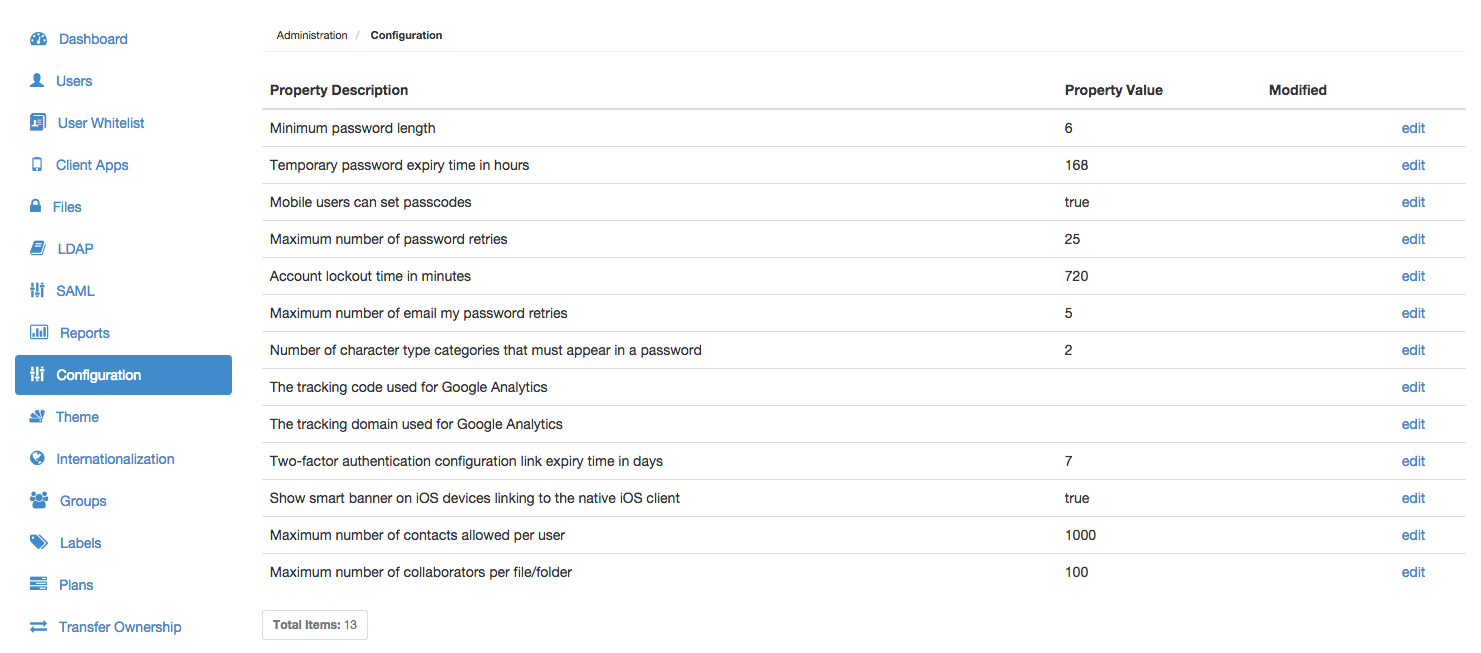
The following Covata Administration properties are available:
| Property | Detailed description |
|---|---|
| Minimum password length | The minimum number of characters required for a Local user's password. This property has no affect on LDAP user's password since the authetication of LDAP users is delegated to their respective LDAP server. |
| Temporary password expiry time in hours | When a new Local Covata user account is created, the user receives an email notification containing a temporary password (generated by the Covata Platform), which the user requires to set their own password for their user account. Hence, the value of this property defines the validity of this temporary password. Note: If this temporary password expires, the user can still set their password through the Covata Sign-in page by clicking either the Don't have a password? or Forgot your password button and following the instructions in the resulting email notification sent to their email address. |
| Mobile users can set passcodes | Sets a 'flag' on the Covata Platform which client applications (such as Safe Share for iOS) can use through API calls to the Covata Platform. If this value is set to true, the Safe Share for iOS application's passcode/Touch ID (i.e. fingerprint) functionality becomes active. Each time Safe Share for iOS is re-launched (i.e. after having closed Safe Share for iOS' existing session by either going 'home' or opening a different application), the user then only needs to enter their passcode or use their fingerprint through Touch ID to sign in to Safe Share for iOS. If this value is set to false, the Safe Share for iOS application's passcode/Touch ID functionality is disabled. Each time Safe Share for iOS is re-launched (i.e. after having closed Safe Share for iOS' existing session by either going 'home' or opening a different application), the user is required to enter their email address and password to sign in to Safe Share for iOS. |
| Maximum number of password retries | The maximum number of incorrect sign-in attempts permitted by a Covata user mistyping their password before the user account becomes locked. The user will need to do one of the following to unlock their account:
|
| Account lockout time in minutes | The amount of time that a Covata user needs to wait before their user account (which was locked as a result of the user mistyping their password beyond the Maximum number of password retries above, during sign-in) is automatically unlocked by the Covata Platform. This amount of time also defines the period for which the link to unlock a user's account (contained in the email notification sent to the user) is valid. Important: Ensure this value is positive and do not set it to 0 (zero). Setting this value to 0 locks a user account indefinitely (as a result of the user mistyping their password beyond the Maximum number of password retries above) and as a Covata Platform administrator, increases the risk of you locking yourself out of Covata Administration if you mistype your password. If this value was 0 following a Covata Platform upgrade, then change it to a positive value. |
| Maximum number of email my password retries | The maximum number of times that a Covata user can click either Don't have a password? or Forgot your password, be sent an email notification containing either a one-time access link/password or password reset instructions and fail to successfully sign in, before their account is locked. Once an account is locked in this manner, a Covata Platform administrator must manually unlock this Covata user's account for them. Notes:
|
| Number of character type categories that must appear in a password | There are four categories of character types that can be used in a password:
|
| The tracking code used for Google Analytics | The tracking code given to you when you sign up for Google Analytics. Note: For Google Analytics to work with your Covata Platform instance, this value must be used in conjunction with The tracking domain used for Google Analytics. |
| The tracking domain used for Google Analytics | The domain of your Covata Platform's web server. Note: For Google Analytics to work with your Covata Platform instance, this value must be used in conjunction with The tracking code used for Google Analytics. |
| Two-factor authentication configuration link expiry time in days | When two-factor authentication (2FA) has been enabled on a Covata user account, the user receives an email notification informing them about this. This email notification contains a time-limited configuration link, which leads to step-by-step instructions for the user to:
|
| Show smart banner on iOS devices linking to the native iOS client | Sets a 'flag' on the Covata Platform which results in a smart banner appearing at the top of Safe Share web application pages whenever it is accessed through Safari on iOS devices. This encourages users of iOS devices who have clicked a direct URL to an item from 'A file/folder has been shared with you email notification (which opens the item in the Safe Share web application) to access the item in Safe Share for iOS instead (by clicking the link in the smart banner). |
| Maximum number of contacts allowed per user | The maximum number of contacts that any given Covata user can add to their account through the Safe Share web application, as well as Safe Share for Windows or iOS. |
| Maximum number of collaborators per file/folder | The maximum number of collaborators which are permitted on an item through the Safe Share web application, as well as Safe Share for Windows or iOS. Note: Be aware that this limit includes collaborators on an item which have been implicitly inherited from folders (containing this item) to which collaborators have been explicitly added. |
To modify a Covata Administration property value: