Covata-encrypted data that has been registered on the Covata Platform. Note: Covata-encrypted data is data from a file or stream, which has then been encrypted either:
Using Covata technologies (i.e. with a Covata Safe Share product or another client application that utilizes the Covata Platform's API for encryption via the Content Service), or
According to Covata's encryption requirements (i.e. a client application with its own encryption implementation). For more information about Covata's encryption requirements, see the Required parameters on POST section on the <content-service>/api/v1/objects/{objectId}/contents page of the Covata API documentation .
The metadata associated with this encrypted data. Some of this metadata can be determined by the creator/owner of the Secure Object.
A user's fields
Each Covata user's account is defined by a set of fields (of which only a subset are required to add a valid user). A Covata Platform administrator is able to configure these fields when:
Adding any new Local user to the Covata Platform or
The email address that forms part of the user's credentials, which the user requires to authenticate to the Covata Platform. This email address:
Defines the user's identity and hence, must be unique amongst all user accounts on the Covata Platform.
Is the email address that the Covata Platform sends notifications to.
Yes
First Name (2)
The user's first name (e.g. a given name or nickname).
No
Last Name (2)
The user's last name (e.g. a surname or family name).
No
Mobile Number (2)
The mobile number of the user.
Note: This number must include the country calling code and plus (+) sign prefix.
(e.g. +1 234 567 8910 for a US-based number.)
No
Role
The roles granted to the user, each of which define the core features of Covata technologies (described above) that this user can access. See A user's roles for more information.
Roles can only be upgraded - for instance, it is only possible to upgrade the Ad hoc role to either the Collaborator or Originator role, or the Collaborator role to the Originator role.
This field's value can be empty because a user account may only have the System administrator and/or User administrator role(s) specified. However, once this Role field's value has been specified, it cannot be cleared.
Yes
(if no Covata Administration roles are selected)
Is System Admin?
Selecting this check box grants the user the System administrator role. Note: This option is not available to the currently logged in user, as well as users who have an External account type or the Ad hoc role.
The user's type of account, which reflects the user account's origin. The Covata Platform defines the following account types:
Local:
The user was created when a Covata Platform administrator added the user directly through Covata Administration.
An existing user whose account type was External (below) changes to Local when the user's account (which had the Ad hoc role) was upgraded to the Collaborator roleand then a Covata Platform administrator changed this user account's role to Originator.
External - The user account was created implicitly by the Covata Platform when a Covata user with the Originator role shared content with a person who does not have a registered Covata user account. These types of user accounts (with either the Ad hoc role or Collaborator role after being upgraded from Ad hoc) are considered 'external' in origin (e.g. outside of an organization or domain) with respect to Local or LDAP user accounts on the Covata Platform.
LDAP - The user account was created from an LDAP server/user directory through an LDAP connection. These types of user accounts are created and updated on the Covata Platform during synchronization events with their respective LDAP servers.
Note: The value of this field is automatically determined by the Covata Platform when the user account is created and its value is not editable.
Not applicable
Plan
The plan (defining a storage quota) assigned to the user, which limits the amount of storage space the user can access when uploading data to the Covata Platform's Content Service through a Covata Safe Share product or a client application that utilizes the Covata Platform's API. Notes:
When a new Local user with the Originator role is added (including a user from an LDAP server/user directory), or an existing user's role is upgraded to Originator, the default plan is automatically chosen. See Managing users' storage quotas through plans for more information.
If an existing user's storage space already exceeds the quota defined by a plan, which is then applied to the user's account, then the user will no longer be able to upload any further data to storage until either:
The user removes a sufficient amount of their own content to lower their utilized storage space (below their plan's quota).
A plan defining a larger quota than their currently utilized storage space is applied to the user's account.
Yes
(for a Covata user with the Originator role; otherwise, not applicable)
Quota Used
The amount of bytes of storage space (managed by the Covata Platform's Content Service) that this user currently utilizes. Note: This field is only visible if the Originator role is specified (above).
Not applicable
Force Password Reset
If present, then with the exception of user accounts that have the Ad hoc role, selecting this check box forces a Local user to reset their password when they next sign in through the Covata Sign-in page. See Forcing users to reset their passwords for more information.
No
(2) These values may be modified by a Covata user themselves when they update their account details through the My Accountfeature of the Covata Safe Share web application.
A user's roles
Each Covata user must be assigned a role, which grants the user access to different sets of features available through Covata technologies. A Covata user's roles can be modified by editing their user account.
Likewise, a user with either the Originator or Collaborator role can also be granted the System and/or User administrator roles.
Role
Description
Originator
A Covata user with the Originator role can use Covata technologies through the Covata Platform to:
Create their own encrypted files (i.e. Secure Objects), including folders for encrypted files (i.e. collections), utilizing:
Any Covata Safe Share application, or
Another client application that interacts with the Covata Platform's API.
Securely store encrypted files in storage managed by the Covata Platform's Content Service. The amount of storage space available to the user depends on their plan. Since storage space is associated with a Covata user (who has the Originator role), then any encrypted files stored within this space become owned by this user. Note: Depending on the formats of these encrypted files, read-only views may also be generated for these files (which consumes a comparatively small amount of storage space) for presentation in Safe Share's content viewer.
Share their secured files or folders (i.e. items which the user owns) with other Covata users who have the Originator, Collaborator or Ad hoc role, including other people who have not yet been registered as a Covata user. Also determine which of these Covata users and other people have permissions to view, download, upload (for folders only) or manage these items that have been shared with them. Notes:
Covata users who have been shared an item (by its owner) are known as collaborators on the item. This term should not be confused with Covata users who have the Collaborator role (below).
These processes are conducted through the (Safe) Share dialog box of any Covata Safe Share application, or when setting collaborators on a Secure Object or collection through a client application utilizing the Covata Platform's API.
Specify other access controls on their files, such as:
The date and time from which collaborators can begin accessing a file's content as well as the date and time when this access ceases.
A label that defines which groups of Covata users a file can be shared with.
These processes are conducted through either the (Safe) Share dialog box of any Covata Safe Share application, or when setting collaborators on a Secure Object through a client application utilizing the Covata Platform's API.
Users with the Originator role can also use Covata Safe Share applications (or applications that interact with the Covata Platform's API) to:
Manage their list of contacts (e.g. Covata users with whom they frequently share secured files/folders),
View/access/update their account details,
Manage their email notifications and
Revoke the right that client applications were initially granted (by the user themselves) to access the Covata Platform's resources through their user account.
Notes:
A user with the Originator role has access to all features of Covata technologies which are available to a user with the Collaborator role.
All Covata users which have been added through a connection to an LDAP server automatically have the Originator role.
Collaborator
A Covata user with the Collaborator role can use Covata technologies through the Covata Platform to do the following:
As a collaborator on a file (i.e. Secure Object) or folder (i.e. collection) owned by another Covata user (see point about sharing items in the Originator role description above for more information), access and decrypt the data of an encrypted file (or files within the folder), utilizing:
Any Covata Safe Share application, or
Another client application that interacts with the Covata Platform's API.
As a collaborator with either upload or manage permissions on a folder owned by another Covata user, create encrypted files as well as subfolders for encrypted files inside this other user's folder, utilizing:
Any Covata Safe Share application, or
Another client application that interacts with the Covata Platform's API.
Users with the Collaborator role can also use Covata Safe Share applications (or applications that interact with the Covata Platform's API) to:
View/access/update their account details,
Manage their email notifications and
Revoke the right that client applications were initially granted (by the user themselves) to access the Covata Platform's resources through their user account.
Note: If a Covata user (who originally had the Ad hoc role) upgraded their account to a full account (which change's their account's role to Collaborator), their account type still remains External. However, once a Covata Platform administrator grants this user's account the Originator role, then the account type switches to Local.
Ad hoc
A Covata user with the Ad hoc role is an account which is automatically created by the Covata Platform when:
A user with the Originator role shares their secured file (i.e. Secure Object) or folder (i.e. collection) with someone (via their email address), using either any Covata Safe Share application or another client application that interacts with the Covata Platform's API and
This email address does not match that of an existing Covata user.
Users with this role are typically people outside of an organization or domain, who can use Covata technologies through the Covata Platform to do the following:
As a collaborator on a file or folder (i.e. items) owned by another Covata user (see point about sharing items in the Originator role description above for more information), access and decrypt the data of an encrypted file (or files within the folder), utilizing:
Any Covata Safe Share application, or
Another client application that interacts with the Covata Platform's API.
As a collaborator with either upload or manage permissions on a folder owned by another Covata user, create encrypted files as well as subfolders for encrypted files inside this other user's folder, utilizing:
Any Covata Safe Share application, or
Another client application that interacts with the Covata Platform's API.
Once an Ad hoc user account is created, it is subsequently re-used whenever this Covata user is shared items by another user (with the Originator role).
Ad hoc user accounts do not have a dedicated password. Whenever another user (with the Originator role) shares an item with an Ad hoc user, an email notification is sent to this Ad hoc user's email address. The notification instructs the user on how to obtain a one-time access link/password, which allows the user to automatically sign in to the Safe Share web application to access items that have been shared with them. Notes:
The Ad hoc role cannot be specified when a Covata Platform administrator adds a new user to the Covata Platform, either locally or through LDAP.
A user with this role can upgrade their account to a full account once they are signed in to the Safe Share web application with a one-time access link/password. This requires the user to set their password, which results in the user's role being changed to Collaborator. Once their account is upgraded, the user can then utilize Covata Safe Share applications (or applications that interact with the Covata Platform's API) to:
View/access/update their account details,
Manage their email notifications and
Revoke the right that client applications were initially granted (by the user themselves) to access the Covata Platform's resources through their user account.
System administrator
A Covata user with the System administrator role (also known as a 'Covata Platform administrator') can access all administration features of their Covata Platform instance through the Covata Administration interface. See The Covata Administration interface for more information.
Notes:
Other than the ability to administer the Covata Platform, a Covata user who only has the System administrator role does not have access to features of Covata technologies available to users with the Originator, Collaborator/Ad hoc or User administrator roles. Covata Platform administrators who are likely to use Covata technologies on their Covata Platform instance for purposes other than to administer it should grant themselves the Originator, Collaborator or User administrator role/s as required.
Only Covata Platform administrators can add this System administrator role to another Covata user.
Along with the User administrator role, the System administrator role is one of the Covata Administration roles.
Other than the ability to access to the Covata Platform's transfer user ownership feature, a Covata user who only has the User administrator role does not have access to the features of Covata technologies available to users with the Originator, Collaborator/Ad hoc or System administrator roles.
Covata Platform administrators should assign a User administrator with other roles appropriate for the Covata technologies these people are likely to use.
Along with the System administrator role, the User administrator role is one of the Covata Administration roles.
Adding a new user
This procedure describes how to add a Local user account to the Covata Platform.
Notes:
Local user accounts can also be added in bulk (in a single action) from a CSV file.
To add users from an LDAP server/user directory, see Configuring LDAP.
In the Add User dialog box, complete the user's fields (described in detail above). Tip: See A user's roles for more information about the role(s) to specify for this user.
By default, the Covata Platform requires the new user to reset their password upon signing in for the first time; to do this, the new user requires the Covata Platform's automatically generated password which is emailed to them after their account has been created. To prevent the Covata Platform from forcing this password reset, clear the Force Password Reset check box.
Click Save and the new user will appear as a new entry on the Users page. Note: The new user is sent an email notification, with instructions on how to sign in to the Safe Share web application.
Adding new users in bulk (from CSV)
New Local users can be added in bulk (in a single action) by importing their details from a CSV file.
CSV file preparation and requirements
The Covata Platform's CSV user import feature assumes that each line of the CSV file (except the first mandatory 'header' line) contains field data for a specific user. (The first line will not be imported as a user.)
The order of field data for each user in the CSV file (as should be defined by the header line) must be: Email, First Name, Last Name, Mobile number, Role, Force Password Reset flag Notes:
White space around each separating comma is not required.
You can specify any field names/labels for the header line of your CSV file. However, the order of field data for each user (in subsequent lines of your CSV file) must comply with the order above.
For a user to be successfully imported from a CSV file, the following conditions must be met:
The data values for the Email and Rolefields are mandatory. All other field values are optional.
The Role field value can only be exactly Originator or Collaborator (i.e. an initial capital letter followed by lower-case letters). It is not possible to import Covata users with the Ad hoc, System administrator or User administrator roles.
The values for Email and Mobile number must be valid and comply with the relevant field's requirements.
To specify no data for an optional field, specify nothing followed by a comma to indicate the next field - for example, to only specify the Email and Role fields for the Covata user fred.bloggs@xy-company.com who has the Originator role, your CSV line for this user would be: fred.bloggs@xy-company.com,,,,Originator,
A valid value for the Force Password Reset flag field is an ALL CAPITALS, lower case or Title Case boolean value - i.e. TRUE, True, true, FALSE, etc. If no value is specified, a value of false is assumed.
If the CSV user import feature encounters a validation problem when parsing a line (due to any of the conditions listed above failing), then that user is not imported and the CSV user import feature will only report each unique invalid data value.
In the Import from CSV dialog box, click the Choose a file button.
Navigate to and select your CSV file containing the users to be imported to the Covata Platform.
The CSV import feature proceeds to import your users. Upon completion, the number of successfully imported Covata users are reported, along with each unique invalid data value (if any were encountered).
Click Close to close the Import from CSV dialog box.
Notes:
The number of users that can be imported from a single CSV file is restricted by the response timeout of the Covata Platform's load balancer. We found that a response timeout of 60 seconds on our load balancers allowed the import of up to 1000 users from a CSV file. If you have your own on-site deployment of the Covata Platform, you may wish to tweak the response timeout of your load balancers to allow the import of more users from a CSV file.
When a new Local user account is created, the Covata Platform automatically generates a password which is emailed to that user. To maximize security, the password (once created), is hashed 64,000 times using the PBKDF2 algorithm before being stored by the Covata Platform. Since this process has an overhead of approximately 300 milliseconds and the number of users imported by the CSV user import feature could be extensive, then the auto-generated passwords of CSV-imported Covata users are only hashed 100 times using PBKDF2 (before being stored by the Covata Platform). Hence, if you are concerned about the security of these stored passwords, you may wish to ensure that the Force Password Reset flag value for each user's line of your CSV file is TRUE.
Finding existing users
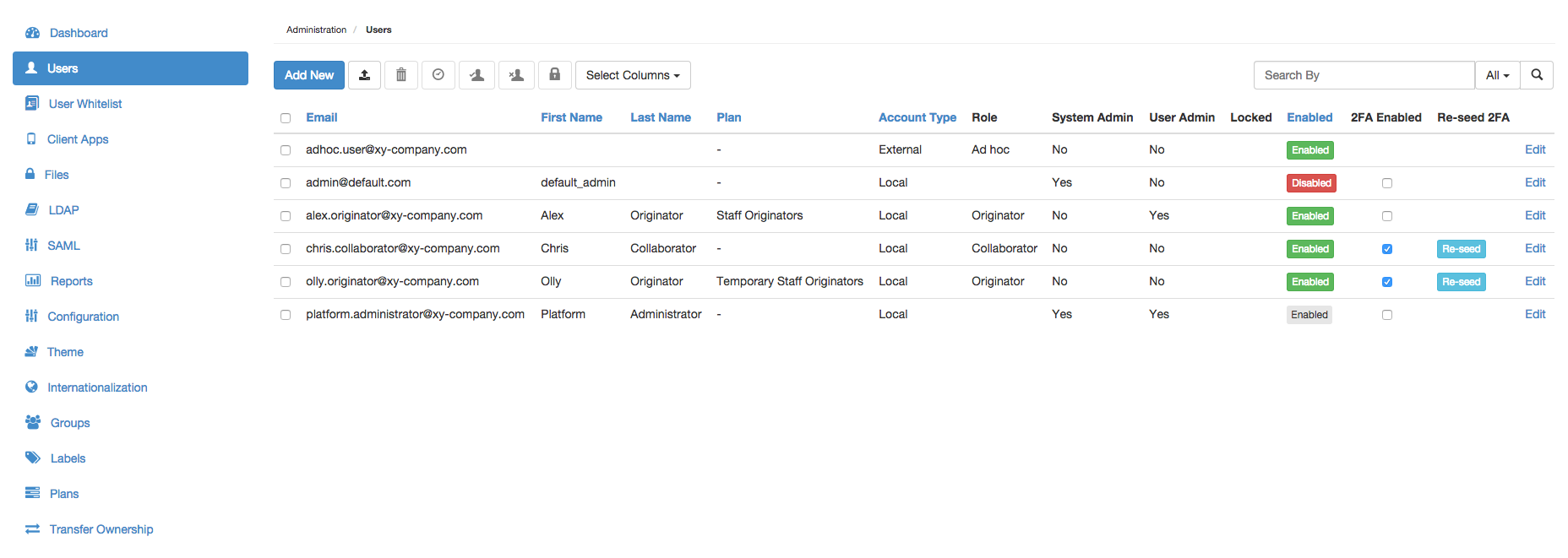
As more users are added to the Covata Platform, it can become difficult to locate specific users through the Users page of Covata Administration. The Users page therefore offers features to help you locate specific user accounts more rapidly.
To locate specific user accounts on the Covata Platform:
Use either of the following features to find a specific user account (or subset of these accounts):
Filter user accounts - In the Search by... box (right of the Users page), begin typing a series of characters contained in any of the users' Email, First Name, Last Name, Role or (System) Adminfields. This filters the list of users on the Covata Platform to those whose Email, First Name, Last Name, Role or (System) Admin (i.e. 'yes' or 'no') contains the subset of characters entered into the Search by... box.
By default, the Email, First Name, Last Name, Role or (System) Admin fields are used for filtering (i.e. All), although filtering can be restricted to just one of these fields using the adjacent drop-down.
Navigate to specific user accounts - Use the page navigation buttons (lower-right of the Users page), which work in conjunction with the adjacent 25/50/75/100 items (i.e. user accounts) per page dropdown.
Tip: You can also sort user accounts on the Users page by clicking the linked name (in the column header) of the field by which you would like to sort your users:
Clicking a linked field name multiple times toggles between sorting the users (according to that field) in ascending and descending order.
To revert back to the natural ordering of users in the list, simply refresh the page.
Editing an existing user
This procedure describes how to edit the fields of an existing Local or External (i.e. Ad hoc) user account on the Covata Platform. It is also used for modifying the roles of an LDAP user account.
Note: The other fields of LDAP user accounts can only be edited through their respective LDAP servers' user directories. These user accounts get updated on the Covata Platform during synchronization events with the LDAP server. See Configuring LDAP for more information.
To edit the fields of a Local or External/Ad hoc user account:
The Email address of all users on the Covata Platform is unique and since this field is used for auditing purposes, it cannot be edited. To update the email address of a Local user, add a new account for them and either disable or delete their old user account.
Only a Local user who has signed in to either Safe Share web application or Covata Administration can change their own password.
Note: The authentication of an LDAP user on the Covata Platform is delegated to its resepctive LDAP server. If you have an LDAP user account and wish to change its password, you will need to contact your LDAP administrator for details on how to do this (e.g. through the user account on your LDAP server/user directory). See Configuring LDAP for more information.
All reporting data associated with these users' accounts.
Notes:
The Covata Platform's log files still retain a record of activities conducted by Covata users whose accounts have been deleted.
To disable Covata users, which prevents them from accessing Covata technologies through their user accounts (but retains all aspects of these users' encrypted files, folders and reporting data), see Disabling or re-enabling users.
A Covata Platform administrator can delete any user account, with the exceptions of:
The user account with which they are currently signed in to Covata Administration.
Select their check box/es on the left (or select the top check box in the user list's header to select all check boxes of the currently visible user accounts).
Click the
(Delete Users) button and then Yes on the confirmation message box to continue.
The selected user accounts are removed, along with the encrypted files, folders and reporting data that belonged to these user accounts.
Note: If an LDAP user account is deleted (using this procedure above), the account itself is deleted temporarily until the Covata Platform next synchronizes with the LDAP server, upon which the account reappears amongst the list of Covata users. However, the LDAP user's encrypted files, folders and reporting data are still removed. Hence, to permanently 'delete' an LDAP user account from the Covata Platform:
Disable the LDAP user through the account's LDAP server/user directory.
Delete the LDAP user account through Covata Administration (using this procedure above).
( Optional ) Delete the LDAP user through the account's LDAP server/user directory. If you do not delete the account through the LDAP server/user directory, the user account will reappear amongst the list of Covata users when the Covata Platform next synchronizes with the LDAP server. However, the account will be disabled.
Expiring users' tokens/sessions
Expiring users' access/refresh tokens forces all of these users' currently signed in sessions to terminate immediately. The users will then be required to sign in again to gain access to Safe Share and/or their Covata Platform's resources.
This feature is useful when one or more Covata user accounts are at risk of being compromised - for example, these Covata users either forgot to sign out from a computer used by more than one person, or they were signed in on their laptop, which was either lost or stolen before they signed out.
Find the user/s whose accounts are to have all their access/refresh tokens expired.
Select their check box/es on the left (or select the top check box in the user list's header to select all check boxes of the currently visible user accounts).
Click the
(Expire Users' Tokens) button and then Yes on the confirmation message box to continue.
All access/refresh tokens associated with the selected user accounts are expired immediately.
Disabling or re-enabling users
Disabling Covata user accounts prevents access to the Covata Platform through these accounts. This is useful when, for example, one or more people leave an organization and are no longer permitted to be an Originator or access Covata technologies through their organization's user accounts. However, it may be necessary to retain:
All of the encrypted files/Secure Objects and folders/collections which have been created through these people's user accounts.
The Covata user accounts themselves, in the event that one or more of these people rejoin the organization at a later point in time (when their original accounts can be re-enabled).
Tips:
To remove Covata users, including all aspects of these users' encrypted files, folders and reporting data, see Deleting users.
To disable multiple Covata users (for example, based on their email address domains), see Managing user whitelists.
A Covata Platform administrator can disable any user account, with the exceptions of:
The user account with which they are currently signed in to Covata Administration.
Find the user/s whose accounts are to be disabled, enabled or re-enabled.
For a single user account, to:
Disable it - click the account's green Enabled button (in the Enabled column) until the button changes red and indicates Disabled.
Enable or re-enable it - click the account's red Disabled button (in the Enabled column) until the button changes green and indicates Enabled.
For multiple user accounts:
Select their check boxes on the left (or select the top check box in the user list's header to select all check boxes of the currently visible user accounts).
Then, to:
Disable these accounts - click the
(Disable Users) button and then Yes on the confirmation message box to continue.
The users' accounts are disabled and their green Enabled buttons (in the Enabled column) change to red Disabled ones.
Enable or re-enable these accounts - click the
(Enable Users) button and then Yes on the confirmation message box to continue.
The users' accounts are enabled/re-enabled and their red Disabled buttons (in the Enabled column) change to green Enabled ones.
Notes:
If any selected user accounts were already disabled or enabled upon clicking the above Disable Users or Enable Users buttons, respectively, then this action is ignored on these accounts.
It is not possible to both disable and enable/re-enable different sets of user accounts in a single action.
Notes:LDAP user accounts cannot be disabled or re-enabled through Covata Administration, because the state of these user accounts is controlled through their LDAP server/user directory. For example, if an LDAP user has been disabled through its LDAP user directory, this account will appear Disabled on the Users page and it will not be possible to enable or re-enable the account through this page.
Forcing users to reset their passwords
Local users can be forced to reset their password (for example, because you have increased the password complexity or suspect that one or more users' passwords may have been compromised).
Find the user/s whose passwords need to be changed.
For a single user account:
Click the Edit link of the relevant user (towards the right of the Users page).
In the Edit User dialog box, select the Force Password Reset check box and click Save.
For multiple user accounts:
Select their check boxes on the left (or select the top check box in the user list's header to select all check boxes of the currently visible user accounts).
Click the
(Reset Users' Passwords) button and then Yes on the confirmation message box to continue.
All of these user accounts' passwords will be reset.
When the user/s next sign in with their existing/old password, they will be prompted on a new Set your password page to enter their old password as well as a new password twice (once for confirmation).
Notes:
The value of the Force Password Reset check box is effectively ignored if you are editing a user account with the Ad hoc role, since these types of users can only authenticate through a one-time access link/password.
LDAP users can only reset their password through their account's LDAP server/user directory.
Unlocking users' accounts
If a Covata user enters their password incorrectly more than the Covata Platform's configured maximum, then the user's account becomes locked. The user is also sent an email notification with instructions on how to unlock their account and allow it to be used again.
On the Users page, locked Covata user accounts have a red Unlock button (in the Locked column), which Covata Platform administrators can use to manually unlock any other user's account.
Click the red Unlock button (in the Locked column) of the relevant user/s, which immediately unlocks their user account/s.
Enabling 2FA on a user account
If required, any Covata user account can be configured with two-factor authentication (2FA) by enabling this feature on their account.
If 2FA has been enabled on a user account, the user is then required to enter both their password (i.e. the 1st authentication factor), as well as an authentication code obtained from an authenticator application (aka authenticator app) running on their mobile device (i.e. the 2nd authentication factor), in order for the user to successfully sign in through this account on the Covata Sign-in page.
The 2FA feature supports the following mobile devices and authenticator apps:
Android-based devices running the Google Authenticator app,
Apple's iPhone, iPad or iPod Touch devices running the Google Authenticator app, or
Before enabling 2FA on a Covata user account, you may wish to confirm if the user of this account is in possession of any one of these supported mobile devices (above), or notify the user that they will require access to one of these devices to continue signing in through the Covata Sign-in page.
URLs to download the appropriate authenticator app for a supported device are available (and configurable) through the Themespage.
To enable two-factor authentication on a Covata user account:
Find the user/s whose account is to be configured with 2FA.
Select the check box (in the 2FA Enabled column) of the relevant user/s, which immediately enables 2FA for these user account/s.
Each user with 2FA enabled in this manner is sent an email notification informing them that 2FA has been enabled for their account. This email message contains a time-limited link, which leads to step-by-step instructions for the user to:
Configure their mobile device with the appropriate authenticator app.
Configure the authenticator app (once installed) with their Covata user account, so that the authenticator app can generate the appropriate authentication codes (for the 2nd authentication factor).
Re-configuring 2FA for a user account
While two-factor authentication (2FA) is enabled on a user's account, the user might lose the ability to generate authentication codes for their 2nd authentication factor (explained in more detail above) due to any of the following reasons:
The user deleted their Covata user account configuration from the authenticator application (app) installed on their mobile device.
The time-limited link for configuring 2FA expired before the user had a chance to complete the 2FA configuration process. This is the link contained in the email notification informing the user that 2FA has been enabled on their account.
The user lost their mobile device. The user will require a replacement device in order to continue signing in through the Covata Sign-in page with 2FA enabled on their account.
If one of these scenarios occurs, the user will no longer be able to sign in through the Covata Sign-in page. The user may likely send you or any other Covata Platform administrator an email message about one of these scenarios having occurred (via 'contact your administrator' feature on the Authentication code request page as they attempt to sign in through the Covata Sign-in page).
Therefore, to resolve this situation, the user requires 2FA to be re-configured (aka re-seeded) for their account.
Find the user/s whose account is to be re-configured for 2FA.
Click the Re-seed button (in the Re-seed 2FA column) of the relevant user/s to re-configure 2FA for their account.
Each user with 2FA re-configured in this manner is sent an email notification informing them that 2FA has been enabled for their account, similar to the email notification they received when 2FA was originally enabled on their account. This email message contains a new time-limited link, leading to step-by-step instructions for the user to:
(Re-)configure their mobile device with the appropriate authenticator app (should the user need to conduct this step again).
(Re-)configure the authenticator app (once installed) with their Covata user account, which allows the authenticator app to generate the appropriate authentication codes for the 2nd authentication factor.
Configuring columns on the 'Users' page
By default, all columns on the Users page are visible. With the exception of the Email column (which is always shown), if there are other columns whose visibility is not required when administering users on your Covata Platform instance, then these columns can be selectively hidden from the Users page.
To hide one or more columns from the 'Users' page, or make these columns visible again:
Click the Select Columns drop-down and clear the check boxes next to the column names to be hidden. Conversely, select the check boxes next to the column names to be made visible again.