 |
Administrator's Guide
|
|
Administrator's Guide
|
Most Covata Administration features are only available to Covata Platform administrators, where a Covata Platform administrator is any Covata user who has the System administrator role.
Note: Covata Platform administrators can grant themselves the User administrator role to gain access to all administration features of the Covata Platform.
When signing in to Covata Administration, a Covata user account must have the:
Note: If accessing Covata Administration for the first time, see Accessing for the first time (below) before continuing.
To sign in to Covata Administration:
/#/admin) into your browser's URL field - e.g: https://covata-platform.xy-company.com/#/admin Tip: A Covata Platform administrator (i.e. typically a Covata user account with only the System administrator role) can edit their own user account to grant themselves the User administrator role.
The Covata Administration interface consists of a set of configuration pages, each of which is accessible from the options on the left (below). Note that:
The Dashboard page is initially displayed upon a Covata Platform administrator successfully signing in to Covata Administration.
Note: If accessing Covata Administration from a tablet or phone, tap the 'menu' icon in the top left hand corner of the screen to access these options.
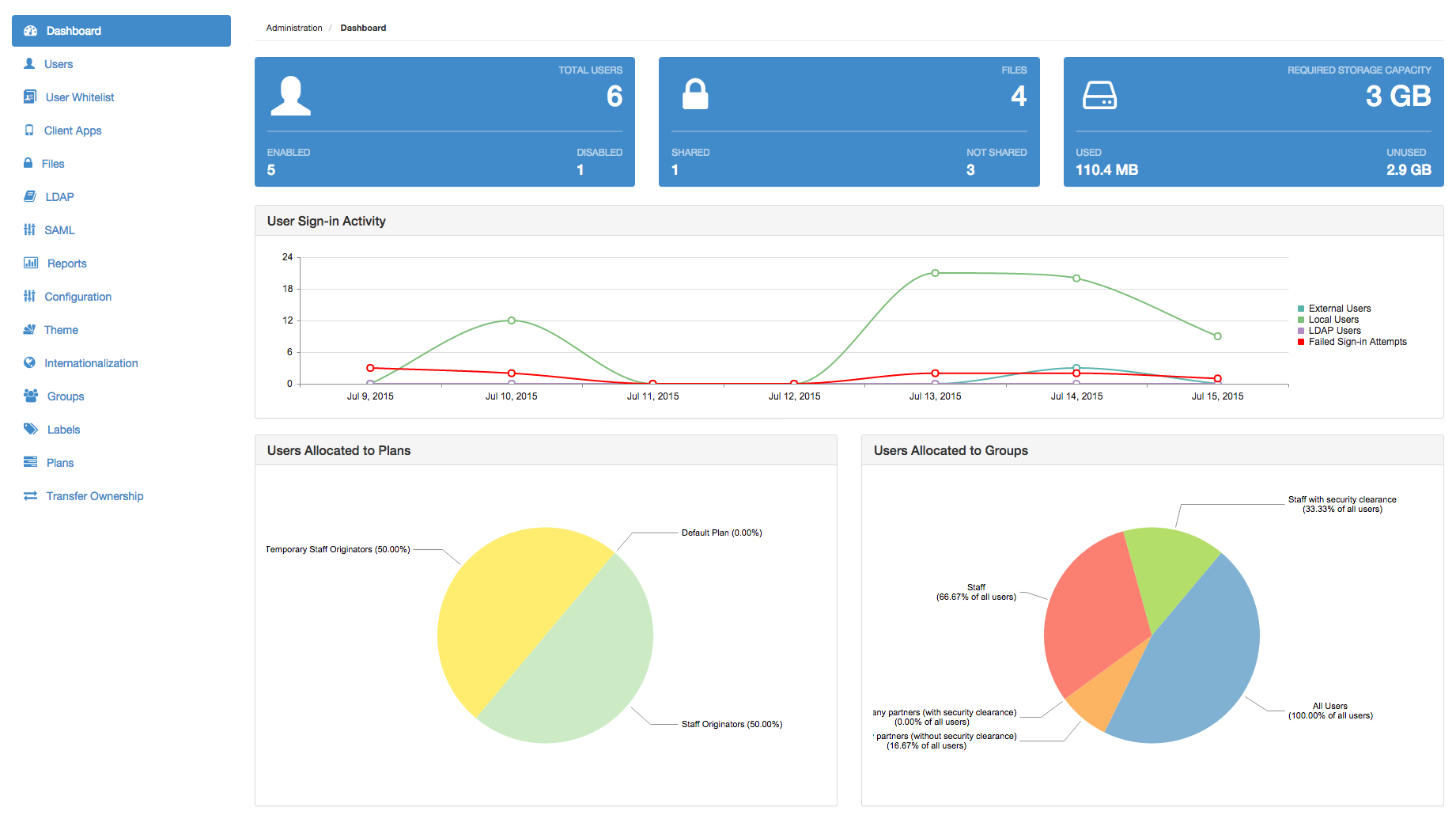
The table below describes each of these Covata Administration pages, which can be accessed by clicking its option on the left of the interface.
| Covata Administration page | Description |
|---|---|
| Dashboard | Provides a single-page graphical overview of various aspects of your Covata Platform's current statuses (presented in panels), recent activities (presented in graph form) as well as a variety of system usage metrics involving user accounts, files and storage (presented in pie charts). |
| Users | Allows access to all Covata users, from which any Covata user can be configured, including the ability to:
|
| User Whitelist | Allows the management and configuration of the user whitelist, which defines the users that can access the Covata Platform. Any users whose email addresses do not match a user whitelist rule cannot:
|
| Client Apps | Allows the registration and configuration of applications (e.g. built by integrators using the Covata Platform's API) which uses Covata technologies to create and/or access Secure Objects. The configurations of these 'client' applications on the Covata Platform define:
|
| Files | Allows any files encrypted using Covata technologies on the Covata Platform to be searched and filtered. From this filtered list, individual files can:
|
| LDAP | Allows the configuration of connections to one or more LDAP user directories, which can be used to populate the Covata Platform with users. |
| SAML | Allows the configuration of a SAML-based Identity Provider (IdP) service to which Covata users can authenticate to gain access to the Covata Platform and the Safe Share web application through single sign-on. |
| Reports | Allows the generation of reports on all requests made by client applications to the Covata Platform's API, which can be downloaded in either PDF or CSV formats. The results of these reports can be filtered by a wide range of criteria. |
| Configuration | Allows the modification of properties that affect certain functional areas of Covata Administration. |
| Theme | Allows the Safe Share web application (and Covata Administration) to be 're-themed' by modifying the logos of its user interface as well as email notifications. |
| Internationalization | Allows the user interface language for Covata Administration and the default one used by the Safe Share web application to be changed. Also allows custom/external language bundles to be uploaded to provide the Covata Platform with greater internationalization support for more languages. |
| Groups | Allows the definition of groups of Covata users, which in turn can be used in conjunction with labels to restrict the people with whom files can be shared. |
| Labels | Allows the definition of labels that:
|
| Plans | Allows the definition of plans, each of which defines a storage quota that is used to limit the amount of storage (managed by the Covata Platform's Content Service) available to Covata user accounts. |
| Transfer Ownership | Allows the ownership of a Covata user's content (consisting of their entire set of Secure Objects + collections) to be transferred to that of another user. Note: A collection is analogous to a file system folder/directory and is used to group and organize other Secure Objects and collections. |
The Dashboard page is initially displayed upon a Covata Platform administrator successfully signing in to Covata Administration.
The following table describes each component of the Dashboard page from left to right and top to bottom.
| Dashboard page component | Description |
|---|---|
| Total Users | This panel shows the total number of Covata users registered on the Covata Platform, including the numbers of these users whose accounts are either enabled or disabled. Clicking this panel opens the Users page. |
| Files | This panel shows the total number of encrypted files/Secure Objects which have been created through the Covata Platform, including the number of these files which are either shared or not shared. Clicking this panel opens the Files page. |
| Required Storage Capacity | This panel shows the total amount of storage space that the Covata Platform (managed through the Content Service) requires to be able to store content for all Covata users with the Originator role (i.e. who have a plan). This panel includes the amounts of this storage which are currently used and unused. Clicking this panel opens the Plans page. Note: This total is calculated by summing the quota values of all Covata users with the Originator role. |
| User Sign-in Activity | This graph shows Covata user sign-in activity over the past week, with each point along a curve representing activity pertinent to that curve on a given day. Each curve on the graph represents the number of successful sign-ins from one of the three types of Covata user account. The fourth curve represents the total number of failed sign-in attempts. |
| Users Allocated to Plans | This pie chart represents all Covata users with the Originator role (i.e. who have a plan) and shows the proportions of these users assigned to each plan (i.e. of all plans) defined on the Covata Platform. |
| Users Allocated to Groups | This pie chart represents all Covata users who are members of any added group (i.e. excluding the All Users group) and shows the proportions of these users who belong to each group (i.e. of all added groups) defined on the Covata Platform. |
| Users (Local vs LDAP vs External) | This pie chart shows the proportions of all enabled Covata users' account types. |
To sign out of Covata Administration:
Important: After administering the Covata Platform, please ensure that you explicitly sign out of Covata Administration using this procedure (above). If you simply close the browser tab or window that contained your Covata Administration session, then you will not be signed out, leading to the risk that your session may be compromised by someone else subsequently using your computer.
New Covata Platform instances have a default administrator user account (with email address admin@default.com).
This user exists for the purpose of allowing a Covata Platform administrator to initially sign in to Covata Administration to create new user accounts, one of which is a Covata Platform administrator user for themselves.
Important: For security reasons, this default administrator user account should be deleted or disabled after it is used to create these new user accounts.
To access a new Covata Platform instance and initially set up Covata Administration users:
/#/admin) into your browser's URL field - e.g: https://covata-platform.xy-company.com/#/adminadmin@default.com andpasswordadmin@default.com user.