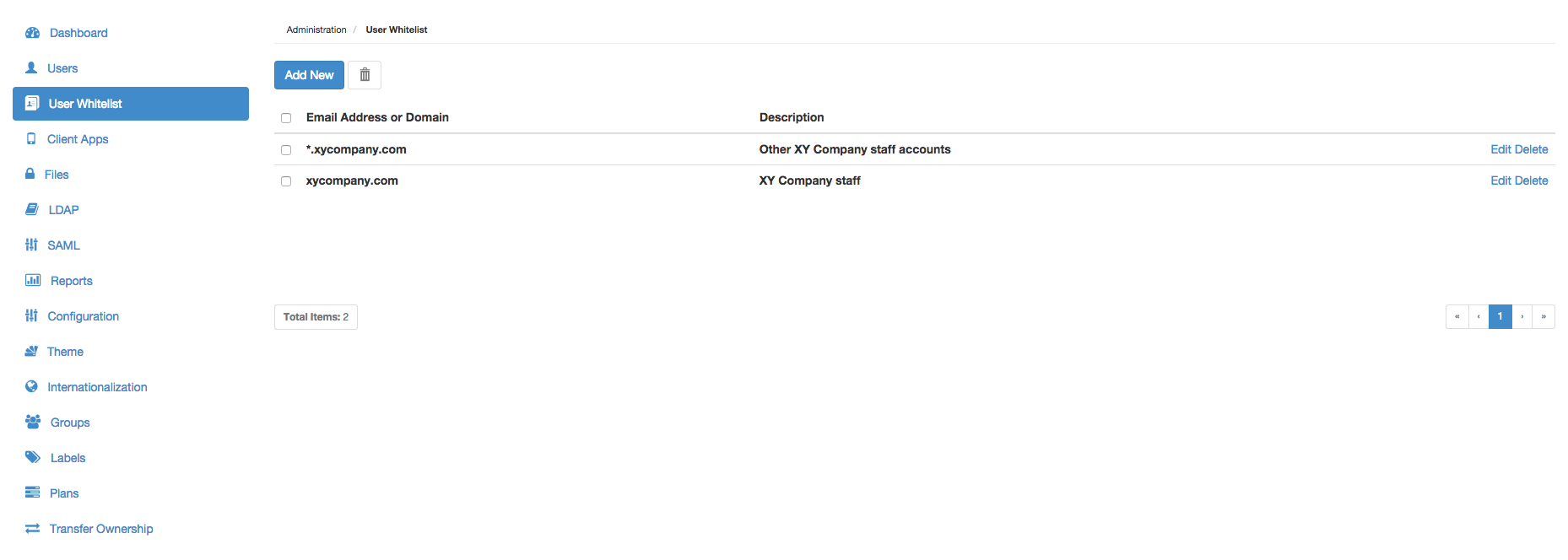
A Covata Platform administrator can configure and manage the user whitelist, which defines the people that can access their Covata Platform instance.
An email address or a domain (to which an email address belongs) can be specified on the User Whitelist page as an individual user whitelist rule.
If the email addresses of any Covata users do not match/comply with any user whitelist rule on this page (and these users do not have the System administrator role), then these users' accounts are automatically disabled.** Therefore, these 'non-whitelisted' Covata users cannot:
Sign in to the Covata Platform or use any aspect of Covata technologies through their account.
Be shared files or folders (i.e. added as a collaborator to items) by other Covata users. Note: This also includes anyone else who does not yet have a Covata user account, but whose email address does not match/comply with an existing user whitelist rule.
Once a Covata user account is disabled through the user whitelist feature, it can only be re-enabled through the Users page. The exceptions are LDAP user accounts, which are automatically re-enabled when the Covata Platform next synchronizes with the LDAP server.
Additionally, the the Covata Platform will not create user accounts with the Ad hoc role for people whose email addresses have not been whitelisted. Therefore, the user whitelist feature can be used to restrict the automatic creation of Covata user accounts to whitelisted domains only.
** An empty User Whitelist page results in the user whitelist feature being disabled. When the user whitelist feature is disabled, interactions between the User Whitelist and Users pages of Covata Administration become de-coupled, such that:
Covata user accounts are notdisabled by not having a rule on the User Whitelist page.
Any LDAP user accounts that were disabled by not matching/complying with a user whitelist rule (when the user whitelist feature was enabled) are automatically re-enabled when the Covata Platform next synchronizes with the LDAP server.
Managing the user whitelist
The User Whitelist page of Covata Administration (above) allows:
In the Add Domains/Email Addresses dialog box, click the Add Rule button:
Specify a domain or email address under Rule. For example, specify xycompany.com to whitelist the domain xycompany.com only. Notes:
When specifying a domain, the '*' wildcard character can be used to include variants of a domain. For example, specify:
*.xycompany.com to whitelist domains qa.xycompany.com, abc.xycompany.com, etc. (but not xycompany.com).
*xycompany.com to whitelist domains qa-xycompany.com, abc-xycompany.com, etc. (but again, not xycompany.com).
xycompany.* to whitelist domains xycompany.com, xycompany.net, xycompany.abc, etc.
When specifying an email address, it is not possible to use the wildcard '*' character. If the '@' character is present in a rule, then an explicit email address is expected for the rule to be valid, for example platform.administrator@xycompany.com.
( Optional ) Click under Description (or press the 'Tab' key) to specify a description for the user whitelist rule.
Repeat the start of step 4 to specify more rules. Note: If your Covata Platform instance has many users, be sure to add as many rules as are necessary (before proceeding to the next step) to prevent any Covata users (to keep enabled) from being disabled by this feature. See the important note below for more information.
Click the Next button to validate the user whitelist rule(s) specified above:
If the rule(s) validate successfully, the Add Domains/Email Addresses dialog box indicates the email addresses of the Covata users that will be disabled by proceeding.
If a validation error message is shown, click the Go Back button and either:
Click in the erroneous rule's field (under Rule) to edit + correct its value.
Click the erroneous rule's Delete link to remove the rule.
Click the Apply button to add the user whitelist rule(s) to the User Whitelist page.
Any Covata user accounts that do not match/comply with these user whitelist rule(s) above (including any existing rules on the User Whitelist page) are disabled.
Important: The user whitelist feature becomes enabled when at least one rule has been added to/is specified on the User Whitelist page. When the user whitelist feature is enabled, interactions between Covata Administration's User Whitelist and Users pages become coupled. However, be aware that:
Covata Platform administrator accounts cannot be disabled through a user whitelist rule. Therefore, there is no need to add any user whitelist rules to prevent Covata Platform administrators from being disabled. Covata user accounts with the System administrator role can only be disabled through the Users page.
If a disabled Covata user account is (re-)enabled on the Users page and its email address does not match that of an existing user whitelist rule, then that account's email address is automatically added as a new whitelist rule upon (re-)enabling the account.
Any LDAP user accounts that were originally disabled by not matching/complying with an existing user whitelist rule (but now comply with a newly added rule) are automatically re-enabled when the Covata Platform next synchronizes with the LDAP server.
Editing an existing user whitelist rule's description
Only the Description of an existing user whitelist rule can be edited.
To edit the description of an existing user whitelist rule on the Covata Platform:
Locate/scroll to the relevant user whitelist rule and click its Delete link.
For multiple user whitelist rules:
Select the check boxes on the left, or select the top check box in the header to select all check boxes of the currently visible user whitelist rules (i.e. domain/email addresses).
Click the
(Delete Domain/Email) button.
A Delete Domain/Email message box appears, indicating the email addresses of user accounts that will be disabled as a result of deleting the user whitelist rule(s). Click Delete on this message box to continue. Note: Deleting either the last user whitelist rule or all user whitelist rules disables the user whitelist feature and does not result in any Covata user accounts being disabled. See the description above for more information.
Tip: To modify the email address or domain of a user whitelist rule, delete it using this procedure above and add the modified email address or domain as a new whitelist rule.