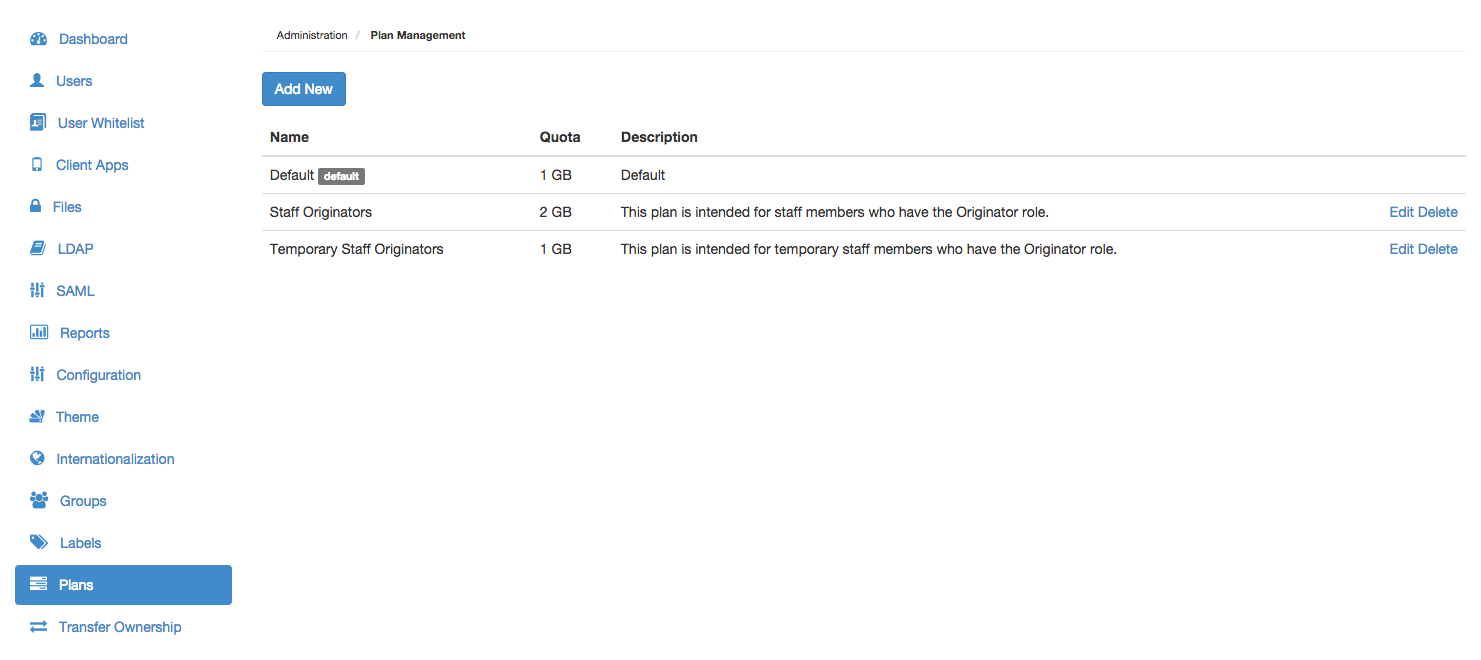
The Plans page allows Covata Platform administrators to define storage quotas, which are used to limit the amount of storage (managed by the Covata Platform's Content Service) available to Covata user accounts accessed through either:
Covata Safe Share applications, or
Other client applications that utilize the Covata Platform's API.
A storage quota is defined by a plan, which in turn can be applied to a Covata user account with the Originator role (through the Userspage) when the account is either created or edited.
Name - The value of this field is the name of the plan shown in the list of available plans when a Covata user with the Originator role is created or edited through the Userspage.
Description - A longer description to provide more information about the plan, such as the plan's purpose or which type of Covata users the plan is intended for. The value of this field is only visible to Covata Platform administrators on this Plan Management page.
Quota (MB) - The value of the quota (in megabytes) that this plan defines.
( Optional ) Select the Default plan check box to ensure that this plan (you are about to add) is selected by default when a Covata user with the Originator role is either created or edited.
Click Save and the new plan is added and will appear as a new entry on the Plan Management page. Note: If the Default plan check box was selected, the default indicator on the Plan Management page switches to this plan you just added.
Editing an existing plan
Editing an existing plan allows modification of all of its fields. This is useful when it is necessary to modify the plan's quota or change this plan to the default one.
Note: It is not possible to edit the plan marked default. To edit such a plan, see the Tip below.
Locate/scroll to the relevant plan and click its Edit link.
In the Edit plan dialog box, modify the:
Name - The value of this field is the name of the plan shown in the list of available plans when a Covata user with the Originator role is created or edited through the Userspage.
Description - A longer description to provide more information about the plan, such as the plan's purpose or which type of Covata users the plan is intended for. The value of this field is only visible to Covata Platform administrators on this Plan Management page.
Quota (MB) - The value of the quota (in megabytes) that this plan defines.
( Optional ) Select the Default plan check box to ensure that this plan (you are editing) is selected by default when a Covata user with the Originator role is either created or edited.
Click Save and the plan's fields are updated accordingly. Note: If the Default plan check box was selected, the default indicator on the Plan Management page switches to this plan you just edited.
Tip: To edit a plan marked default, edit another plan first and choose its Default plan check box (then Save), which switches the default indicator away from the plan you intend to edit.
Deleting an existing plan
Deleting an existing plan prevents this plan from being selected when creating or editing a Covata user through the Userspage.
When a plan is deleted, any users who were assigned this plan are automatically switched over to the default plan. Be aware that if this default plan has a quota which is lower than the amount of Content Service-managed storage utilized by any of these users, then these users will no longer be able to upload any data through Safe Share (until their storage utilization drops below the default plan's quota).
Note: It is not possible to delete the plan marked default. To delete a plan marked default, edit another plan first and choose its Default plan check box (then Save), which switches the default indicator away from the plan you intend to delete.