View, print or download personally owned files which you had previously uploaded and stored securely with the Safe Share web application or Safe Share for Windows. These actions can also be performed on files that you had uploaded to share through another user's folder with the Safe Share web or Windows applications.
View files which someone else has stored securely and shared with you using the Safe Share web or Windows applications. You can only print or download these files if the owners who shared the files have granted you permission to perform these actions.
The ability to view or print + download files is based on the permissions that the owners of these files granted their collaborators (i.e. you) when the files were shared. The content viewer is useful when the owner of a file wants to share the file's content but not allow the content to be printed and downloaded.
To view and print secure content:
If you Sign in to the Safe Share web application via a link provided in a 'file has been shared with you' email message, you are taken directly to the file's content viewer (below). Otherwise...
Do one of the following to begin viewing this file:
Click the linked name of the file. Note: If the file's name is not linked, then it is not possible to view or print this file in Safe Share. See File formats supported by the content viewer for a list of file types that the content viewer supports. Instead, you will only be able to download the file to access its content, on the proviso that the owner of this file has granted you (as a collaborator) Download permissions on the file. OR
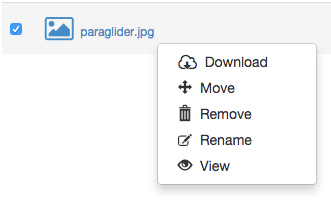
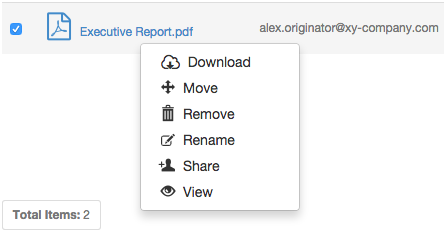
Right-click on the file's row and choose View from the pop-up menu:
Note: This menu option will not be available if it is not possible to view or print this file in Safe Share. Downloading this file is your only option to access the file's content. OR
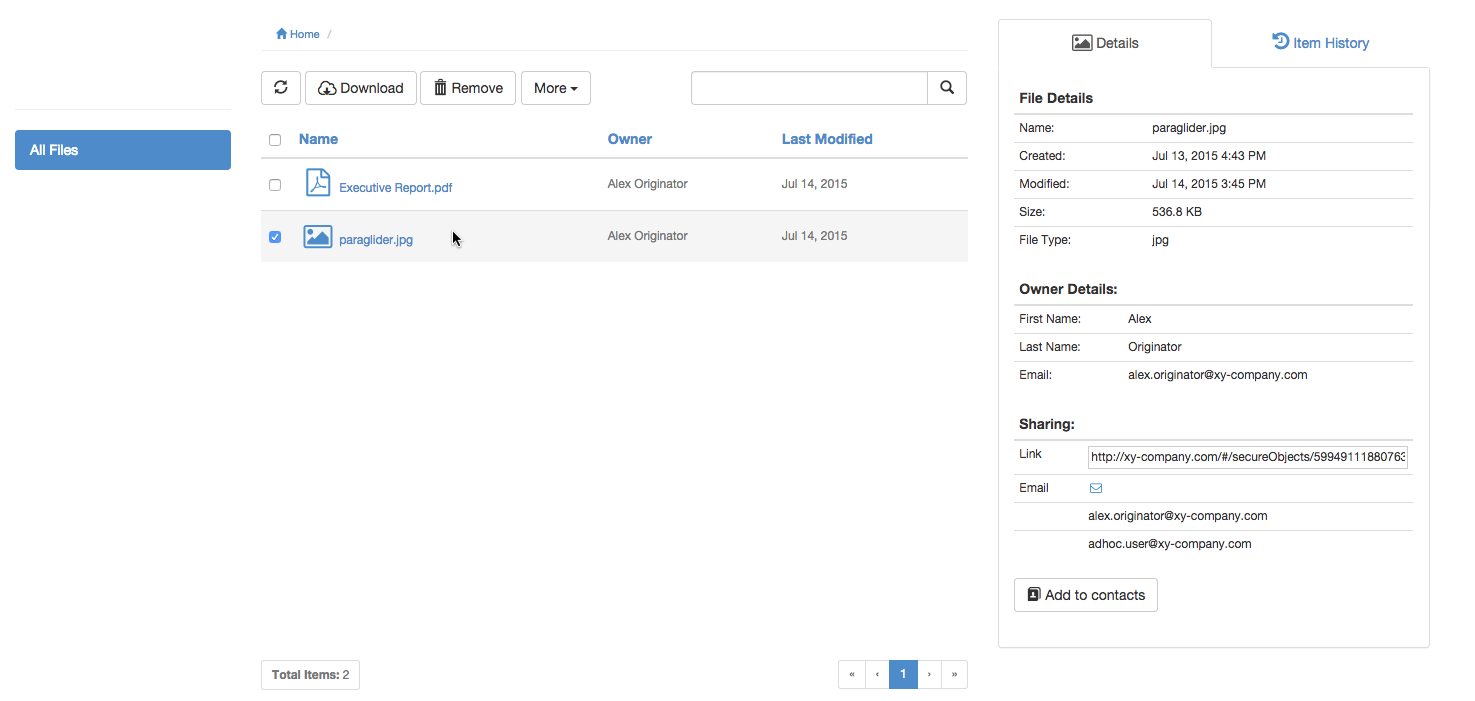
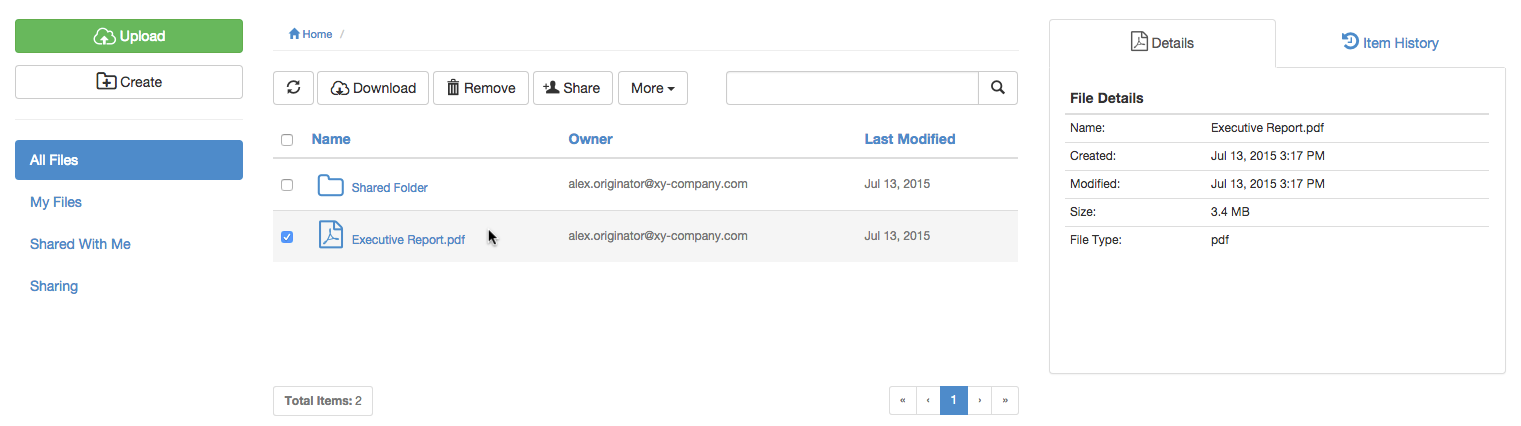
Highlight the file, by clicking on the file's row (to the right of its name):
In the toolbar above the list of items, click the More menu button and choose the View option. Again, this option will not be available if it is not possible to view or print this file in Safe Share; downloading this file is your only option to access the file's content.
Tip: If navigating to a file in a folder (by having clicked through one or more folder names), then in the breadcrumb (e.g.
) near the top of the main Safe Share page, you can click the:
Link of a parent folder's name (e.g. Shared Folder in the example above) to go to that folder's location.
Home link to go to the root location of your file area.
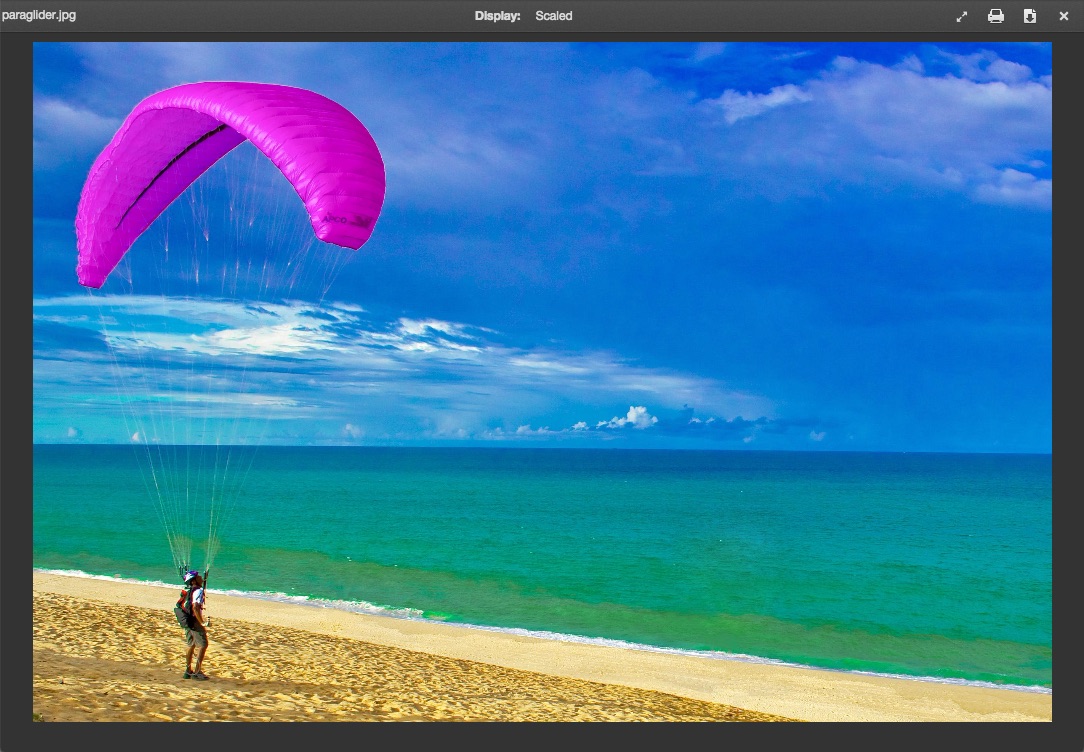
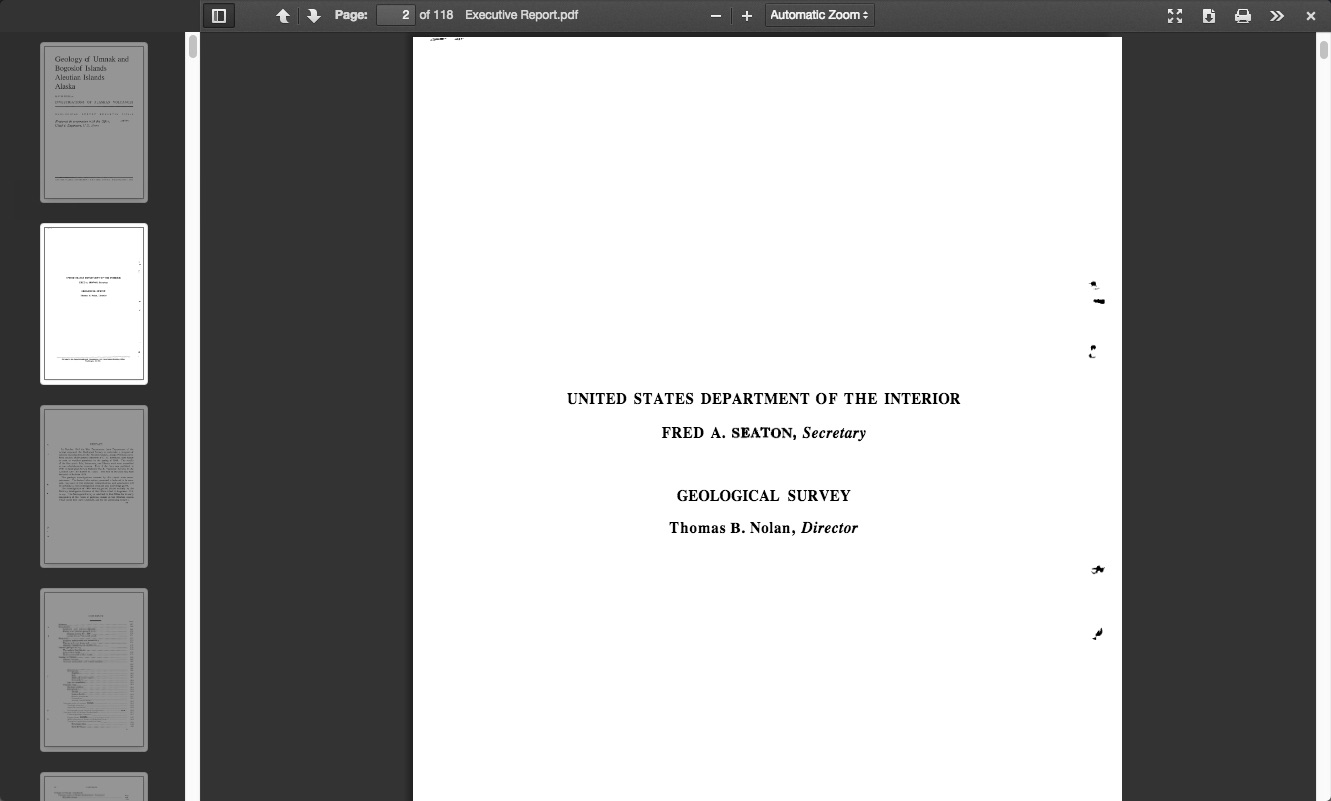
The content viewer opens, showing a read-only view of your file's content:
If your file is an image, the content viewer and its controls will look similar to this:
If your file is a document-like file (i.e. which may contain more than one page), the content viewer and its controls will look similar to this:
Tips on using the content viewer:
Click the
(Print) button on the content viewer to print the file's content. Note: This feature will be disabled if the file you are viewing was shared with youand the owner of that file did not grant you (as a collaborator) Download permissions, which in addition to downloading the file's content, allows you to print it directly from the content viewer.
Click the
(Download) button on the content viewer to download the file's content, which can also be performed from the main Safe Share page. Note: This button will not be visible if the file you are viewing was shared with youand the owner of that file did not grant you (as a collaborator) Download permissions.
If you are the owner of the file you are currently viewing, click the
(Share) button to open the 'Share' dialog box, which allows you to add new collaborators and/or modify existing collaborators (including their permissions) on this file. Note: This button will not be visible if you are not the owner of this file.
If you are viewing an image file, click the
(Toggle between scaled and actual size) button on the content viewer to switch between viewing the image in its entirety (i.e. scaled) or at its actual/original size.
The following features are only available when viewing document-like files:
Use the '+' (plus) and '-' (minus) buttons to zoom in and out of the content view. The adjacent drop-down can also be used to select an appropriate zoom level.
Click the
(full screen button) to expand the size of the content to fill the entire screen (using the web browser's own 'full screen' feature). Note: Some web browsers may not support this feature (e.g. Safari) and therefore, clicking this button has no effect.
If your content consists of multiple pages, you can navigate to different pages by:
Using the 'down' (forward) and 'up' (back) arrow buttons to move forward and back one page at a time.
Clicking the
(show/hide preview panel button) to open the preview panel on the left and in this panel, scrolling to and clicking the corresponding thumbnails for specific pages.
Typing a page number in the Page field (followed by the 'return/enter' key).
Click the
(more options button) to open a drop-down menu of additional controls:
Jump to the first and last pages of content (consisting of multiple pages).
Rotate content clockwise and counterclockwise.
Enable/disable the hand 'move' tool.
Tip: To go back to the main Safe Share page, click the x at the top-right of the content viewer.
File formats supported by the content viewer
The content viewer supports the following file formats, which are determined by file name extensions:
File-type category
Supported file formats (file name extensions)
Image files
bmp, gif, jpeg, jpg, png
Word processing/text documents
doc, docx, html, mhtml, odt, ooxml, rtf, txt, xhtml, xml
Documents with static content
pdf
Presentation files
odp, pot, potx, pps, ppsx, ppt, pptx
Spreadhsheet/data files
csv, ods, xls, xlsb, xlsm, xlsx, xltm, xltx, xlxm
Downloading secure content
Note: This feature is not available if a file you can view was shared with youand the owner of that file did not allow their collaborators to download the file's content.
Do one of the following to begin downloading this file:
Right-click on the file's row and choose Download from the pop-up menu:
Note: If this menu option is not available, then it is not possible to download this file since its owner did not grant Download permissions when they shared the file with you. OR
Highlight the file, by clicking on the file's row (to the right of its name):
In the toolbar above the list of items, click the Download button. Note that this option will not be available if the owner did not grant Download permissions when they shared the file (or one of its ancestral folders) with you.
The file is downloaded through your web browser's usual download feature. Tip: You can also download a file's content through the content viewer.