The Internationalization (aka I18n) page allows Safe Share administrators to:
- Change the System Default language, which:
- Export a built in or custom language bundle for translation/customization and upload a translated/customized language bundle (or an externally available one) to the Covata Platform, thereby providing a Covata Platform instance with greater support for more languages and customized user interface text.
Notes:
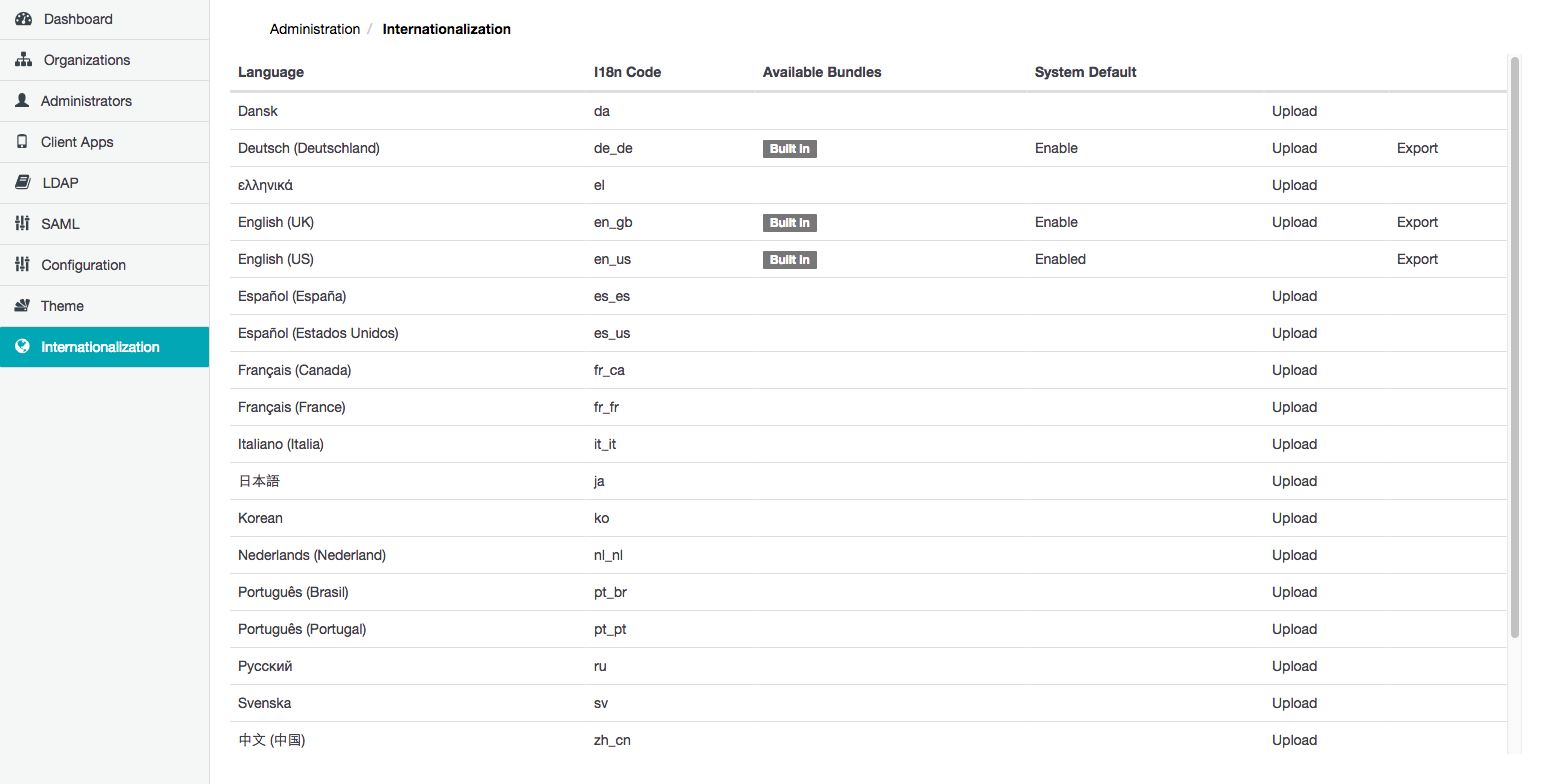
Available Bundles on the Internationalization page (above) is an important column that indicates:
- Built In - for languages which are pre-packaged into a Covata Platform instance.
- Custom - for any supported language which has an uploaded customized/external language bundle. This can include either Built In and non-Built In languages.
Currently, the Covata Platform only provides support for the languages listed on the Internationalization page. However, these languages only become available for selection by Covata users if:
- The languages are Built In to the Covata Platform (which could also be overridden by an uploaded customized/external language bundle),
or
- For a non-Built In languages, a Custom bundle (i.e. a customized/external language bundle) has been uploaded.
Changing the 'System Default' language
The System Default language is the default language used for all user interface text (described above) and is indicated on the Internationalization page by the Enabled label in the System Default column.
To change the 'System Default' language:
- Sign in to Safe Share Administration.
- Click the Internationalization option on the left of the Safe Share Administration interface to open the Internationalization page.
- Click the Enable link of the language to become the new System Default language.
Notes:
- The Enable link is not available for languages which are not Built In or have an uploaded Custom language bundle available.
- The System Default language is the default language that new Covata users observe upon signing in to Covata for the first time.
Exporting a language bundle
Exporting an existing Built In or Custom language bundle allows it to be translated into another language supported by the Covata Platform (i.e. a language listed on the Internationalization page) and then uploaded, which then provides the Safe Share web application, Safe Share Administration and Organization Administration with support for that other language.
Tip: This process can also be used for customizing user interface text in your language for Safe Share web application, Safe Share Administration and/or Organization Administration.
To export a language bundle:
- Sign in to Safe Share Administration.
- Click the Internationalization option on the left of the Safe Share Administration interface to open the Internationalization page.
- Click the Export link of an Available Bundle (listed under this column with either the Built In or Custom labels) for the language from which the translation will be made. The language bundle is downloaded immediately in JSON-format.
Notes:
- When translating the exported JSON-formatted language bundle file, bear the following in mind:
- Change the value of the
i18nCode member to the appropriate I18n Code (shown on the Internationalization page) for its target language. The target language is the language that the file's content will be translated into.
- Within the
bundle member:
- Do not modify the property names to the left of each colon. These property names must remain unedited and untranslated.
- The property values to the right of each colon is the content to be translated. However, be aware that some of this content contains HTML elements and/or variables, the latter of which should not be modified in their own right. (Variables appear within curly braces.) Nevertheless, the placement of variables within sentences can be altered to suit the target language.
- After translating the contents of an exported language bundle file into its target language (supported by the Covata Platform), this translated file can then be uploaded to the appropriate supported language as a customized/external language bundle.
Uploading a customized/external language bundle
Once an exported language bundle has been translated to its target language supported by the Covata Platform (or the relevant user interface text has been customized), the customized language bundle can uploaded using the following procedure.
To upload a customized/external language bundle:
- Sign in to Safe Share Administration.
- Click the Internationalization option on the left of the Safe Share Administration interface to open the Internationalization page.
- Click the Upload link of the target language whose customized/external language bundle is to be uploaded.
- In the Upload Language Bundle dialog box, click the Choose a file button.
- Navigate to and select your translated JSON-formatted language bundle to upload to the Covata Platform.
Notes:
- The Covata Platform now supports the target language, which:
- If the target language was Built In, then the translations in the uploaded customized/external language bundle override those in the Built In language bundle.
- Regardless of whether the target language is either Built In or not Built In to the Covata Platform, the label in the Available Bundles column now displays Custom to indicate that the customized/external language bundle is now being used (for that target language).
Deleting or resetting a language bundle
Once a customized/external language bundle has been uploaded, it can then be either:
- Deleted from a non-Built In language, or
- Reset to a Built In language (i.e. the language's default translations).
To delete or reset a language bundle:
- Sign in to Safe Share Administration.
- Click the Internationalization option on the left of the Safe Share Administration interface to open the Internationalization page.
- Identify a language to be deleted/reset (with the Custom label in the Available Bundle column) and click either its:
- Delete link to delete the customized/external language bundle for a non-Built In language.
Notes:
- Reset link to delete the overriding customized/external language bundle and reset this language back to its Built In default translations.
Note: Although this action does not remove this language as a selectable Default Language option from the My Account feature, any Covata users who had selected this language as their Default Language preference will automatically be switched over to this language's Built In default translations.
Note: It is not possible to delete or reset a language which is currently set as the System Default language.