 |
Safe Share Administrator's Guide

|
|
Safe Share Administrator's Guide
|
The features of Safe Share Administration are only available to Safe Share administrators, where a Safe Share administrator is any Covata user who has the Safe Share administrator role.
When signing in to Safe Share Administration, a Covata user account must have the Safe Share administrator role to access all Safe Share Administration features of the Covata Platform * .
Note: If accessing Safe Share Administration for the first time, see Accessing Safe Share Administration for the first time (below) before continuing.
To sign in to Safe Share Administration:
/#/admin) in your browser's URL field - e.g: https://covata-platform.xy-company.com/#/admin * Notes:
- Any Covata user (including any Safe Share administrator) whose account has the Organization administrator role for a given organization can manage and administer that organization. For more information about the Organization administrator role, see Administering users within an organization in the Safe Share Organization Administration section of this guide.
- A Safe Share administrator (typically a Covata user account with only the Safe Share administrator role) can grant themselves the Organization administrator role for an organization by making themselves the administrator of this organization when they add/create the organization. This user (who now has both the Safe Share administrator role and the Organization administrator role for this organization) can then grant other Covata users the Organization administrator role for their organisation. Otherwise (and perhaps more typically), a Safe Share administrator cannot administer an organization added to their Covata Platform instance, unless the Organization administrator initially set for this organization (or someone that this Organization administrator subsequently made an Organization administrator of their organization) grants the Safe Share administrator the Organization administrator role for the organization when adding the Safe Share administrator to the organization.
The Safe Share Administration interface consists of a set of configuration pages, each of which is accessible from the options on the left (below). Note that:
The Dashboard page is initially displayed upon a Safe Share administrator successfully signing in to Safe Share Administration (above).
Note: If accessing Safe Share Administration from a tablet or phone, tap the 'menu' icon in the top left hand corner of the screen to access these options.
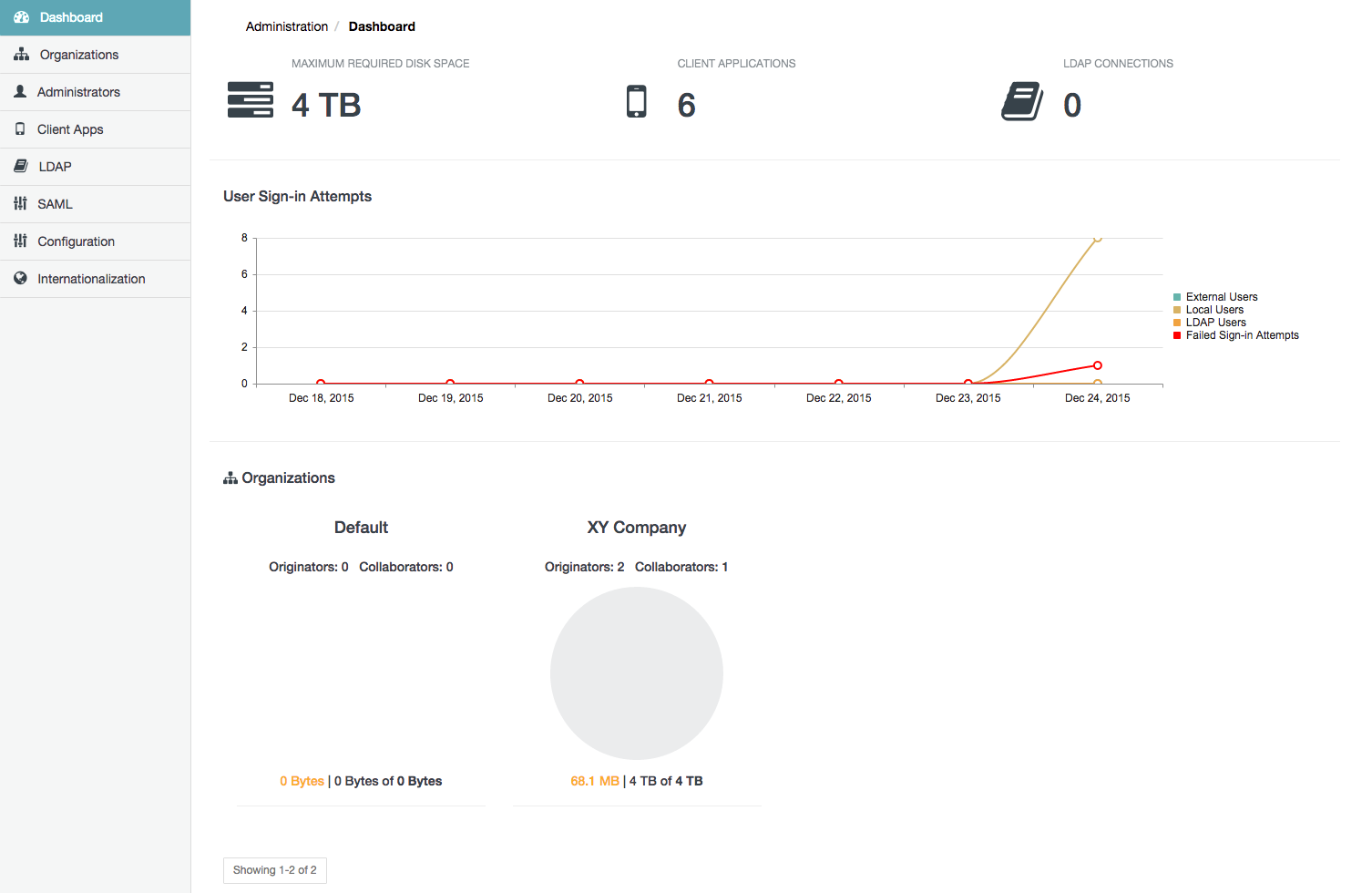
The table below describes each of these Safe Share Administration pages, which can be accessed by clicking its option on the left of the interface.
| Safe Share Administration page | Description |
|---|---|
| Dashboard | Provides a single-page graphical overview of various aspects of your Covata Platform's current statuses (presented in panels), recent sign-in attempts (presented in graph form) as well as system usage metrics for each organization including Covata user account roles and storage usage/availability. |
| Organizations | Allows Safe Share administrator-level access to all organizations configured on your Covata Platform instance. From this page, any Safe Share administrator can:
|
| Administrators | Allows access to all Covata users who are Safe Share administrators, from which any Safe Share administrator can:
|
| Client Apps | Allows the registration and configuration of applications (e.g. built by integrators using the Covata Platform's API) which uses Covata technologies to create and/or access Secure Objects. The configurations of these 'client' applications on the Covata Platform define:
|
| LDAP | Allows the configuration of connections to one or more LDAP user directories, which can be used to populate the Covata Platform with Covata user accounts. |
| SAML | Allows the configuration of a SAML-based Identity Provider (IdP) service to which Covata users can authenticate to gain access to the Covata Platform and the Safe Share web application through single sign-on. |
| Configuration | Allows the modification of properties that affect certain functional areas across the Covata Platform (including all organizations configured on it). |
| Internationalization | Allows custom/external language bundles to be uploaded to provide the Covata Platform with greater internationalization support for more languages. Also allows Safe Share administrators to change the user interface language for the sign-in page, as well as the default language of Safe Share Administration, Safe Share Organization Administration and (initially) the Safe Share web application for any newly added Covata users. |
The Dashboard page is initially displayed upon a Safe Share administrator successfully signing in to Safe Share Administration.
The following table describes each component of the Dashboard page from left to right/top to bottom.
| Dashboard page component | Description |
|---|---|
| Maximum Required Disk Space | This panel shows the total amount of storage space that the Covata Platform (managed through the Content Service) requires to store content for all Covata users with the Originator role (i.e. who have a plan) across all of the Covata Platform's configured organizations. Clicking this panel opens the Organizations page. Notes:
|
| Client Applications | This panel shows the total number of client applications currently registered on the Covata Platform. Clicking this panel opens the Client Applications page. |
| LDAP Connections | This panel shows the total number of LDAP connections currently configured on the Covata Platform. Clicking this panel opens the LDAP Connections page. |
| User Sign-in Attempts | This graph shows Covata user sign-in attempts over the past week, with each point along a curve representing activity pertinent to that curve on a given day. Each curve on the graph represents the number of successful sign-in attempts from one of the three types of Covata user account (discussed in more detail in Administering users within an organization, of this guide's Safe Share Organization Administration section). The fourth curve represents the total number of failed sign-in attempts. |
| Organizations | This section of the dashboard shows each organization configured on the Covata Platform. For each of these organizations, the following information is indicated:
|
To sign out of Safe Share Administration:
Important: After administering the Covata Platform, please ensure that you explicitly sign out of Safe Share Administration using this procedure (above). If you simply close the browser tab or window that contained your Safe Share Administration session, then you will not be signed out, leading to the risk that your session may be compromised by someone else subsequently using your computer.
New Covata Platform instances have a default administrator user account (with email address admin@default.com).
This user account exists for the purpose of allowing a Safe Share administrator to initially sign in to Safe Share Administration to create a new Safe Share administrator account for themselves, including others if required.
Important: For security reasons, this default administrator user account should be removed after it is used to create these new Safe Share administrator accounts.
To access a new Covata Platform instance and initially set up Safe Share Administration users:
/#/admin) into your browser's URL field - e.g: https://covata-platform.xy-company.com/#/adminadmin@default.com and password admin@default.com user.