Decrypt or view/print items which someone else has stored securely and shared with you using Safe Share for Windows or the web application. You can only print or download+decrypt these items if the creators/owners who shared the items have granted permission to perform these actions.
Decrypting, viewing or printing your own secure content
To decrypt, view or print content which you have previously stored securely:
Within the My Secured Files subfolder, locate to the file(s) or folder(s) whose content you wish to decrypt, view or print.
Do one of the following based on the action to be performed:
To begin decrypting your own secure content, either:
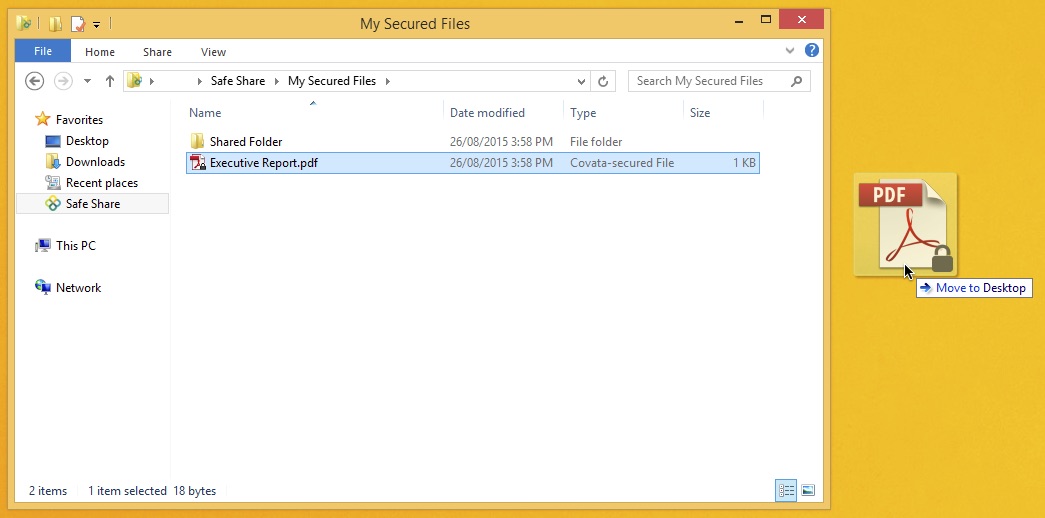
Select the item(s) and drag/copy/move them to a location outside the Safe Share folder; for example, dragging them to your desktop: Note: Regardless of whether you copy or move items from My Secured Files, the secured items will remain in the My Secured Files subfolder. OR
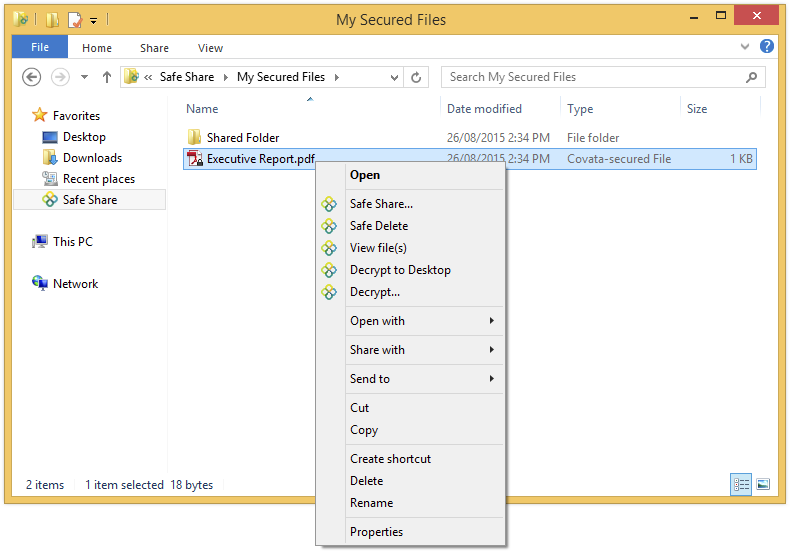
Alternatively, select and right-click on one or more file(s) and/or folder(s) and choose a Decrypt... option from the pop-up menu:
If you choose:
Decrypt to Desktop, a decrypted copy of your selected content is saved to the desktop.
Decrypt..., the Browse For Folder dialog box opens, prompting you to specify a folder where a decrypted copy of your selected content will be saved.
Safe Share for Windows saves the decrypted content at the target location (e.g. your desktop). Note: If one of the following problems occurs upon attempting to decrypt one or more files:
The message 'The encrypted content was not found in remote storage.' appears (from the taskbar notification area icon), or
The decrypted content cannot be opened (and appears corrupted),
then the following procedure may resolve these problems:
Note the names of these files (to which these problems occurred).
To begin viewing or printing your own secure content, either:
For a single viewable file, double-click it to open Safe Share for Windows' read-only content viewer window (i.e. the Safe Share Content Viewer). Note: If the file you double-clicked is not viewable, a message is shown indicating that the file's type is not supported by the Safe Share Content Viewer. File types which are supported are equivalent to those in the Safe Share web application's content viewer. See File formats supported by the content viewer in the Safe Share User's Guide for the web application for more information. OR
For one or more file(s), select and right-click on these files and choose View file(s). A separate Safe Share Content Viewer window opens for each viewable item of your selected content. Notes:
The View file(s) menu item is disabled if the selected items only consist of folders and/or non-viewable files. Although this menu option is available if one or more folders have been selected in addition to viewable files, any content within these folders is ignored and not opened in the Safe Share Content Viewer.
Decrypting or viewing/printing secure content (shared with you)
To decrypt or view/print secure content which someone else has securely shared with you:
Within the Shared With Me subfolder, locate the folder of the Covata user who shared content with you. Notes:
The files/folders of each Covata user who shares content with you appears in its own folder within Shared With Me. The names of these folders have the format: Shared By <local-part-of-email-address> - <domain-part-of-email-address>
You can only decrypt files that have been shared with you if the creators/owners of those files have allowed you to download them. If the creator/owner has not granted this permission, then you may only be able to view/print the content of these files.
Viewable items which have been shared with you but whose original content cannot be downloaded and decrypted typically appear as a 1 KB (or less) file in the Shared With Me folder (of the 'Safe Share' folder).
Within this Covata user's folder, locate the file(s) or folder(s) whose content you wish to decrypt or view/print. Note: To determine if you can view or print the content of a file or folder (i.e. by having the View or Print permission respectively on the item), right-click the item and choose Show permissions from the pop-up menu. See the procedure for determining if you have permissions to upload content to another user's folder for more information.
Do one of the following based on the action to be performed:
To begin decrypting secure content which someone else has securely shared with you, either:
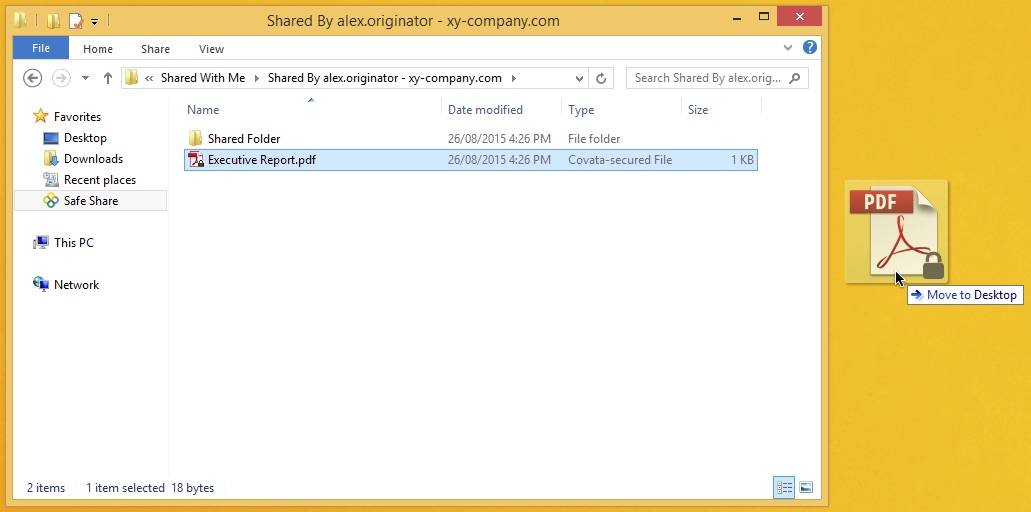
Select the item(s) and drag/copy/move them to a location outside the Safe Share folder - e.g. dragging them to your desktop: Note: Regardless of whether you copy or move items from Shared With Me, the secured items will remain in the Shared With Me subfolder. OR
Alternatively, select and right-click on one or more file(s) and/or folder(s) and choose a Decrypt... option from the pop-up menu (as shown above when decrypting your own content). If you choose:
Decrypt to Desktop, a decrypted copy of your selected content is saved to the desktop.
Decrypt..., the Browse For Folder dialog box opens, prompting you to specify a folder where a decrypted copy of your selected content will be saved.
Safe Share for Windows saves the decrypted content at the target location (e.g. your desktop). Note: If one of the following problems occurs upon attempting to decrypt one or more files:
The message 'The encrypted content was not found in remote storage.' appears (from the taskbar notification area icon), or
The decrypted content cannot be opened (and appears corrupted),
then the following procedure may resolve these problems:
Note the names of these files (to which these problems occurred).
To begin viewing or printing secure content which someone else has securely shared with you, either:
For a single viewable file, double-click it to open Safe Share for Windows' read-only content viewer window (i.e. the Safe Share Content Viewer). Note: If the file you double-clicked is not viewable, a message is shown indicating that the file's type is not supported by the Safe Share Content Viewer. File types which are supported are equivalent to those in the Safe Share web application's content viewer. See File formats supported by the content viewer in the Safe Share User's Guide for the web application for more information. OR
For one or more file(s), select and right-click on these files and choose View file(s). A separate Safe Share Content Viewer window opens for each viewable item of your selected content. Notes:
The View file(s) menu item is disabled if the selected items only consist of folders and/or non-viewable files. Although this menu option is available if one or more folders have been selected in addition to viewable files, any content within these folders is ignored and not opened in the Safe Share Content Viewer.
Notes:
If files were moved out of any Safe Share folder to a network drive location, then these files will only reappear in the source Safe Share folder following the next Safe Share for Windows synchronization event (with remote storage managed by the Covata Platform). Regardless of the Safe Share folder's cache policy settings, these files will always reappear as .covl files and their encrypted content will only be downloaded the next time the files are decrypted (using Safe Share for Windows).
If Safe Share for Windows experiences delays in network communication, you may notice the following behavior:
The encrypted files are temporarily copied to their target location.
Safe Share for Windows decrypts these files from their temporary copies (created in the previous step) and saves them to the same location as their temporary copies.
The temporary copies are deleted.
Safe Share for Windows' read-only content viewer
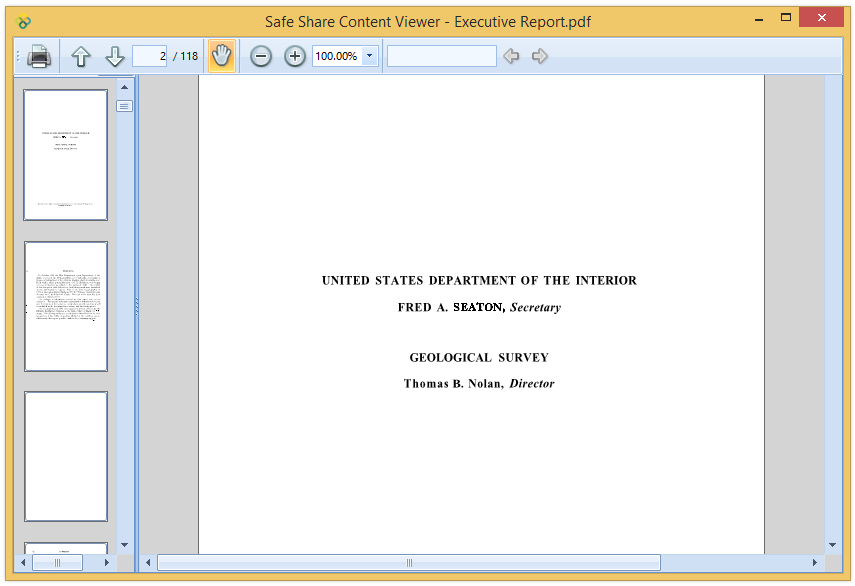
Safe Share for Windows' read-only content viewer (also known as the Safe Share Content Viewer within the application) is equivalent to the content viewer of the Safe Share web application, with similar functionality:
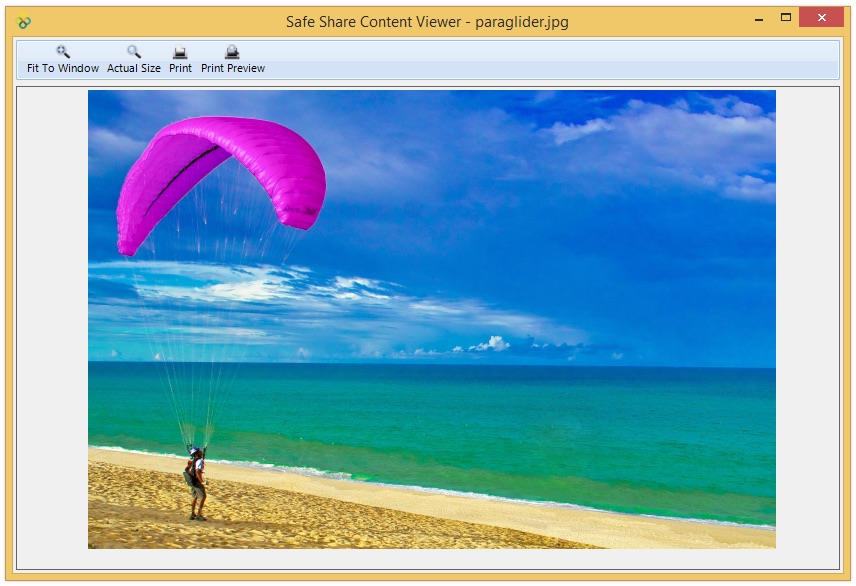
Safe Share for Windows' content viewer for image files:
Safe Share for Windows' content viewer for document files:
Note: If the print button at the top left is disabled (when viewing a document), then you do not have the Print permission on this file (i.e. the owner of this file did not grant you Download permissions when they shared the file or one of its parent folders with you).