

Signing in to Organization Administration
When signing in to Safe Share Organization Administration for one or more organizations, a Covata user’s account must have the Organization administrator role (for each organization managed through this account) to access all Safe Share Organization Administration features for these organizations. To sign in to Safe Share Organization Administration:-
Open a compatible web browser and do either of the following:
- Enter the base URL of your Covata Platform instance (appended by
/#/selectOrganisation) in your browser’s URL field - e.g:
https://covata-platform.xy-company.com/#/selectOrganisation
Tip: If you manage multiple organizations, you may wish to bookmark this URL, since this is a quicker method for accessing Safe Share Organization Administration than 1-b below * . - Enter only the base URL of your Covata Platform instance in your browser’s URL field - e.g:
https://covata-platform.xy-company.com
- Enter the base URL of your Covata Platform instance (appended by
-
On the Covata Sign-in page, enter the Email address and Password associated with your Covata user account which has the Organization administrator role.
Forgotten your password? If you have, then leave the Password field blank but click the Forgot your password link instead. Follow the instructions on the page and then in your email notification to reset your password. -
Click the SIGN IN button (or type ‘Enter’/‘Return’). If successful and:
-
you performed step 1-a (above), the Select Your Organization page is displayed.
- Choose the organization to administer (even if only one is available), click the Select button and the Safe Share Organization Administration interface for this organization is displayed.
-
you performed step 1-b (above), one of the following will appear:
- The Organization Administration interface (for the only organization you have permission to manage).
-
The Select Your Organization page (because you have permission to manage more than one organization). If this page appears:
- Choose the organization to administer and click the Select button. The Organization Administration interface for the selected organization is displayed.
-
The main Covata Safe Share web application page (because your Covata user account also has either the Originator or Collaborator roles). If this page appears:
-
Click your email address at the top-right and choose Administration from the drop-down menu. Then:
- If the Select Your Organization page then appears, choose the organization to administer and click the Select button. The Organization Administration interface (for the selected organization) is displayed.
- If the Safe Share Administration interface appears, then your account also has the Safe Share administrator role. Follow the substeps in the next bullet point to access Organization Administration.
-
Click your email address at the top-right and choose Administration from the drop-down menu. Then:
-
The Safe Share Administration interface (because your Covata user account also has the Safe Share administrator role). If this interface appears:
- Click the Organizations option on the left of the Safe Share Administration interface to open the Organizations page.
- If necessary, locate the organization to administer.
- In the Manage column, click the organization’s Manage button. The Organization Administration interface for this organization is displayed.
-
you performed step 1-a (above), the Select Your Organization page is displayed.
The Organization Administration interface
The Safe Share Organization Administration interface consists of a set of configuration pages, each of which is accessible from the options on the left (below). The My Organization/Dashboard page for an Organization administrator’s (chosen) organization is initially displayed upon this Covata user successfully signing in to Safe Share Organization Administration (above).If accessing Safe Share Organization Administration from a tablet or phone, tap the ‘menu’ icon in the top left hand corner of the screen to access these options.
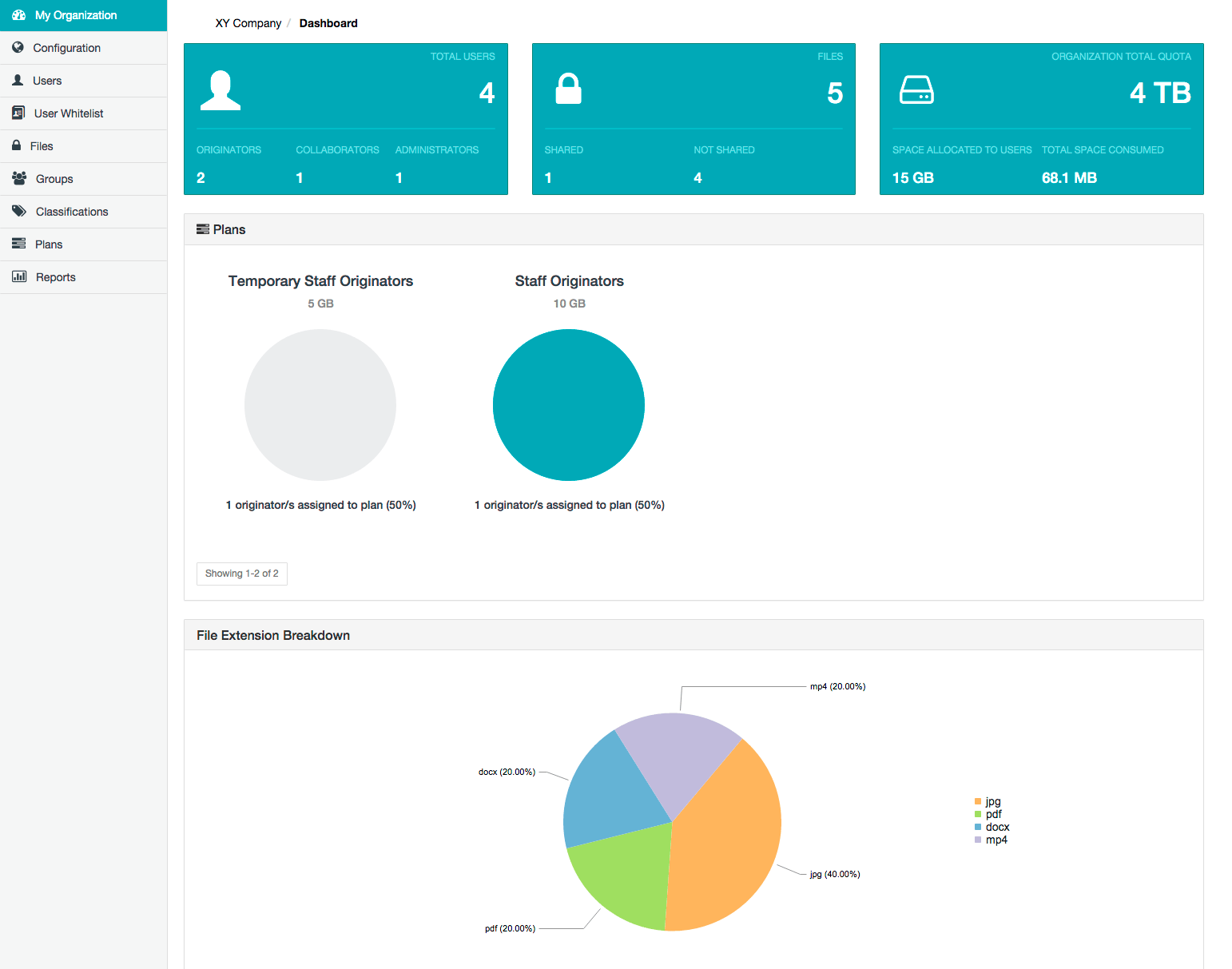
The Organization Administration dashboard
The My Organization/Dashboard page is initially displayed upon a Organization administrator successfully signing in to Safe Share Organization Administration.Signing out of Organization Administration
To sign out of Safe Share Organization Administration:- Click your email address at the top right-hand corner of the Safe Share Organization Administration interface and choose Sign Out from the drop-down menu.
The Covata Sign-in page is redisplayed.