

- The addition of new IP ranges to allow.
- The removal / editing of existing IP ranges.
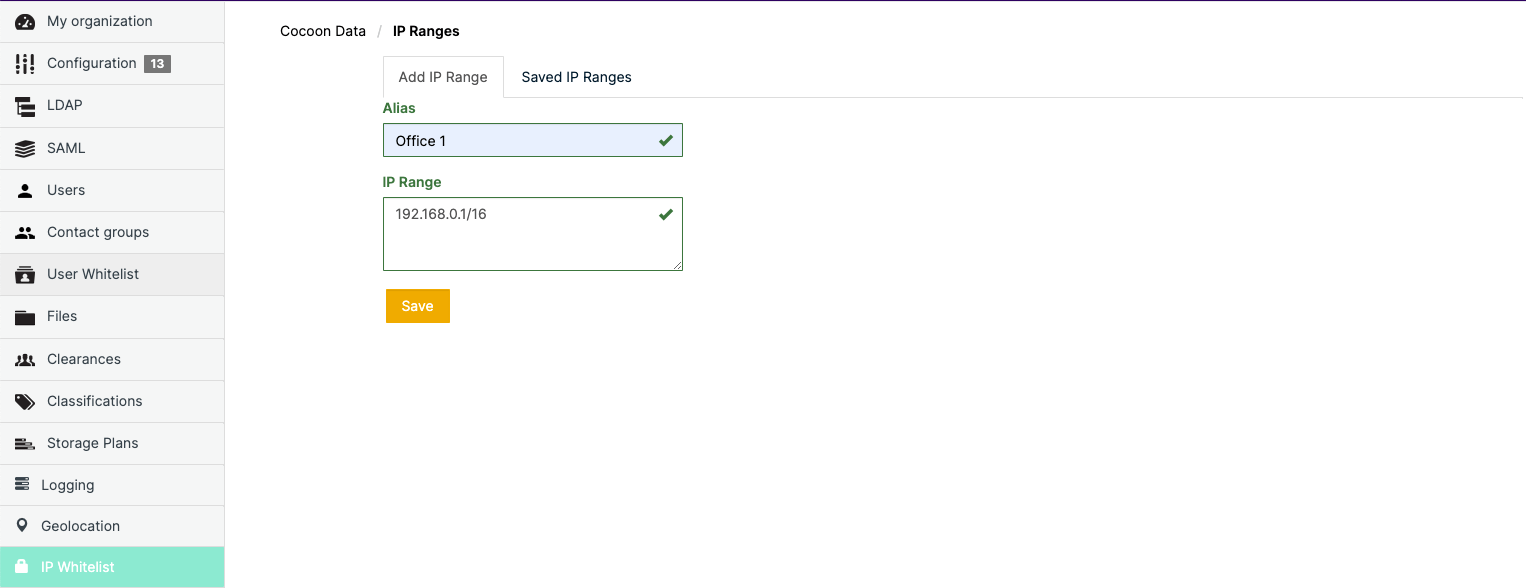
Adding a new IP range
To add a new IP range to your organisation on the Cocoon Data Platform:- Ensure you are signed in to Organisation Administration.
- Click the IP Whitelist option on the left of the Organisation Administration interface to open the IP Whitelist page.
- Click the Add IP Range tab.
-
On the Add IP Range page, specify the:
- Alias - The value of this field is the name of the IP range shown to Cocoon Data users of SafeShare applications (when sharing an item), including client applications utilising the Cocoon Data Platform’s API.
- IP Range - You will input the needed IP range or list of IP ranges in this field. The value of this field is only visible to Organisation administrators on this IP Whitelist page.
-
Click Save and the new IP range is added and will appear as a new entry on the IP Whitelist page.
Notes:- If you are inputting a list of IP ranges, the list should be comma separated and not contain any spaces or tabs.
Removing an existing IP range
Removing an IP range removes that IP range from all files it was applied to (when these files were shared). To remove an existing IP range from your organisation:- Ensure you are signed in to Organisation Administration.
- Click the IP Whitelist option on the left of the Organisation Administration interface to open the Saved IP Ranges page.
- Locate/scroll to the relevant IP range and select its check box on the left.
- Click the Delete button.