

Signing in to SafeShare Administration
When signing in to SafeShare Administration, a Cocoon Data user account must have the SafeShare administrator role to access all SafeShare Administration features of the Cocoon Data Platform*.If accessing SafeShare Administration for the first time, see Accessing SafeShare Administration for the first time (below) before continuing.
-
Open a compatible web browser and enter the base URL of your Cocoon Data Platform instance (appended by
/#/admin) in your browser’s URL field - e.g:
https://cocoondata-platform.xy-company.com/#/admin
Tip: You may wish to bookmark this URL. -
On the Cocoon Data Sign-in page, enter the Email address and Password associated with your Cocoon Data user account which has the SafeShare administrator role.
Forgotten your password? If you have, then leave the Password field blank but click the Forgot your password link instead. Follow the instructions on the page and then in your email notification to reset your password. -
Click the SIGN IN button (or type ‘Enter’/‘Return’) and if successful, the SafeShare Administration interface is displayed.
Notes:-
If, instead, you see ‘Multi-factor authentication is enabled on your account…’ on the page with a field requesting you to enter your Authentication code (for the first time), then:
- Check for a Cocoon Data Notification email message containing the subject line ‘Multi-factor authentication has been enabled for your account’.
- Open this email message and follow its instructions to configure your mobile device with your Cocoon Data user account for MFA. For more information, see Enabling or disabling MFA for a SafeShare administrator.
- Sign in again.
- The email address of the currently signed in user appears at the top right-hand corner of the SafeShare Administration interface.
- If the main Cocoon Data SafeShare for Web page appears instead of the SafeShare Administration interface, click your email address at the top-right and choose Administration from the drop-down menu.
-
If, instead, you see ‘Multi-factor authentication is enabled on your account…’ on the page with a field requesting you to enter your Authentication code (for the first time), then:
* Additional notes:
- Any Cocoon Data user (including any SafeShare administrator) whose account has the Organisation administrator role for a given organisation can manage and administer that organisation. For more information about the Organisation administrator role, see Administering users within an organisation in the Organisation Administration section of this guide.
- A SafeShare administrator (typically a Cocoon Data user account with only the SafeShare administrator role) can grant themselves the Organisation administrator role for an organisation by making themselves the administrator of this organisation when they add/create the organisation. This user (who now has both the SafeShare administrator role and the Organisation administrator role for this organisation) can then grant other Cocoon Data users the Organisation administrator role for their organisation. Otherwise (and perhaps more typically), a SafeShare administrator cannot administer an organisation added to their Cocoon Data Platform instance, unless the Organisation administrator initially set for this organisation (or someone else that this person subsequently made an Organisation administrator of their organisation) grants the SafeShare administrator the Organisation administrator role for their organisation (i.e. when adding the SafeShare administrator to the organisation).
The SafeShare Administration interface
The SafeShare Administration interface consists of a set of configuration pages, each of which is accessible from the options on the left (below). Note that:- Cocoon Data users who have the SafeShare administrator role can access all of these options on the left of the SafeShare Administration interface.
- Cocoon Data users who have both the SafeShare administrator role and the Organisation administrator role for one or more organisations can access the Organisation Administration interface for these organisations (only), in addition to all SafeShare Administration options on the left of the interface. For more information about managing organisations, see the Organisation Administration section of this guide.
If accessing SafeShare Administration from a tablet or phone, tap the ‘menu’ icon in the top left hand corner of the screen to access these options.
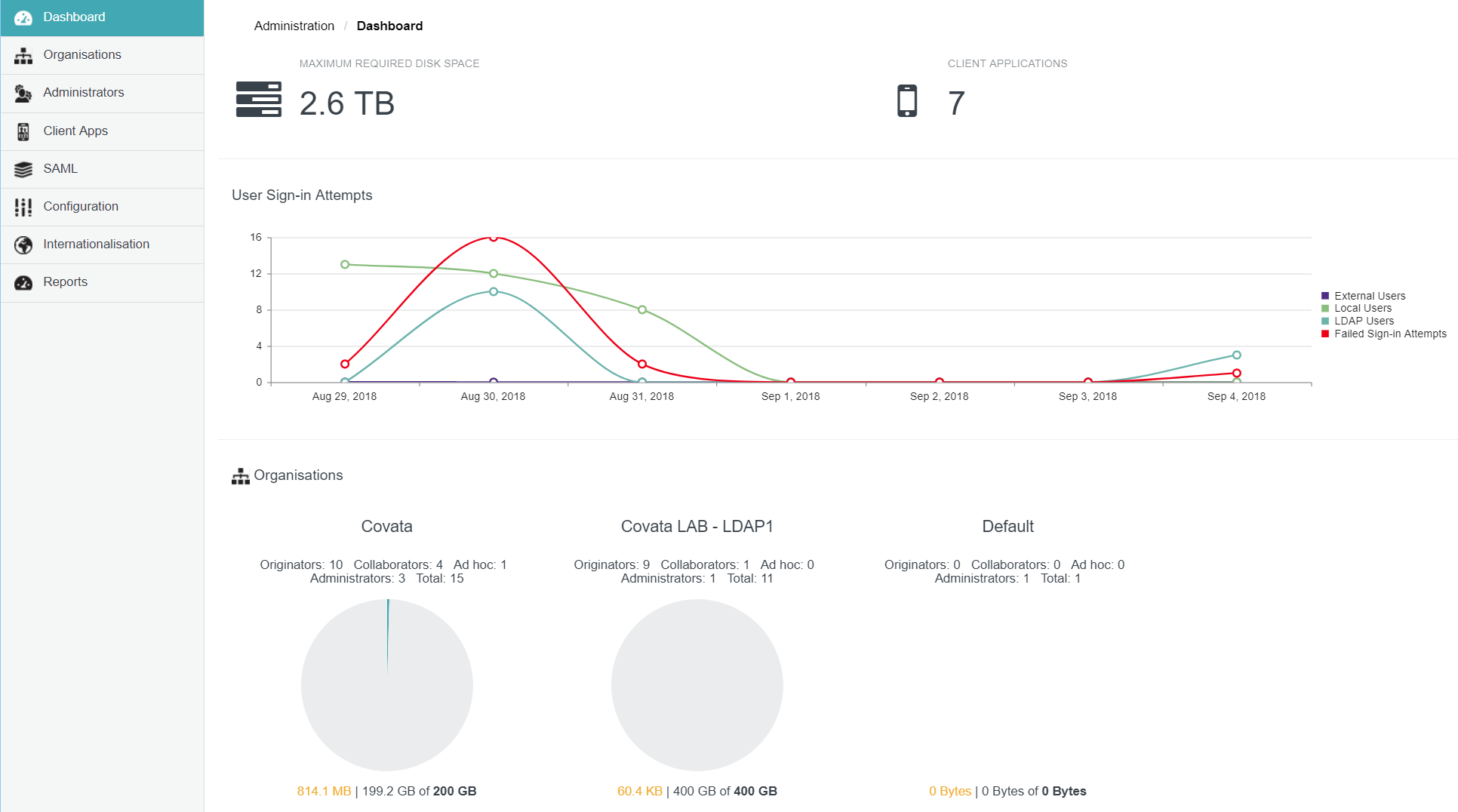
The SafeShare Administration dashboard
The Dashboard page is initially displayed upon a SafeShare administrator successfully signing in to SafeShare Administration.Signing out of SafeShare Administration
To sign out of SafeShare Administration:- Click your email address at the top right-hand corner of the SafeShare Administration interface and choose Sign Out from the drop-down menu.
The Cocoon Data Sign-in page is redisplayed.
Accessing SafeShare Administration for the first time
New Cocoon Data Platform instances have a default administrator user account (with email addressadmin@default.com).
This user account exists for the purpose of:
- Allowing a SafeShare administrator to initially sign in to SafeShare Administration to create a new SafeShare administrator account for themselves, including others if required.
- Add the initial Organisation administrator account to the Default organisation (used for configuring an LDAP connection to work with the Cocoon Data Platform and SafeShare). See Administering organisations for more information.
-
Open a compatible web browser and specify the base URL of your Cocoon Data Platform instance (appended by
/#/admin) into your browser’s URL field - e.g:
https://cocoondata-platform.xy-company.com/#/admin -
On the Cocoon Data Sign-in page, specify the:
- Email address
admin@default.comand - Password which is simply
password
- Email address
- Create a new SafeShare administrator user account for the Cocoon Data Platform and SafeShare Administration purposes. See Adding a SafeShare administrator account for more information about this step.
- ( Optional ) Create any additional SafeShare administrator user accounts (if required).
- Specify an Organisation administrator for the Default organisation by following the procedure for Editing an existing organisation before continuing on.
-
Sign out and sign in again with your new/recently added SafeShare administrator user account.
Note: Your initial password (automatically generated by the Cocoon Data Platform) will be emailed to you in a Cocoon Data account created notification. -
Remove the
admin@default.comuser account (from SafeShare Administration).