

- The addition of new LDAP users to the Cocoon Data Platform through new connections to LDAP servers/user directories.
- Existing LDAP connections to be edited, as well as disabled or re-enabled.
- The authentication of an LDAP user on the Cocoon Data Platform is delegated to (and handled by) its respective LDAP server. Hence, changing or resetting the password of an LDAP user account is performed through the account’s LDAP server/user directory.
-
An LDAP user account can be deleted, disabled or re-enabled through its LDAP server/user directory. However, deleting or disabling an LDAP user in this manner will result in either of the following actions:
- If the Cocoon Data user account owns no files, the user account will be disabled from the Cocoon Data Platform.
- If the Cocoon Data user account contains files, the Organisation administrator will receive the following notification:
The following users still have files in the Cocoon Data Platform but have been disabled/deleted from your Active Directory. Please login to the Cocoon Data Platform and transfer the ownership of their files(s) to another user.
-
Modifications to the fields of an existing LDAP user on the Cocoon Data Platform are conducted through the account’s respective LDAP server/user directory.
- These modifications are propagated through from the account’s LDAP server/user directory to the Cocoon Data Platform when the Cocoon Data Platform next synchronises with the LDAP server. By default, the LDAP synchronisation frequency is five minutes.
- Therefore, other than the role-related fields of Cocoon Data users within an organisation, it is not possible to edit any of the other fields of an LDAP user’s account through the Cocoon Data Platform.
- To ensure that field modifications to LDAP user accounts are propagated through to the Cocoon Data Platform, verify that these accounts’ respective LDAP connections have been enabled.
- The roles of an LDAP user within an organisation cannot be modified. However, note that the SafeShare administrator role may also be granted to and removed from an LDAP user.
- If an Ad hoc user is created (by a Cocoon Data user sharing a file), they will remain within the system as Ad hoc. However, if the Ad hoc user is subsequently added as an LDAP user, their account will be upgraded to Collaborator.
If using LDAP, a Cocoon Data user account should only be added to your organisation by updating Active Directory, and not via Adding an organisation user account, as LDAP synchronisation will automatically remove these accounts.
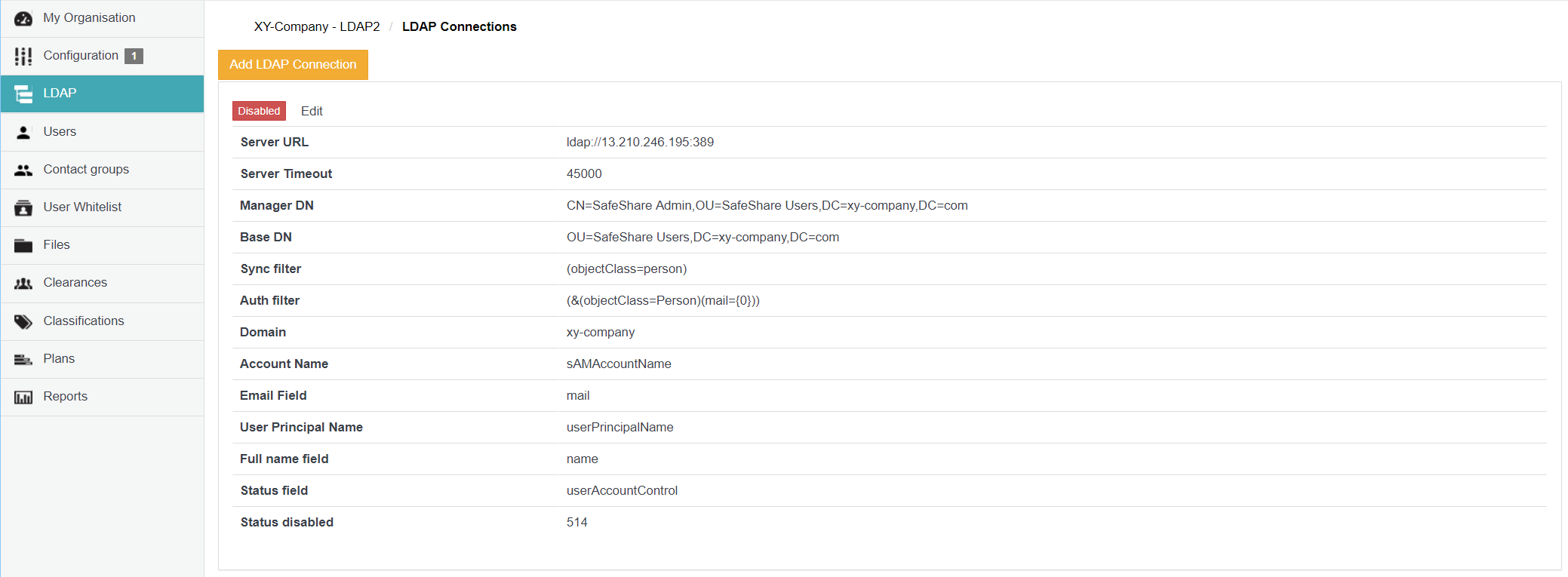
Adding a new LDAP connection
To add a new connection to an LDAP server/user directory on the Cocoon Data Platform:- Ensure you are signed in to Organisation Administration.
- Click the LDAP option on the left of the Organisation Administration interface to open the LDAP Connections page.
- Click the Add LDAP Connection button.
- In the Add LDAP connection dialog box, complete the LDAP connection fields described in the table (below).
-
( Optional ) Test the connection by clicking the Test connection button.
Note: A message is displayed indicating whether or not the connection to the LDAP server was successful. -
Click Save and the LDAP connection will appear as a new entry on the LDAP Connections page.
Note:- All accounts in the LDAP user directory will appear as new user accounts in the one configured organisation when the Cocoon Data Platform next synchronises with the LDAP server.
- All new LDAP user accounts added to the Cocoon Data Platform from an LDAP server/user directory automatically have the Originator role and are assigned the default plan.
- If the email address of an existing user account within an organisation on the Cocoon Data Platform matches that of the Email field of a user in the LDAP user directory, then a new account will not be added to the Cocoon Data Platform for that account in LDAP (during synchronisation).
The content of the following table appears on the Add/Edit LDAP Connection dialog boxes. It is reiterated below for the convenience of LDAP server/user directory administrators who themselves are not a SafeShare administrator or Organisation administrator, but need to provide the values of these fields to their SafeShare administrator/Organisation administrator.
Editing an existing LDAP connection
To edit an existing connection to an LDAP server/user directory on the Cocoon Data Platform:- Ensure you are signed in to Organisation Administration.
- Click the LDAP option on the left of the Organisation Administration interface to open the LDAP Connections page.
- Scroll to the relevant LDAP connection and click its Edit link.
- In the Edit LDAP connection dialog box, modify the LDAP connection fields described in the table (above).
-
( Optional ) Test the connection by clicking the Test connection button.
Note: A message is displayed indicating whether or not the connection to the LDAP server was successful. -
Click Save and the LDAP connection will be updated.
Notes:- To ensure that any modifications to user accounts in the LDAP user directory are propagated through to the Cocoon Data Platform, verify that this LDAP connection has been enabled.
-
Since the Email address field of all user accounts on the Cocoon Data Platform is unique (because each account’s Email address defines a user’s unique identity and is also used for auditing purposes), then:
- If an LDAP account’s email address is modified through its LDAP server/user directory, a new Cocoon Data user account will be created for that user upon next synchronisation (and their original Cocoon Data user account is no longer used). However, unlike disabling an LDAP account in the LDAP server/user directory, the original Cocoon Data user account (associated with that LDAP account) is not removed and the account’s file objects and folders (including their content) remain available for ownership transferral.
- If this LDAP account’s email address is modified back to its original address, the user’s original Cocoon Data user account will be used again upon next synchronisation (and their former Cocoon Data user account is no longer used).
Disabling or re-enabling an LDAP connection
Disabling an LDAP connection stops the Cocoon Data Platform from synchronising with that LDAP connection’s server/user directory. Once an LDAP connection has been disabled, however, the LDAP users (which had previously been added through this LDAP connection) can still sign in to the Cocoon Data Platform via delegated authentication. This is on the assumption that these user accounts have not been disabled or deactivated in their LDAP user directory. Disabling an LDAP connection is useful if synchronisation events between the Cocoon Data Platform and LDAP server impair network traffic. However, disabling an LDAP connection also prevents any updates (which have been made to LDAP accounts in their user directory) from being propagated through to the Cocoon Data Platform. To disable, enable or re-enable an LDAP connection on the Cocoon Data Platform:- Ensure you are signed in to Organisation Administration.
- Click the LDAP option on the left of the Organisation Administration interface to open the LDAP Connections page and scroll to the relevant LDAP connection.
-
To:
- Disable the LDAP connection - click the (green) Enabled button of this LDAP connection (on the left of the page) until it reads Disabled.
- Enable or re-enable the LDAP connection - click the (red) Disabled button of this LDAP connection (on the left of the page) until it reads Enabled.