Creating New Content in Office Online
This feature allows new Microsoft Office Online documents to be created from within SafeShare. These documents can be saved directly into SafeShare and will therefore improve the security and control of sensitive documents. Notes:- Having an Office Online subscription is a prerequisite for using this feature. It is not available on Mobile Clients.
- One of the key purposes of this feature is to reduce the number of copies of sensitive files on user devices. Although the option of granting permission to download and edit the files still exists, users should be aware that the process of downloading results in copies of the documents being created outside SafeShare and therefore not covered by the audit and security controls provided by SafeShare. These factors should be considered before granting any permission beyond View and Edit in Office Online.
- Ensure you are signed in to SafeShare for Web.
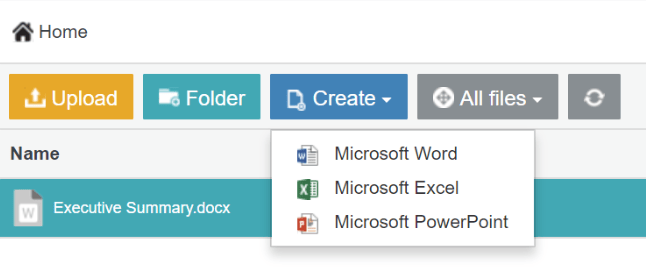
- To create a document, click the ‘Create’ button (situated in the top left corner of the menu bar) and select one of the three Microsoft Office Online features (Microsoft Word, Microsoft Excel & Microsoft PowerPoint).
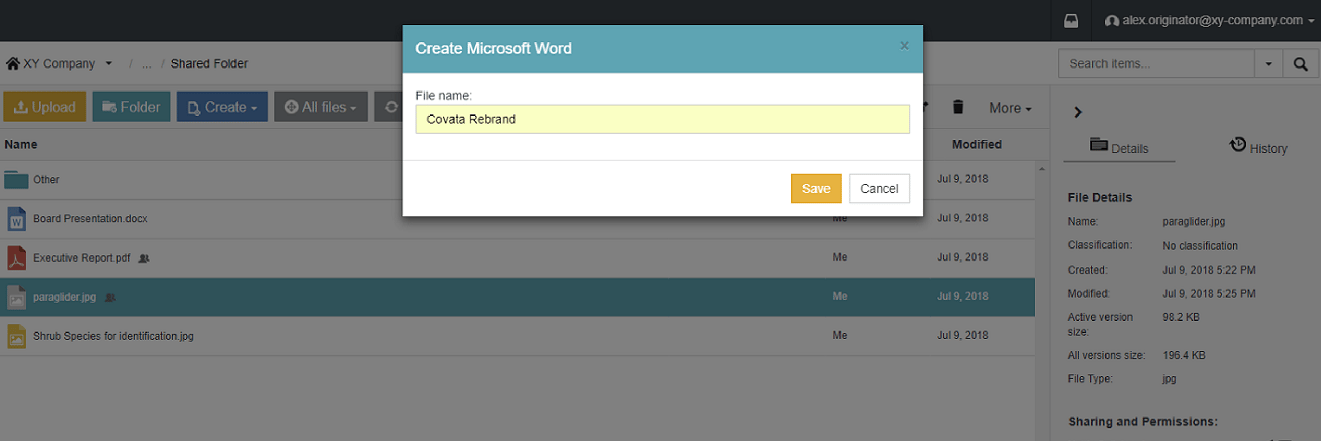
- Create a file name for the document and click ‘save’.
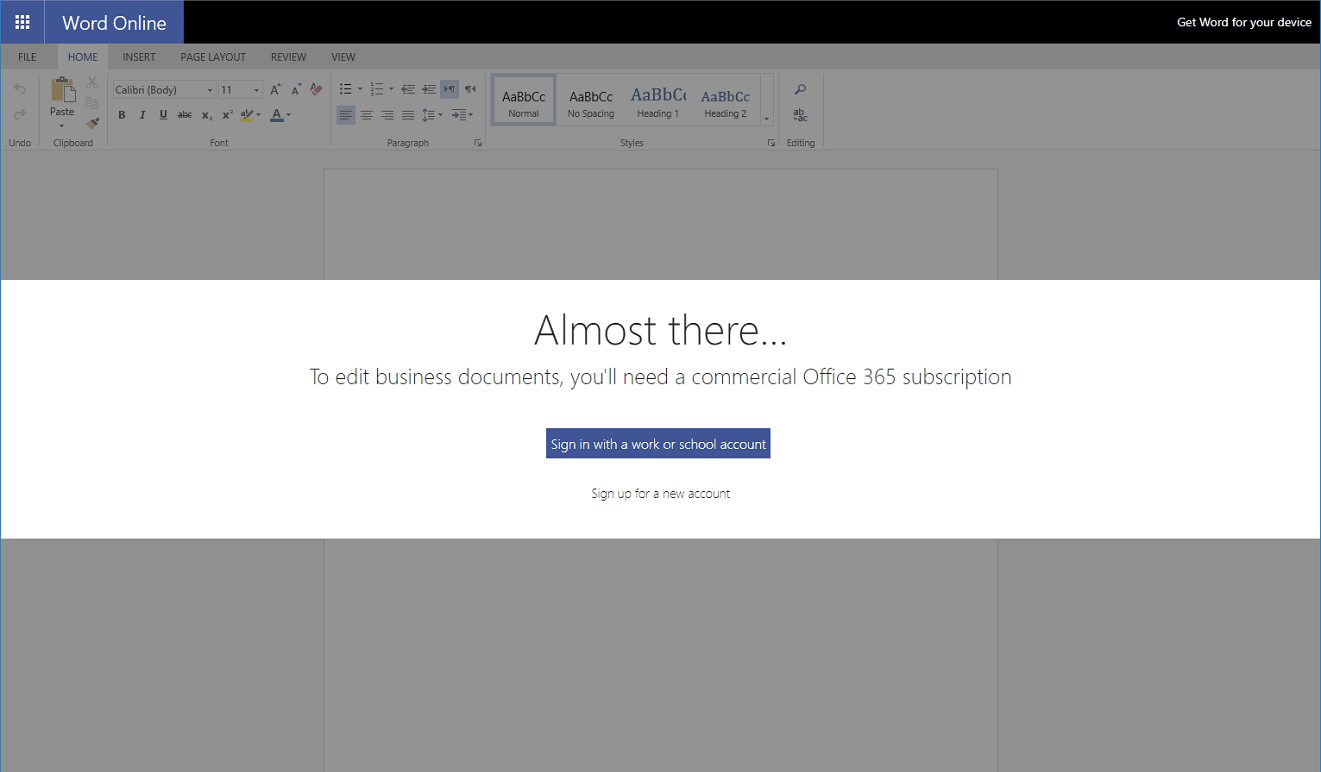
- An Office Online subscription is essential to begin using the Microsoft features. Once logged in, the selected document will open within SafeShare. All Office Online features can be used as normal, and the document is saved automatically every couple of minutes.
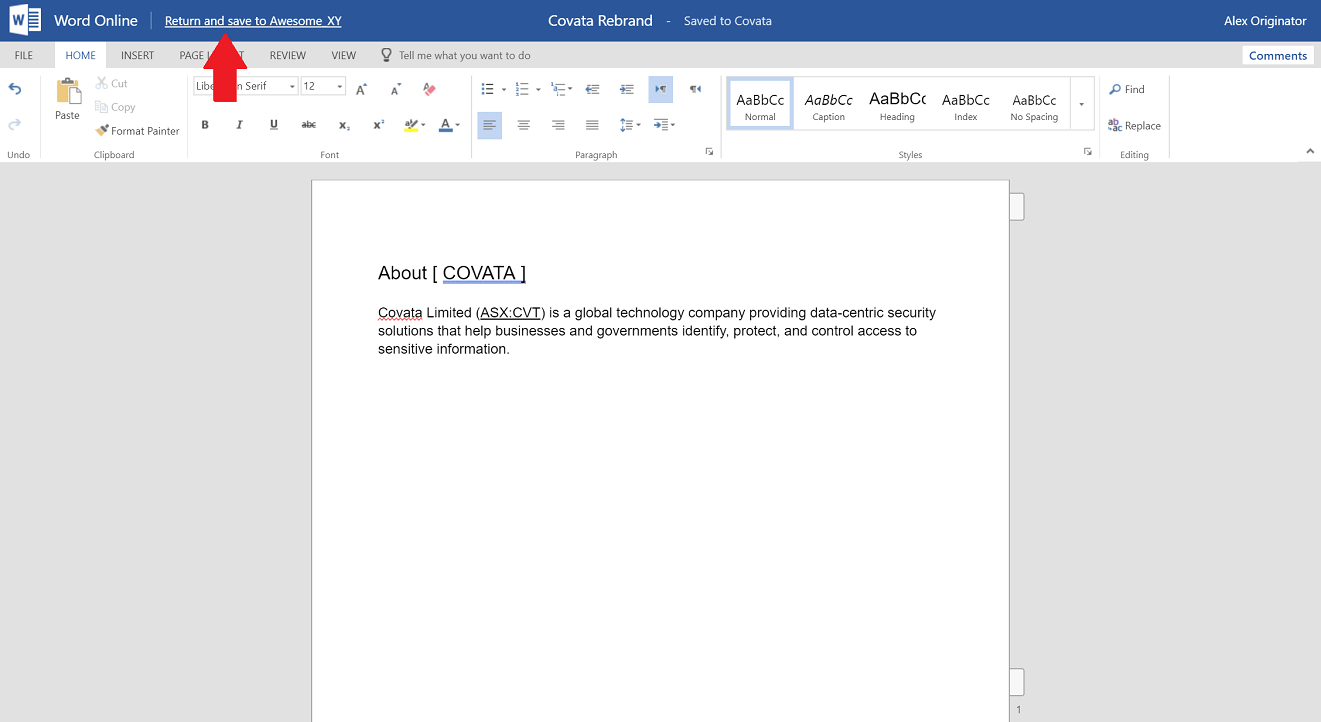
- To exit the document, select the ‘Return and save to SafeShare’ (top left corner). The document will be saved in its current state into SafeShare.
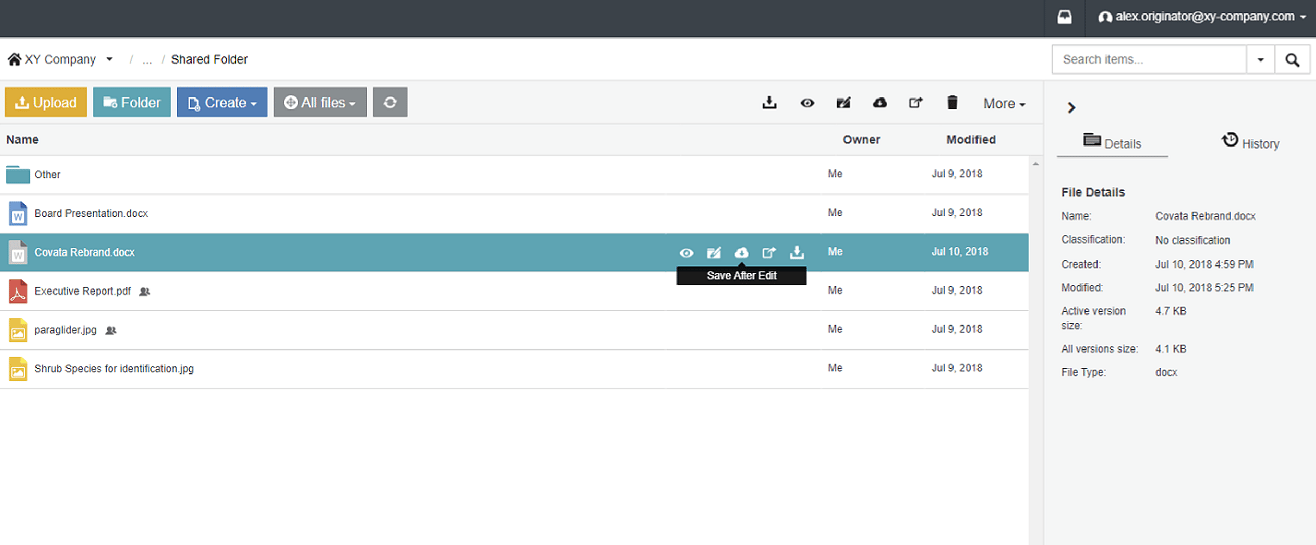
- If the document is a draft and has been shared amongst others, the other users will not be able to view or edit the current draft. By highlighting the document, select the ‘Save After Edit’ feature to enable others to view and edit the latest document.
Sharing permissions
“Edit in Office Online” allows permitted users to edit the document. It appears as a permission as shown in the screenshot below. The Edit in Office Online permission does not allow the Collaborator to Download, Create or Manage the file(s). However, if any of these higher permission levels are given, the user will also have the Edit in Office Online option.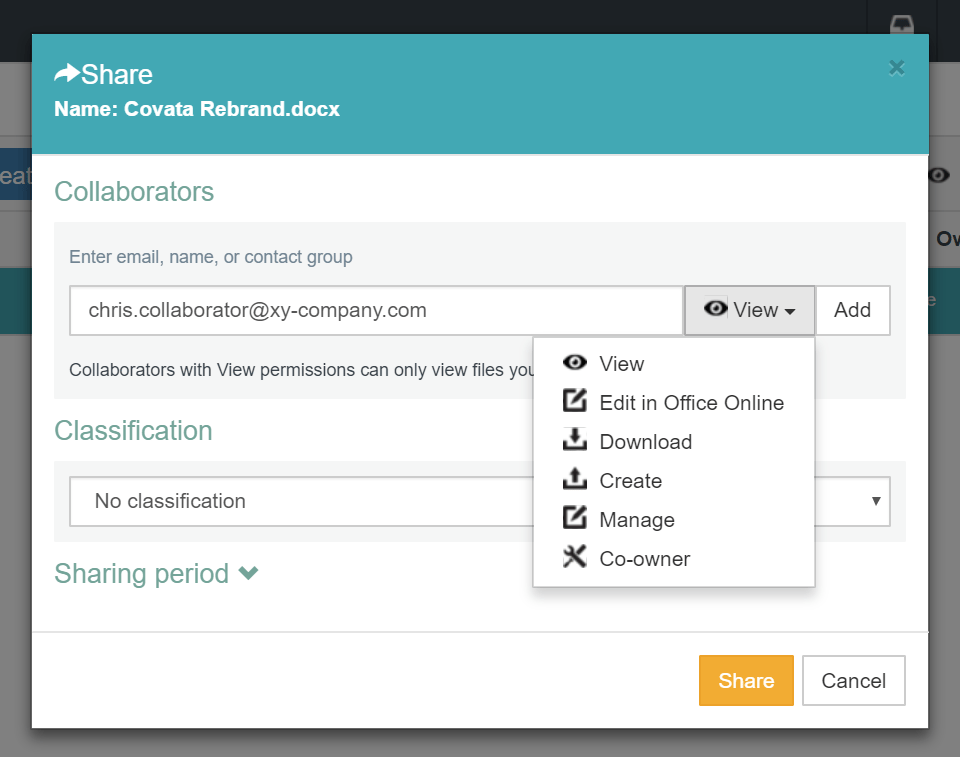
Editing documents
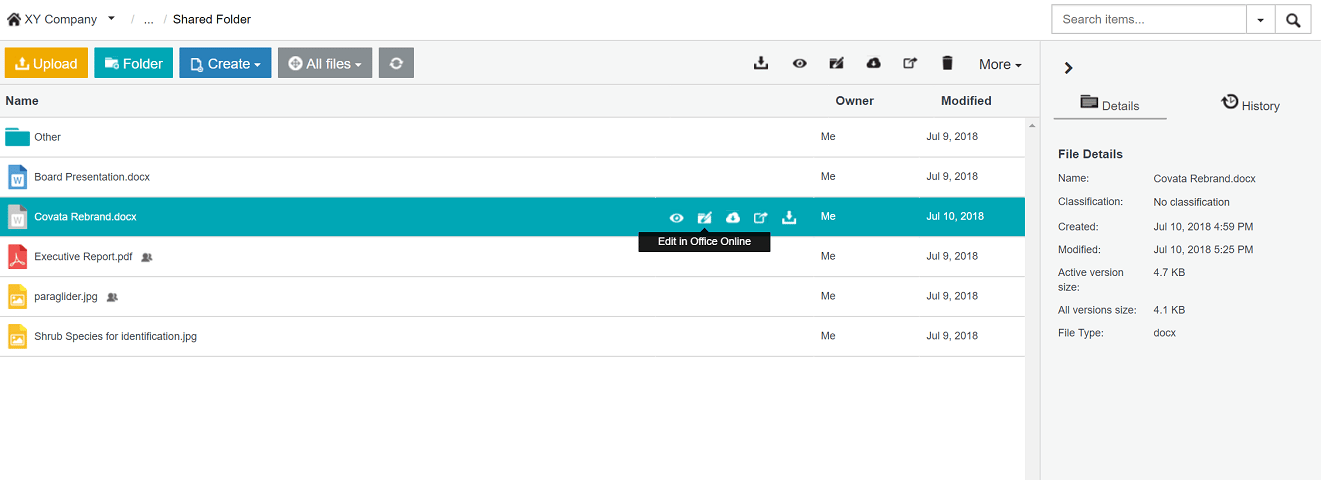
- A document can be opened to edit in the browser by clicking the Edit in Office Online Icon. At this point, the document will enter a “checked out” status.
- An iframe will then be opened in the same browser window. Users will have the same edit options that are offered by Office 365 Online.
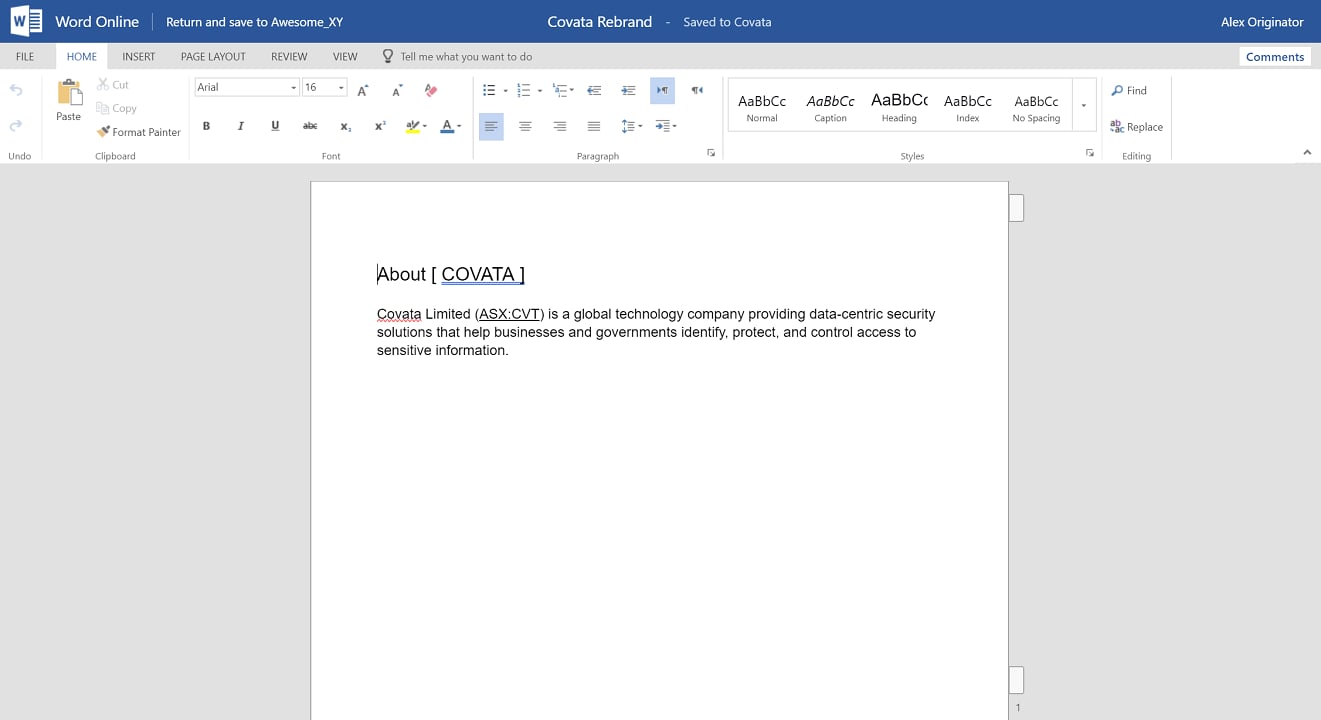
- While editing, the document is saved in a separate “Drafts” section of SafeShare. The drafts are only accessible to the user who has the document checked out. After editing is complete and the document is checked back in by the user, it is uploaded to SafeShare as a new version.
- Only one user at a time can edit a document using this feature, as the document is locked for further edits while checked out.
Saving and Checking Back In
After editing is completed, the window should be closed (by clicking the close cross in the top left corner) and the document is automatically saved into the “Draft” section of SafeShare. At this point, the new version of the document is NOT uploaded into SafeShare to be accessed by other users. The document will be accessible to other users ONLY after it is checked in. Check in is achieved by clicking on the “Save after Edit” icon next to the item in SafeShare as shown below.Version Management
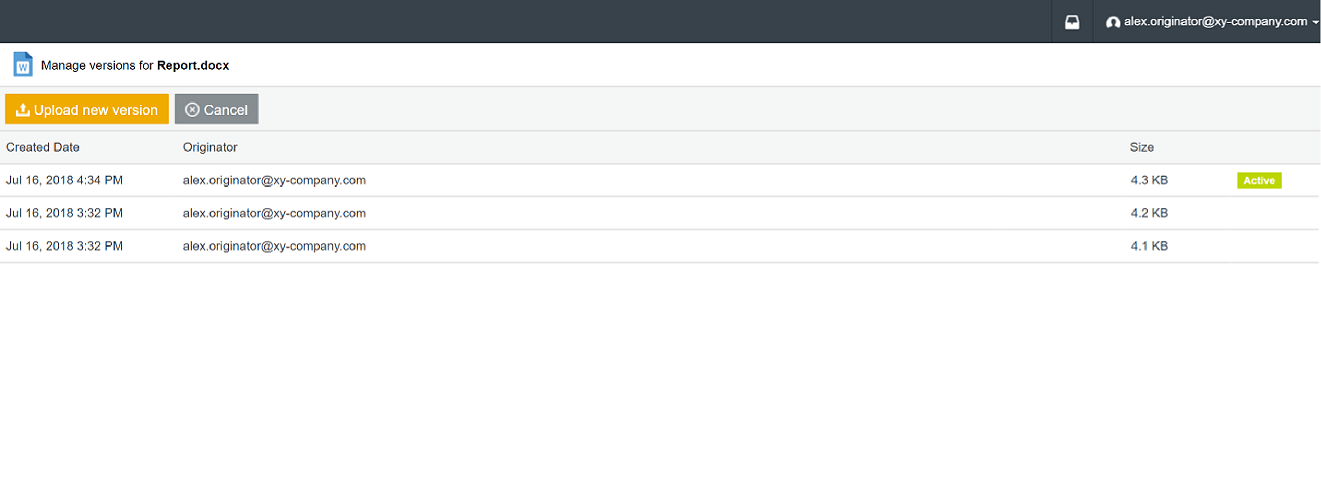
While a document is checked out for “Edit in Office Online”, the draft version is accessible only to the user who has checked it out. The document’s previous versions are still available to other SafeShare users. The version history reflects the new versions when the document is checked in by clicking “Save after Edit”.