

- Create encrypted files (i.e. Secure Objects (1) ) within an organization,
- Access and decrypt an encrypted file’s/Secure Object’s data and
- Utilize Covata Safe Share applications, as well as
- Administer the Covata Platform (through Safe Share Organization Administration, as well as Safe Share Administration).
- Has permission to access these features based on their roles.
-
Is represented by an account which can be added to, edited (2) within, or removed from an organization (and re-added again) by an Organization administrator through the Users page of Safe Share Organization Administration.
Notes:- Users may also be added and updated through an LDAP connection (on its server/user directory). However, the roles of an LDAP user account within an organization are managed through Safe Share Organization Administration.
- Both LDAP connections and the Safe Share administrator role on Covata user accounts can only be configured/managed through Safe Share Administration. For more information, see to the Safe Share Administrator’s Guide.
-
(2) A Covata user account’s editable fields fit into two categories:
- non-role-related fields - edited by the user themselves through, for example, the Safe Share web application or other Safe Share products with user account editing features and
- role-related fields (within an organization) - editable by any user with the Organization administrator role for that organization.
-
Covata-encrypted data that has been registered on the Covata Platform.
Note: Covata-encrypted data is data from a file or stream, which has then been encrypted either:- Using Covata technologies (i.e. with a Covata Safe Share product or another client application that utilizes the Covata Platform’s API for encryption via the Content Service), or
- According to Covata’s encryption requirements (i.e. a client application with its own encryption implementation). For more information about Covata’s encryption requirements, see the Required parameters on POST section on the
<content-service>/api/v1/objects/{objectId}/contentspage of the Covata API documentation.
- The metadata associated with this encrypted data. Some of this metadata can be determined by the creator/owner of the Secure Object.
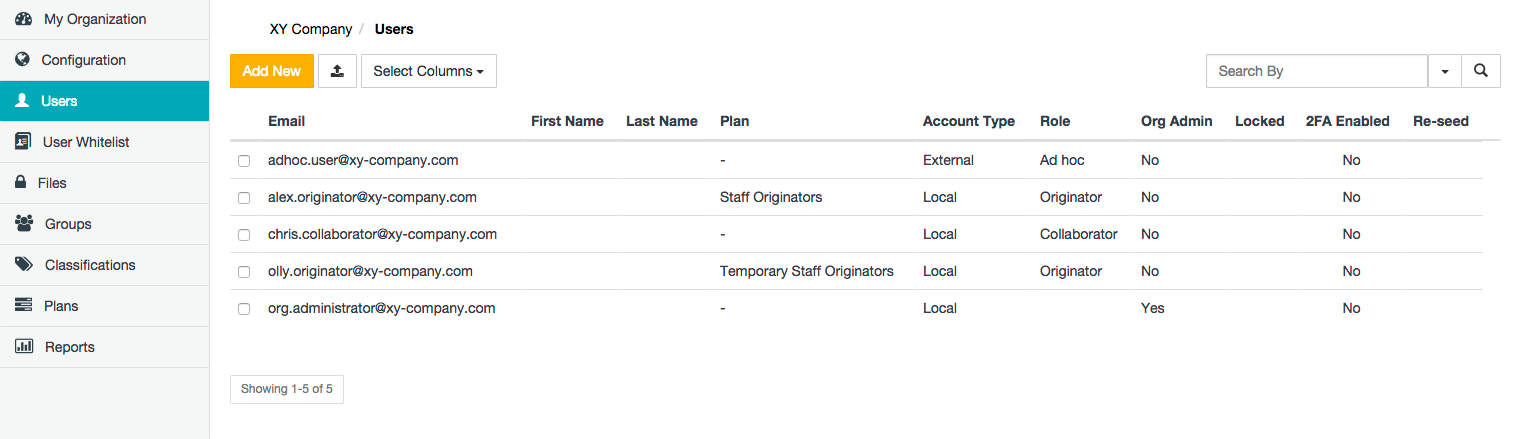
An organization user’s fields
Each Covata user’s account which is a member of your organization is defined by a set of fields described in the table below, of which only a subset (Email, Role, Is Organization Admin? and Plan) requires configuration when an Organization administrator (of your organization):- Adds a new user to your organization (thereby making this user and their account a member of the organization) or
- Edits any existing user account within your organization (with the exception of their Email field).
(3) While an Organization administrator can modify these fields’ values for their Covata user account via the My Account feature through Organization Administration, the user can also modify these values via equivalent features in the Safe Share web application, other Safe Share products with user account editing features, as well as Safe Share Administration (if the user has access to these features).
Other fields are associated with a Covata user’s account. However, these fields are used internally by the Covata Platform and are therefore only exposed to a limited extent through user interfaces (or not exposed at all).
An organization user’s roles
Each Covata user must be assigned a role, which grants the user access to different sets of features available through Covata technologies. A Covata user’s roles within an organization can be modified by editing their user account.Users can have more than one role. Regardless of organization:
- A user with the Organization administrator (and/or Safe Share administrator) role can also be granted either the Originator or Collaborator role.
- Likewise, a user with either the Originator or Collaborator role can also be granted the Organization administrator role and/or the Safe Share administrator role (of their Covata Platform instance).
If you would like users in your organization to utilize client applications (other than Covata Safe Share applications) that interact with your organization through the Covata Platform’s API, request that a Safe Share administrator of your Covata Platform instance configure these client applications for you (since only Safe Share administrators can perform these configurations). For more information about configuring client applications, see Configuring client applications in the Safe Share Administrator’s Guide.
Adding an organization user account
This procedure describes how to add a Covata user account to your organization on the Covata Platform. A Covata user whose account has been added to an organization is a member of that organization.Covata user accounts can also be added to an organization:
- in bulk (in a single action) from a CSV file, or
- from an LDAP server/user directory. For more information about adding LDAP users, see Configuring LDAP in the Safe Share Administrator’s Guide.
- Sign in to Safe Share Organization Administration.
- Click the Users option on the left of the Safe Share Organization Administration interface to open the Users page.
- Click the Add New button.
-
In the Add New User dialog box, complete the required user’s fields (described in detail above).
Tip: See An organization user’s roles for more information about the role(s) to specify for this user. -
Click Save and the Covata user will appear as a new entry on the Users page.
Notes:-
If the user’s email address has not yet been registered on the Covata Platform, a new Covata user account is automatically created for them. The user’s:
- Covata user account will have the Local Account Type, which is indicated on this Users page of Safe Share Organization Administration and
- email address is sent an ‘account created’ notification, with instructions to the user on how to sign in to the Safe Share web application (applicable to most users added to your organization whose accounts are created in this manner). The initial sign-in process usually requires the Covata user to reset their password immediately after signing in.
- If this user already has a user account on the Covata Platform, their email address is sent an ‘account updated’ notification, informing the user that their Covata user account has been added as a member of your organization. The user can then access the Safe Share web application (as well as other Safe Share products) for your organization.
- If the account added has the Organization administrator role only, then the Organization Administration interface is displayed as soon as the user of this account signs in.
- If the account has any combination of the Originator, Collaborator or Safe Share administrator role in addition to the Organization administrator role, then the user should refer to Signing in to Organization Administration for more information about accessing the Organization Administration interface.
-
If the user’s email address has not yet been registered on the Covata Platform, a new Covata user account is automatically created for them. The user’s:
Adding organization user accounts in bulk (from CSV)
Covata user accounts can be added to your organization in bulk (in a single action) by importing their details from a CSV file. CSV file preparation and requirements- The Covata Platform’s CSV user import feature assumes that each line of the CSV file (except the first mandatory ‘header’ line) represents field data for a specific user. (The first line will not be imported as a user.)
-
The order of field data for each user in the CSV file (as should be defined by the header line) must be:
Email, Role
Notes:- White space around each separating comma is not required.
- You can actually specify any field names/labels for the header line of your CSV file. However, the order of field data for each user (in subsequent lines of your CSV file) must comply with the order above (i.e. email address followed by role).
-
For a user to be successfully imported from a CSV file, the following conditions must be met:
- Values for both of these fields are mandatory.
- The
Emailfield’s value must comply with a valid email format. - The
Rolefield value can only be exactlyOriginatororCollaborator(i.e. an initial capital letter followed by lower-case letters). It is not possible to import Covata users with the Ad hoc, Organization administrator or Safe Share administrator roles. - If a user’s email address appears more than once in the CSV file and the conditions above for each of these entries are still met, then only user data from the first of these multiple entries is imported (and the remainder are reported as duplicates).
- Sign in to Safe Share Organization Administration.
- Click the Users option on the left of the Safe Share Organization Administration interface to open the Users page.
-
Click the

- In the Import from CSV dialog box, click the Choose a file button.
-
Navigate to and select your CSV file containing the users to be imported to the Covata Platform.
The CSV import feature proceeds to import your users. Upon completion, the number of successfully imported Covata users are reported, along with each unique invalid data value (if any were encountered). -
Click Close to close the Import from CSV dialog box. Users imported with the Originator role are automatically assigned the default plan.
Notes:-
If any of these users’ email addresses have not yet been registered on the Covata Platform, a new Covata user account is automatically created for each of them. For each of these users:
- their Covata user account will have the Local Account Type, which is indicated on this Users page of Safe Share Organization Administration and
- their email address is sent an ‘account created’ notification, with instructions to the user on how to sign in to the Safe Share web application. The initial sign-in process usually requires the Covata user to reset their password immediately after signing in.
- For any of these users who already have a user account on the Covata Platform, their email address is sent an ‘account updated’ notification, informing the user that their Covata user account has been added as a member of your organization. The user can then access the Safe Share web application (as well as other Safe Share products) for your organization.
-
If any of these users’ email addresses have not yet been registered on the Covata Platform, a new Covata user account is automatically created for each of them. For each of these users:
- The number of users that can be imported from a single CSV file is restricted by the response timeout of the Covata Platform’s load balancer. We found that a response timeout of 60 seconds on our load balancers allowed the import of up to 1000 users from a CSV file. If you have your own on-site deployment of the Covata Platform, you may wish to tweak the response timeout of your load balancers to allow the import of more users from a CSV file.
- When a new Local user account is created, the Covata Platform automatically generates a password which is emailed to that user. To maximize security, the password (once created), is hashed 64,000 times using the PBKDF2 algorithm before being stored by the Covata Platform. Since this process has an overhead of approximately 300 milliseconds and the number of users imported by the CSV user import feature could be extensive, then the auto-generated passwords of CSV-imported Covata users are only hashed 100 times using PBKDF2 (before being stored by the Covata Platform). Hence, if you are concerned about the security of these stored passwords, you may wish to request that a Safe Share administrator for your Covata Platform instance reduces the Temporary password expiry time in hours configuration option through Safe Share Administration. For more information, refer to Configuring Safe Share Administration properties in the Safe Share Administrator’s Guide.
Finding user accounts within your organization
As more Covata users are added to your organization, it can become difficult to locate specific users through the Users page of Safe Share Organization Administration. The Users page therefore offers features to help you locate specific user accounts within your organization more rapidly. To find specific user accounts within your organization:- Sign in to Safe Share Organization Administration.
- Click the Users option on the left of the Safe Share Organization Administration interface to open the Users page.
-
Use either of the following features to find a specific user account (or subset of these accounts):
- Filter user accounts - In the Search By box (right of the Users page), begin typing a series of characters contained in any of the users’ Email, First Name, Last Name, Role or (Organization) Admin fields, followed by the ‘Enter/Return’ key. This filters the list of users within your organization to those whose Email, First Name, Last Name, Role or (Organization) Admin (i.e. ‘yes’ or ‘no’) contains the subset of characters entered into the Search By box.
By default, the Email, First Name, Last Name, Role or (Organization) Admin fields are used for filtering (i.e. All), although filtering can be restricted to just one of these fields using the adjacent drop-down. - Navigate to specific user accounts - If available, use the page navigation buttons (lower-right of the Users page).
- Filter user accounts - In the Search By box (right of the Users page), begin typing a series of characters contained in any of the users’ Email, First Name, Last Name, Role or (Organization) Admin fields, followed by the ‘Enter/Return’ key. This filters the list of users within your organization to those whose Email, First Name, Last Name, Role or (Organization) Admin (i.e. ‘yes’ or ‘no’) contains the subset of characters entered into the Search By box.
Editing an organization user account
This procedure describes how to edit the role-related fields (i.e. Role, Is Organization Admin? and Plan) of any existing Covata user account within your organization.To edit the non-role-related fields of your own Covata user account, see Editing your Organization administrator account below.
- Sign in to Safe Share Organization Administration.
- Click the Users option on the left of the Safe Share Organization Administration interface to open the Users page.
- Find the user account whose role-related fields are to be edited and select their check box on the left.
-
Click the

- In the Edit User dialog box, update the user’s relevant role-related fields (described in detail above).
- Click Save and the user’s fields will be updated.
The Email address of all users on the Covata Platform is unique and since this field may be used for auditing purposes, no Covata user account’s email address field can be edited. However:
-
To update the email address of a Covata user with the Local or External Account Type:
- Add a new user account (with the user’s new email address but the same role-related field values) to your organization.
- Remove the user’s old account.
Note: If this user had the Originator role, then while removing the user’s old account, choose the option to transfer ownership of this old account’s items (i.e. Secure Object data/content) to the new user account created in the previous step.
-
To update the email address of a Covata user with the LDAP Account Type:
- Request that your LDAP server/user directory administrator update and provide you with the user’s new email address.
- Add this user’s account (with this new email address but the same role-related field values) to your organization.
- Remove the user’s old account.
Note: If this user had the Originator role, then while removing the user’s old account, choose the option to transfer ownership of this old account’s items (i.e. Secure Object data/content) to the new user account created by the LDAP server/user directory administrator and you then added to your organization, in the previous steps.
Removing a user account from your organization
Removing a Covata user account removes the user from your organization, with the option to either:- transfer all encrypted files/Secure Objects and folders/collections (i.e. data/content) currently owned by this user to that of another Covata user, or
- permanently delete all of this user’s content.
- The Covata Platform’s auditing reports and log files still retain a record of activities conducted by Covata users whose accounts have been removed from an organization.
- An Organization administrator can remove any user account from their organization except the user account with which they are currently signed in to Safe Share Organization Administration.
- Removing a Covata user account from your organization (through Safe Share Organization Administration) does not delete this account from the Covata Platform. If a Covata user (previously removed from your organization) is subsequently added to your organization again or added to another organization, then the same user account is re-utilized. Any fields that the user had previously edited/customized (i.e. through Organization Administration, Safe Share Administration, the Safe Share web application, as well as other Safe Share products with user account editing features) are retained.
- Sign in to Safe Share Organization Administration.
- Click the Users option on the left of the Safe Share Organization Administration interface to open the Users page.
- Find the user whose account is to be removed from your organization and select their check box on the left.
-
Click the

Note: If this Covata user has the Originator role and has one or more items (i.e. files and/or folders), then the Remove User… dialog box indicates the number of items this user owns and requests whether or not you would like to transfer these items to another user’s account (which also with the Originator role).-
If you wish transfer these items to another user’s account:
- Select the Transfer all content to another Originator check box.
-
Select the user (i.e. their email address from the list) to transfer the items to:
- Only users with the Originator role are listed.
- This list can be filtered typing a series of characters contained in the users’ email addresses.
- If you do not wish to transfer these items and would prefer them to be permanently deleted, then leave the Transfer all content to another Originator check box cleared.
-
If you wish transfer these items to another user’s account:
-
After confirming your decision to either transfer or permanently delete the user’s items, click Remove.
-
If you chose to transfer these items to another user’s account, then:
- the user’s account is removed from your organization and
- the items that the removed user owned are transferred to a folder at the root level of the recipient user’s storage area. The name of this folder is the removed user’s email address along with the date the transfer occurred.
-
If you chose not to transfer these items, then:
- the user’s account is removed from your organization and
- the encrypted files and folders that belonged to this user are permanently deleted.
-
If you chose to transfer these items to another user’s account, then:
If a Covata user account of the LDAP Account Type is removed from your organization (using this procedure above), then the user’s account is removed from your organization although the account is not disabled on the LDAP server/user directory itself. When the Covata Platform subsequently synchronizes with the LDAP server, the account will not reappear within your organization (amongst the list of current Covata user members) unless an Organization administrator manually adds this user to your organization again.
Editing your Organization administrator account
This procedure describes how to edit the non-role-related fields of your (Organization administrator) user account on the Covata Platform.- To edit the role-related fields (i.e. Role, Is Organization Admin? and Plan) of any Covata user account within your organization (including your own), see Editing an organization user account above.
- The non-role-related fields of LDAP user accounts can only be edited through these accounts’ respective LDAP server/user directory. These user accounts’ fields are updated on the Covata Platform during synchronization events with the LDAP server/s. For more information about adding LDAP users, see Configuring LDAP in the Safe Share Administrator’s Guide.
- Sign in to Safe Share Organization Administration.
- Click your email address at the top-right of the page and choose My Account from the drop-down menu.
-
In the Account Details section of the subsequent page, update any of your user account’s fields (described in detail above).
Note: The Email addresses of all Covata user accounts on the Covata Platform are unique and since this field may be used for auditing purposes, no Covata user account’s email address field can be edited. However, to update the email address of your user account and/or those of other users within your organization, then for each of these users:- Add a new Covata user account (with their new email address but the same role-related field values) to your organization. For each account whose Account Type is LDAP, obtain the new email address from your LDAP server/user directory administrator in order to add their account (with this email address) to your organization.
- Remove the user’s old Covata user account. For each Covata user account (with the Originator role), transfer the user’s content from their old account to their new user account.
-
Click Save and your user account’s fields will be updated.
Notes: If you cannot edit your user account’s fields, then your Account Type is likely to be LDAP. The fields of LDAP user accounts are edited through their respective LDAP servers’ user directories and are updated on the Covata Platform during synchronization events with these user directories.
Changing your Organization administrator account password
Only a Covata user with the Local Account Type who has signed in to either the Safe Share web application or Safe Share Organization Administration can change their own password.The authentication of a Covata user on the Covata Platform whose Account Type is LDAP is delegated to its respective LDAP server. If you have such a Covata user account and wish to change its password, you will need to contact your LDAP administrator for details on how to do this (e.g. through the user account on your LDAP server/user directory). For more information about LDAP user accounts, see Configuring LDAP in the Safe Share Administrator’s Guide.
- Sign in to Safe Share Organization Administration.
- Click your email address at the top-right of the page and choose My Account from the drop-down menu.
- In the Security section of the subsequent page, click the Change password button.
- On the Set your password… page, specify your current password and then your new password twice (i.e. once more to verify it).
- Click the Change button and your Covata user account’s password is now changed.
Terminating your Organization administrator account’s sessions
Terminating your Organization administrator account’s sessions immediately invalidates all of your currently valid access/refresh tokens. This will sign you out of every Safe Share application with which you have an active session, including any client applications that use the Covata Platform’s resources. This feature is useful if your Organization administrator account is at risk of being compromised - for example, you suspect that you forgot to sign out from a shared computer or you were signed in from a laptop that was either lost or stolen before you signed out. To terminate your Organization administrator account’s sessions:- Sign in to Safe Share Organization Administration.
- Click your email address at the top-right of the page and choose My Account from the drop-down menu.
- In the Security section of the subsequent page, click the Terminate button.
All of your active sessions with the Covata Platform are terminated immediately, which also results in you being signed out from your current session. You will need to sign in again to gain access to Safe Share and/or your Covata Platform’s resources.
Enabling or disabling 2FA on Organization user accounts
If required, an Organization administrator can configure two-factor authentication (2FA) by enabling this feature on:- their own Covata user account, or
- all Covata user accounts which are currently members of their organization.
- Android-based devices running the Google Authenticator app,
- Apple’s iPhone, iPad or iPod Touch devices running the Google Authenticator app, or
- Microsoft Windows-based devices running Microsoft’s authenticator app.
- Before enabling 2FA on any Covata user account, you may wish to verify if the users of these accounts are in possession of any one of these supported mobile devices (above), or notify these users that they will require access to one of these devices to continue signing in through the Covata Sign-in page.
-
Take caution before deciding to enable 2FA for all Covata users in your organization. If any members of your organization (including yourself) are not prepared to configure 2FA on their account, they may be unable to sign in successfully through the Covata Sign-in page, thereby preventing these users’ access to:
- all organizations on the Covata Platform for which these users are members and/or
- Safe Share Organization Administration for all organizations of which these users are Organization administrators.
- The URLs to download the appropriate authenticator app for a supported device are available to users when they configure 2FA on their accounts (and are themselves configurable by Safe Share administrators). For more information, see Re-theming the Safe Share web app. and admin. areas of the Safe Share Administrator’s Guide.
- Sign in to Safe Share Organization Administration.
-
For your Organization administrator account only:
-
To enable 2FA on it:
- Click your email address at the top-right of the page and choose My Account from the drop-down menu.
- In the Security section of the subsequent page, click the Enable button (to the right of ‘Two-factor authentication ( disabled )’).
Your Organization administrator account’s email address is sent a notification informing you that 2FA has been enabled on your account, along with a time-limited link, with step-by-step instructions for configuring 2FA (6) .
-
To disable 2FA on it:
- Click your email address at the top-right of the page and choose My Account from the drop-down menu.
- In the Security section of the subsequent page, click the Disable button (to the right of ‘Two-factor authentication ( enabled )’).
Your Organization administrator account’s email address is sent a notification informing you that 2FA has been disabled on your account.
-
To enable 2FA on these accounts:
- Click the Configuration option on the left of the Safe Share Organization Administration interface to open the Configuration page.
- Click the Edit link to the right of the property ‘Enforce two-factor authentication for organization members.’
- In the Edit Config Property dialog box, select the Property Value check box.
Tip: For more information about configuring this and other Safe Share Organization Administration properties, see Configuring Safe Share Organization Administration properties. - Click Save and all Covata user accounts within your organization (including your own) will have 2FA enabled on their accounts.
Each Covata user within your organization is sent an email notification informing them that 2FA has been enabled for their account. This email message contains a time-limited link, with step-by-step instructions for configuring 2FA (6) .
-
To disable 2FA on these accounts:
- Click the Configuration option on the left of the Safe Share Organization Administration interface to open the Configuration page.
- Click the Edit link to the right of the property ‘Enforce two-factor authentication for organization members.’
- In the Edit Config Property dialog box, clear the Property Value check box.
- Click Save and then only each user themselves can disable 2FA on their own account (once they have signed in).
-
To enable 2FA on it:
- Configure their mobile device with the appropriate authenticator app.
- Configure the authenticator app (once installed) with their Covata user account, so that the authenticator app can generate the appropriate authentication codes (for the 2nd authentication factor).
Re-configuring 2FA for an organisation user account
While two-factor authentication (2FA) is enabled on a user’s account, the user might lose the ability to generate authentication codes for their 2nd authentication factor (explained in more detail above) due to any of the following reasons:- The user deleted their Covata user account configuration from the authenticator application (app) installed on their mobile device.
- The time-limited link for configuring 2FA expired before the user had a chance to complete the 2FA configuration process. This is the link contained in the email notification informing the user that 2FA has been enabled on their account.
- The user lost their mobile device. The user will require a replacement device in order to continue signing in through the Covata Sign-in page with 2FA enabled on their account.
- Sign in to Safe Share Organization Administration.
- Click the Users option on the left of the Safe Share Organization Administration interface to open the Users page.
- Find the user/s whose account is to be re-configured for 2FA.
-
Click the Re-seed button (in the Re-seed column) of the relevant user/s to re-configure 2FA for their account.
Each user with 2FA re-configured in this manner is sent an email notification informing them that 2FA has been enabled for their account, similar to the email notification they received when 2FA was originally enabled on their account. This email message contains a new time-limited link, leading to step-by-step instructions for the user to:- (Re-)configure their mobile device with the appropriate authenticator app (should the user need to conduct this step again).
- (Re-)configure the authenticator app (once installed) with their Covata user account, which allows the authenticator app to generate the appropriate authentication codes for the 2nd authentication factor.
Configuring ‘Users’ page columns for organization users
By default, all columns on the Users page are visible. With the exception of the Email column (which is always shown), if there are other columns whose visibility is not required when administering users on your organization, then these columns can be selectively hidden from the Users page. To hide one or more columns from the ‘Users’ page, or make these columns visible again:- Sign in to Safe Share Organization Administration.
- Click the Users option on the left of the Safe Share Organization Administration interface to open the Users page.
- Click the Select Columns drop-down and clear the check boxes next to the column names to be hidden. Conversely, select the check boxes next to the column names to be made visible again.