

- A server-side web application,
- Designed to run natively on a mobile device such as a tablet or phone,
- Designed to run natively on any other operating system (e.g. destkop/laptop computers) or
- User agent-based (e.g. runs client-side in a web browser).
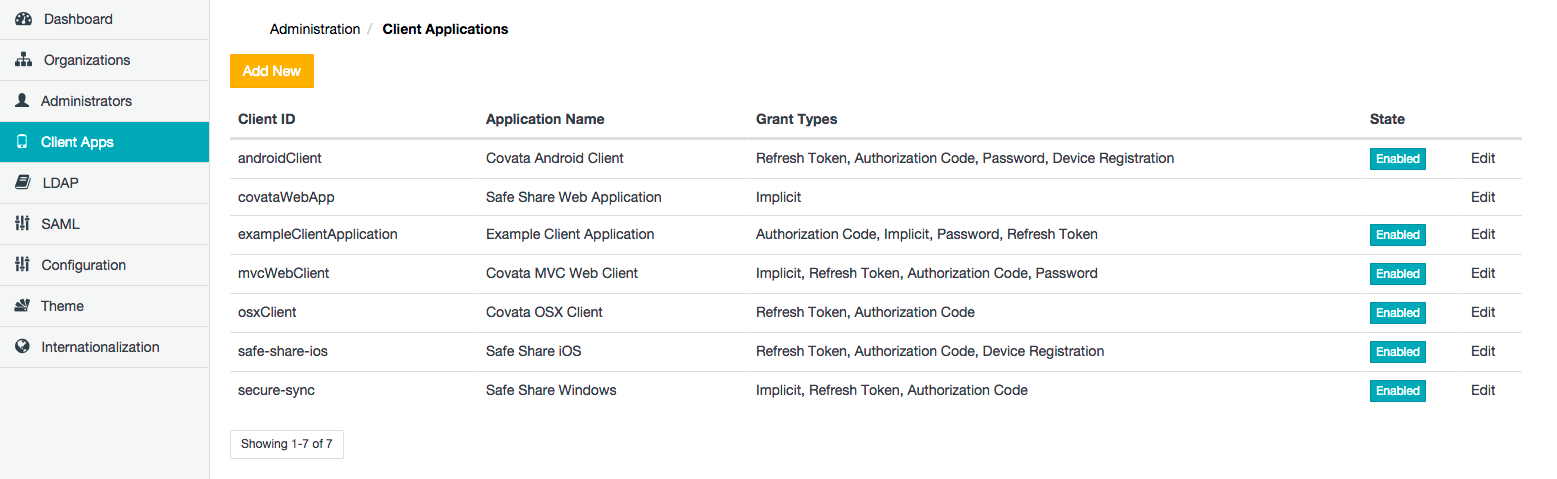
Configuring a client application
The Client Applications page of Safe Share Administration (above) allows:- The registration of client applications with the Covata Platform.
-
Registered client applications on the Covata Platform to be:
- edited - for example, to modify a client application’s permitted grant types, as well as
- disabled or re-enabled - for example, to block a client application’s access to the Covata Platform’s resources (by ‘disabling’ that application).
Registering a new client application
To register a new client application with the Covata Platform:- Sign in to Safe Share Administration.
- Click the Client Apps option on the left of the Safe Share Administration interface to open the Client Applications page.
- Click the Add New button.
- In the Add Client Application dialog box, complete the fields (described in detail the table below) to register the client application.
- Click Save and the client application will appear as a new entry on the Client Applications page.
Grant type details
The following table provides details about the OAuth 2.0 grant types that the Covata Platform can permit a client application to use (i.e. to issue that application with an access token). See Grant Types (above) for an explanation about access tokens issued by the Covata Platform. These details below explain the types of information conveyed between the client application and Covata Platform, as well as the mode by which this information is conveyed and hence, the security implications associated with implementing these grant types in a client application.Editing a registered client application
To edit a registered client application on the Covata Platform:- Sign in to Safe Share Administration.
- Click the Client Apps option on the left of the Safe Share Administration interface to open the Client Applications page.
- Scroll to the relevant client application (if necessary) and click its Edit link.
- In the Edit Client Application dialog box, modify the registered client application’s fields, which are described in detail in the table (above).
- Click Save and the registered client application will be updated.
Disabling and re-enabling a client application
Disabling a registered client application prevents any installations of the client application from accessing the Covata Platform. This is useful when a client application’s access to the Covata Platform needs to be disabled (either temporarily or permanently), or suspicion arises that the client application’s credentials have been stolen. To disable, enable or re-enable a registered client application on the Covata Platform:- Sign in to Safe Share Administration.
- Click the Client Apps option on the left of the Safe Share Administration interface to open the Client Applications page.
-
To:
- Disable the client application - click its green Enabled button (in the State column towards the right of the page), until this button changes red and indicates Disabled.
- Enable or re-enable the client application - click its red Disabled button (in the State column) until the button changes green and indicates Enabled.
When a client application is disabled it can still be edited. This feature allows a registered client application to be configured before access to the Covata Platform is enabled.