

- View all recorded activities conducted on it.
-
Disable it - disabling a file prevents access to any aspect of it (including access by its owner) from:
- A Covata Safe Share application, or
- Another client application that uses the Covata Platform’s API.
-
Covata-encrypted data that has been registered on the Covata Platform.
Note: Covata-encrypted data is data from a file or stream, which has then been encrypted either:- Using Covata technologies (i.e. with a Covata Safe Share product or another client application that utilizes the Covata Platform’s API for encryption via the Content Service), or
- According to Covata’s encryption requirements (i.e. a client application with its own encryption implementation). For more information about Covata’s encryption requirements, see the Required POST-request parameters section on the
<content-service>/api/v1/objects/{objectId}/contentspage of the Covata API documentation.
- The properties associated with this encrypted data. Some of these properties can be determined by the creator/owner of the file.
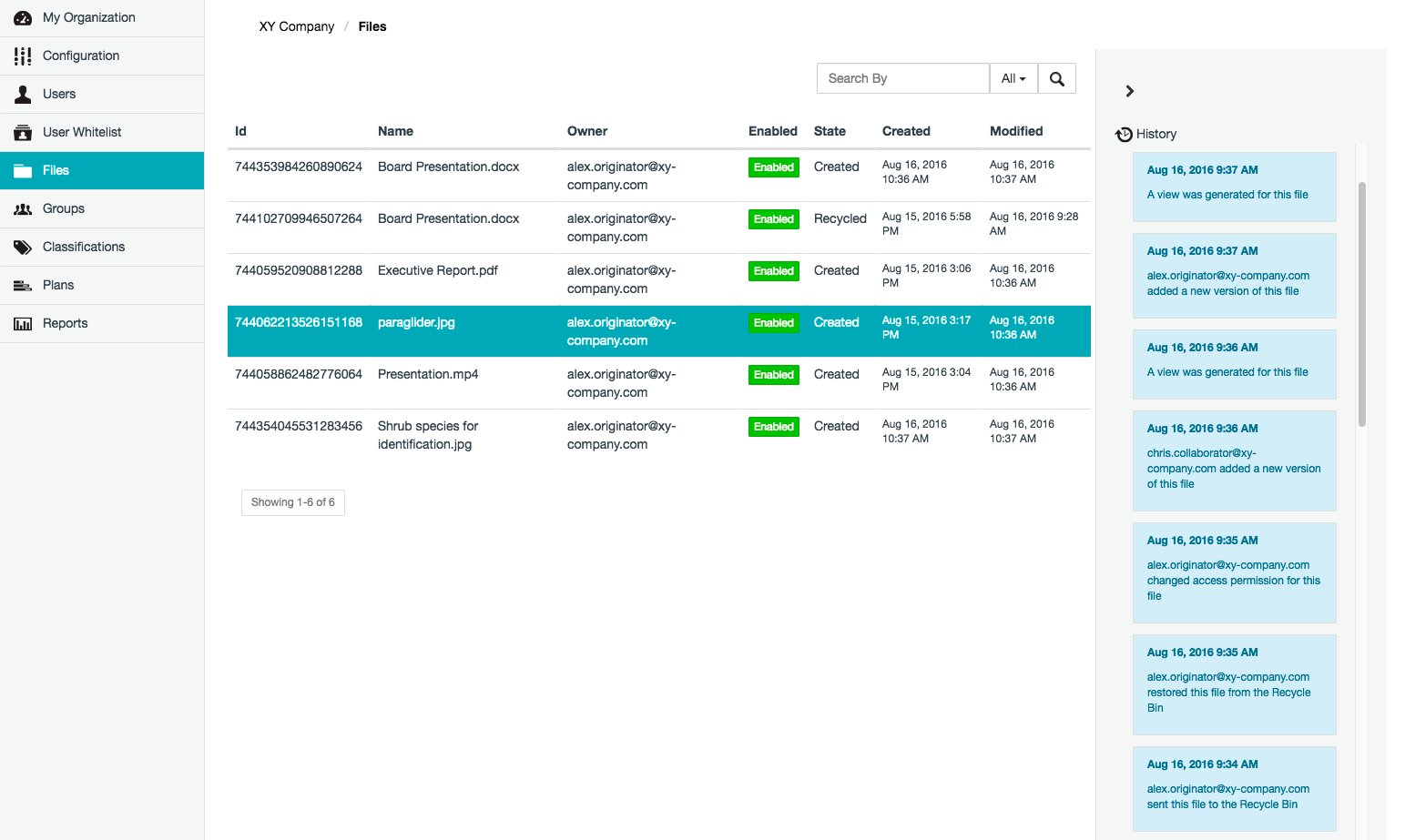
Finding files
Of all files that have been created within your organization (on the Covata Platform), it is possible to search for specific files by their Name (e.g. file name), the owner’s Email address, First Name or Last Name, or by the file object’s ID. To locate specific files within your organization on the Covata Platform:- Sign in to Safe Share Organization Administration.
- Click the Files option on the left of the Safe Share Organization Administration interface to open the Files page.
-
Use either of the following features to find a specific file (or subset of files):
- Filter files - In the Search By box (right of the Files page), begin typing a series of characters contained in any of the files’ ID, Name or Owner fields, which also includes the owner’s first and last names. This filters the list of files within your organization on the Covata Platform to those whose ID, Name, or Owner’s Email, First Name or Last Name contains the subset of characters entered into the Search By box.
By default, the ID, Name or Owner (which includes their Email, First Name or Last Name) fields are used for filtering (i.e. All), although filtering can be restricted to just one of these fields using the adjacent drop-down. - Navigate to specific files - If available, use the page navigation buttons (lower-right of the Files page).
- Filter files - In the Search By box (right of the Files page), begin typing a series of characters contained in any of the files’ ID, Name or Owner fields, which also includes the owner’s first and last names. This filters the list of files within your organization on the Covata Platform to those whose ID, Name, or Owner’s Email, First Name or Last Name contains the subset of characters entered into the Search By box.
A file object’s fields
Each file object which has been created on the Covata Platform is associated with its own properties. Some of these properties are exposed through the Files page and can be used for finding a file.Viewing activities on files
To view all activities performed on a file in your organization:- Sign in to Safe Share Organization Administration.
- Click the Files option on the left of the Safe Share Organization Administration interface to open the Files page.
- Find the file whose activities you wish to view.
-
Highlight the item by clicking on it, which reveals (in the History panel on the right) a history of all recorded activities performed on the file in reverse chronological order. The activities recorded include those from:
- The file’s owner,
- All collaborators on the file and
- All Organization administrators of the organization in which the file was created. (These activities only include disabling and re-enabling files).
For more information about the activities recorded on a file from its owner or collaborators, see Types of activities in the Safe Share for Web User’s Guide.
Disabling or (re-)enabling a file
Disabling a file prevents access to any aspect of it (including access by its owner). Once a file is disabled:- The file will no longer be visible or accessible to its owner and collaborators (upon them signing in) through any Covata’s Safe Share applications.
- The file can no longer be retrieved through a client application using the Covata Platform’s API.
Disabling files that have only been initialized through a client application using the Covata Platform’s API (resulting in an ‘incomplete’ file), prevents this file from being ‘completed’ through such an application. To allow these types of files to be completed, an Organization administrator must first re-enable these files (e.g. through Safe Share Organization Administration).
- Sign in to Safe Share Organization Administration.
- Click the Files option on the left of the Safe Share Organization Administration interface to open the Files page.
- Find the file to be disabled, enabled or re-enabled.
-
Do one of the following:
- To disable the file, click the file’s green Enabled button (in the Enabled column), until this button changes red and indicates Disabled.
- To enable or re-enable the file, click the file’s red Disabled button (in the Enabled column), until the button changes green and indicates Enabled.