

- An IdP metadata file - this is a SAML-standard XML file that can be obtained from your IdP service and contains configuration information for 3rd party services (such as the Covata Platform) to interact with the IdP service itself.
- The IdP’s email field - Covata user accounts (on the Covata Platform) are matched against this user field on the IdP service. Note that this field configuration information may not be part of the IdP metadata file.
- A private key and public X.509 certificate (for the Covata Platform) - this X.509 certificate is uploaded (either manually or automatically) to the IdP service, which the IdP service then uses to communicate securely with the Covata Platform.
Note: The IdP metadata file also contains a public X.509 certificate for the IdP service, which the Covata Platform uses to communicate securely with the IdP service.
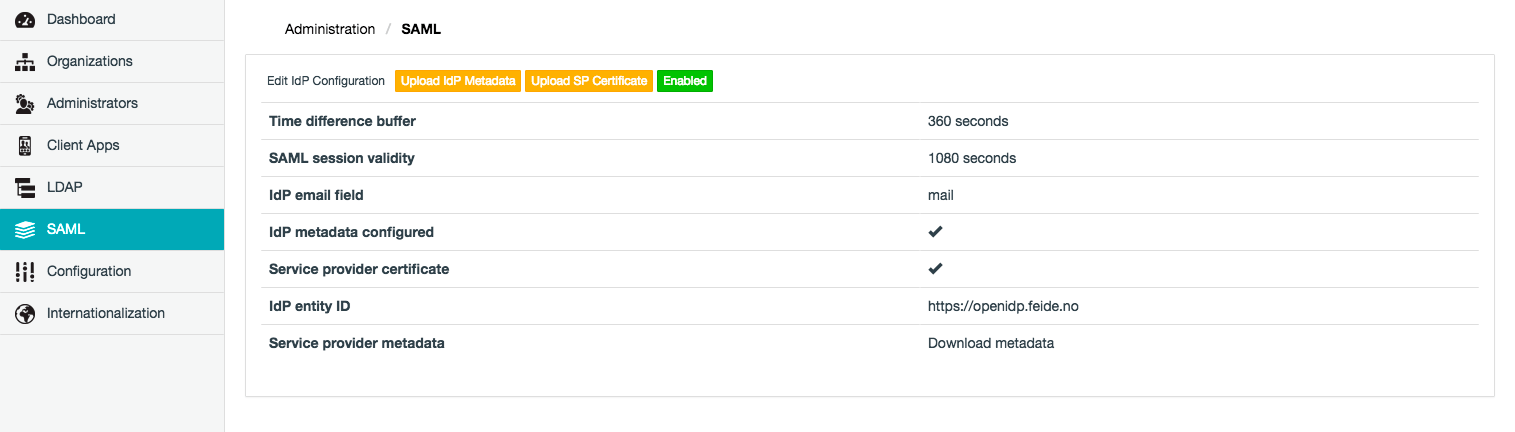
Configuring an IdP service
The SAML page of Safe Share Administration (above) allows:- The addition of an IdP service configuration on their Covata Platform instance.
- The existing IdP service configuration to be edited, as well as disabled or re-enabled.
Adding an IdP service configuration
To add an IdP service configuration to the Covata Platform:- Sign in to Safe Share Administration.
- Click the SAML option on the left of the Safe Share Administration interface to open the SAML page.
- Click the Add IdP Configuration button.
- In the Add IdP Configuration dialog box, complete the IdP service configuration fields described in the table (below).
-
Click Save and the IdP service configuration will appear on the SAML page.
Notes:- Once the IdP service has been configured successfully, users can then authenticate to the IdP service by specifying into their browser’s URL field, the base URL of your Safe Share for Web instance (which is also the Covata Platform URL), appended by
/sso(for single sign-on) - e.g:
https://safe-share.xy-company.com/sso - To allow your Covata users to sign out from the IdP service, ensure that the IdP service has been configured to allow this and if necessary, that sufficient instructions are provided to these users on how to sign out from the IdP. Otherwise, your users will continue to be signed in to Safe Share for Web whenever they revisit the single sign-on URL (above) and then click the Single Sign-on button.
- It is only possible to add one IdP service configuration, which can then be edited below.
- Once the IdP service has been configured successfully, users can then authenticate to the IdP service by specifying into their browser’s URL field, the base URL of your Safe Share for Web instance (which is also the Covata Platform URL), appended by
Editing the IdP service configuration
- Sign in to Safe Share Administration.
- Click the SAML option on the left of the Safe Share Administration interface to open the SAML page.
- Click the Edit IdP Configuration link.
- In the Edit IdP Configuration dialog box, modify the IdP service configuration fields described in the table (above).
- Click Save and the IdP service configuration will be updated.
Disabling or re-enabling the IdP service configuration
Disabling the IdP service configuration disables single sign-on capabilities to the Covata Platform (through this configured IdP service). Therefore, if the IdP service configuration is disabled, users will no longer be able to use the base URL of your Safe Share for Web instance, appended by/sso to sign in to Covata - e.g:
https://safe-share.xy-company.com/sso
To disable, enable or re-enable the IdP service configuration:
- Sign in to Safe Share Administration.
- Click the SAML option on the left of the Safe Share Administration interface to open the SAML page.
-
To:
- Disable the IdP service configuration - click the (green) Enabled button until it reads Disabled.
- Enable or re-enable the IdP service configuration - click the (red) Disabled button until it reads Enabled.