

- Sign in to the Covata Platform or use any aspect of Covata technologies through their account.
- Be shared files or folders (i.e. added as a collaborator to items) by other Covata users.
Note: This also includes anyone else who does not yet have a Covata user account, but whose email address does not match/comply with an existing user whitelist rule.
- Covata user accounts are not disabled by not having a rule on the User Whitelist page.
- Disabling or re-enabling Covata user accounts directly on the Users page has no impact on the User Whitelist page. See the Important note in the Adding new user whitelist rules procedure for details.
- Any LDAP user accounts that were disabled by not matching/complying with a user whitelist rule (when the user whitelist feature was enabled) are automatically re-enabled when the Covata Platform next synchronizes with the LDAP server.
Managing the user whitelist
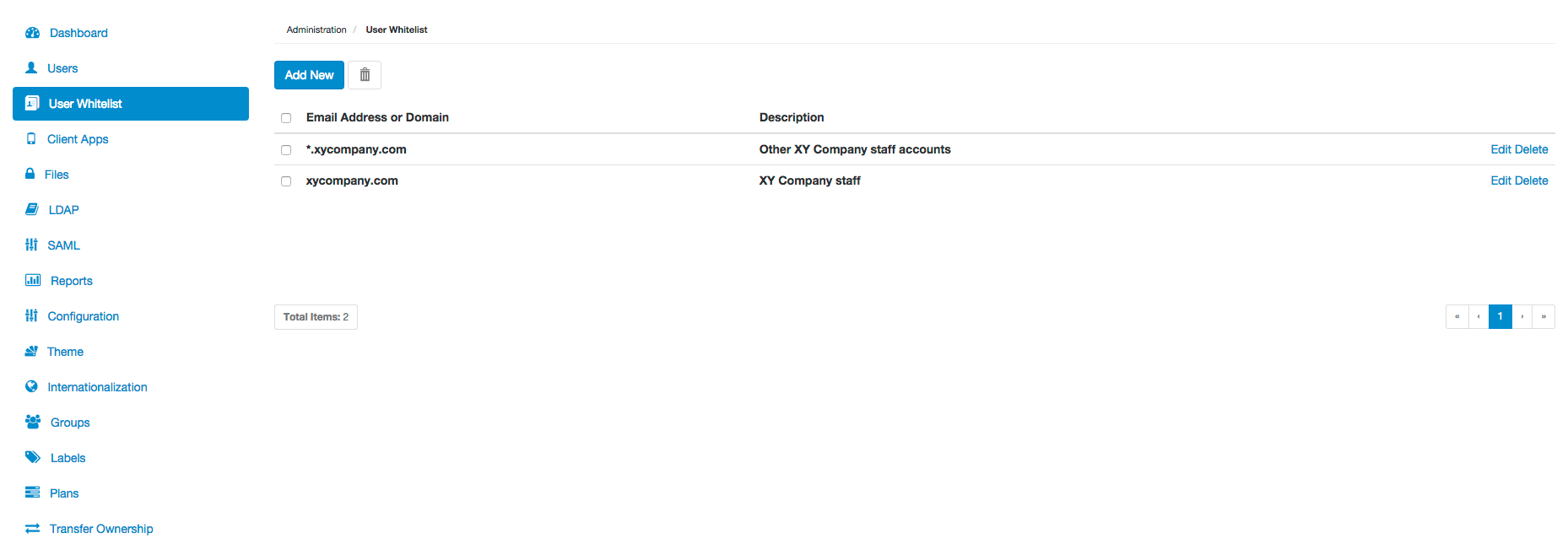
The User Whitelist page of Covata Administration (above) allows:- The addition of new user whitelist rules.
- The descriptions of existing user whitelist rules to be edited.
- Existing user whitelist rules to be deleted.
Adding new user whitelist rules
To add new user whitelist rules to the Covata Platform:- Sign in to Covata Administration.
- Click the User Whitelist option on the left of the Covata Administration interface to open the User Whitelist page.
- Click the Add New button.
-
In the Add Domains/Email Addresses dialog box, click the Add Rule button:
-
Specify a domain or email address under Rule. For example, specify
xycompany.comto whitelist the domainxycompany.comonly.
Notes:-
When specifying a domain, the ‘
*’ wildcard character can be used to include variants of a domain. For example, specify:*.xycompany.comto whitelist domainsqa.xycompany.com,abc.xycompany.com, etc. (but notxycompany.com).*xycompany.comto whitelist domainsqa-xycompany.com,abc-xycompany.com, etc. (but again, notxycompany.com).xycompany.*to whitelist domainsxycompany.com,xycompany.net,xycompany.abc, etc.
-
When specifying an email address, it is not possible to use the wildcard ‘
*’ character. If the ‘@’ character is present in a rule, then an explicit email address is expected for the rule to be valid, for exampleplatform.administrator@xycompany.com.
-
When specifying a domain, the ‘
- ( Optional ) Click under Description (or press the ‘Tab’ key) to specify a description for the user whitelist rule.
-
Repeat the start of step 4 to specify more rules.
Note: If your Covata Platform instance has many users, be sure to add as many rules as are necessary (before proceeding to the next step) to prevent any Covata users (to keep enabled) from being disabled by this feature. See the important note below for more information.
-
Specify a domain or email address under Rule. For example, specify
-
Click the Next button to validate the user whitelist rule(s) specified above:
- If the rule(s) validate successfully, the Add Domains/Email Addresses dialog box indicates the email addresses of the Covata users that will be disabled by proceeding.
-
If a validation error message is shown, click the Go Back button and either:
- Click in the erroneous rule’s field (under Rule) to edit + correct its value.
- Click the erroneous rule’s Delete link to remove the rule.
-
Click the Apply button to add the user whitelist rule(s) to the User Whitelist page.
Any Covata user accounts that do not match/comply with these user whitelist rule(s) above (including any existing rules on the User Whitelist page) are disabled.
Editing an existing user whitelist rule’s description
Only the Description of an existing user whitelist rule can be edited. To edit the description of an existing user whitelist rule on the Covata Platform:- Sign in to Covata Administration.
- Click the User Whitelist option on the left of the Covata Administration interface to open the User Whitelist page.
- Locate/scroll to the relevant user whitelist rule and click its Edit link.
- In the Edit Description dialog box, modify the rule’s Description as required.
- Click the Save link to save the modifications or Cancel to discard them.
Deleting existing user whitelist rules
To delete existing user whitelist rules from the Covata Platform:- Sign in to Covata Administration.
- Click the User Whitelist option on the left of the Covata Administration interface to open the User Whitelist page.
-
For a single user whitelist rule:
- Locate/scroll to the relevant user whitelist rule and click its Delete link.
- Select the check boxes on the left, or select the top check box in the header to select all check boxes of the currently visible user whitelist rules (i.e. domain/email addresses).
-
Click the

Note: Deleting either the last user whitelist rule or all user whitelist rules disables the user whitelist feature and does not result in any Covata user accounts being disabled. See the description above for more information.