

- Generated locally within the
My Secured Filessubfolder whenever the user stores personally owned content securely. - Present locally within the user’s
Shared With Mesubfolder (for decryption) whenever another Covata user shares secure content (through any Safe Share application) with the currently signed-in Covata user. If this encrypted content is not locally available, Safe Share for Windows first downloads the content from remote storage managed by the Covata Platform before decryption.
Safe Share folders will be retained and stored (i.e. cached) locally on the computer.
By default, Safe Share for Windows does not cache encrypted content locally. This means that whenever encrypted content is either generated for upload to storage or downloaded for decryption, Safe Share for Windows automatically deletes its local encrypted content upon completing these actions (i.e. when the encrypted content is no longer required).
Accessing cache policy settings
You do not need to be signed in to Safe Share for Windows to access this feature.
- Ensure Safe Share for Windows has been started.
-
Click the application’s icon


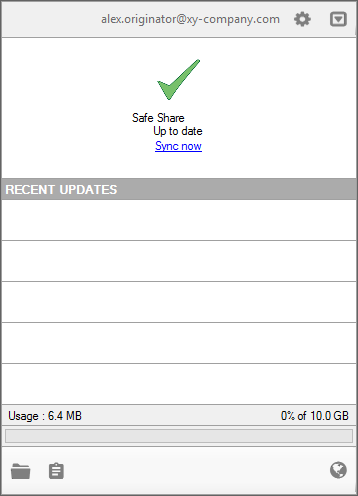
and choose Settings from this icon’s pop-up menu to open the Settings dialog box (at the General tab):
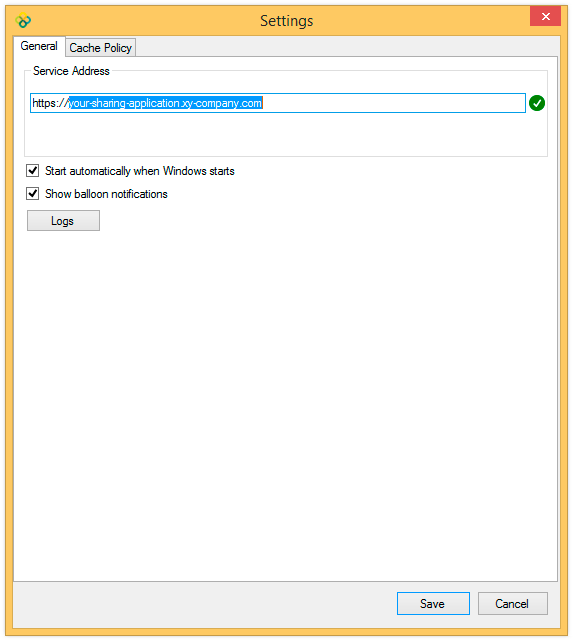
-
Click the Cache Policy tab access the cache policy feature’s current settings:
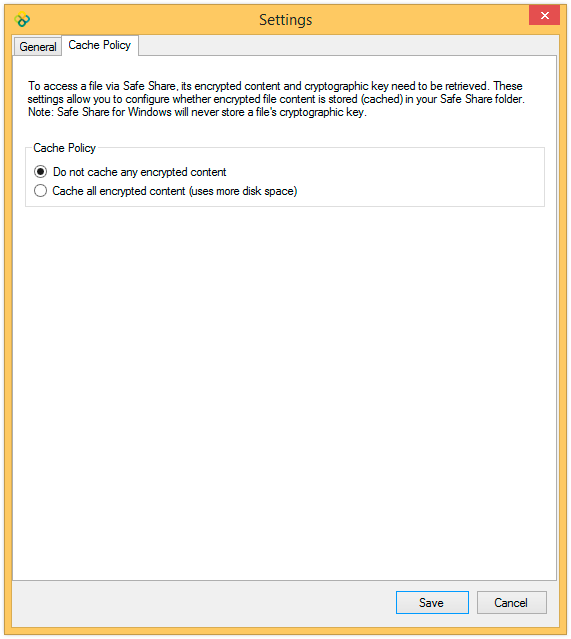
Since Safe Share for Windows does not to cache any encrypted content locally by default, the Do not cache any encrypted content option is selected upon first accessing this dialog box.
Modifying cache policy settings
Cache policy settings are associated with (and tied to) the Windows user account with which you are currently signed in to Windows.This feature is independent of the Covata user account with which you are signed in to Safe Share for Windows. Therefore, signing in to Safe Share for Windows is not required when modifying these settings.
- Access the cache policy settings feature.
-
In the Cache Policy tab of the Settings dialog box, choose one of the following options:
- Do not cache any encrypted content - this is the default option, which results in all local encrypted content being automatically deleted after it is no longer required.
- Cache all encrypted content (uses more disk space) - this option results in all local encrypted content (i.e. within the
Safe Sharefolders) being retained, such that whenever any file’s encrypted content needs to be decrypted, its content does not need to be downloaded from remote storage.
Note: Be aware that when this option is selected, the encrypted content of any file (within theSafe Sharefolders) whose encrypted content is not (yet) stored locally, will be downloaded and subsequently cached when you next decrypt that file.
- Click Save to save the updated cache policy settings.