

Finding secure content
As more files and/or folders appear in Safe Share, it can become difficult to locate a specific item. Therefore, you can either:- Search for a specific item by its name or by the owner who shared an item with you and/or
- Filter items using the item filters on the left of the main Safe Share page.
- Sign in to the Safe Share web application.
-
In the search box at the top of the main Safe Share page,

begin typing a series of characters contained in any of these item’s fields:- Name
- Owner’s email address
- Owner’s first or last name
- Click the search (i.e. magnifying glass) icon to the right of the search box (or type the ‘Enter/Return’ key) and the list of items is filtered to those whose name, owner’s email address or owner’s first/last name contains the subset of characters entered in the search box.
- Sign in to the Safe Share web application.
-
On the left of the main Safe Share page, click:
- All Files to show all items you can access (i.e. no filtering),
- My Files to filter for all items that you own,
- Shared With Me to filter for all items that other people have shared with you as a collaborator or
- Sharing to filter for all items that you have shared with other people.
If your user account does not have the Originator role, then you do not have your own storage space to upload, securely store and share personally owned content using Safe Share. Therefore, only the All Files filter is shown.
Organizing content with folders
To help organize your files in storage (managed by the Covata Platform), you can create folders, which also facilitates the ability to share multiple items of your securely stored content with a group of people. To create a new folder:-
Sign in to the Safe Share web application.
Note: If you intend to create a subfolder, then from the main Safe Share page, click through to the folder that will become the parent of the subfolder you wish to create. This parent folder could be a folder that you own, or a folder owned by another Covata user (who has granted you the Manage permissions as a collaborator on this folder). Once you have clicked through one or more folders, a breadcrumb (e.g.
- Link of a parent folder’s name (e.g. Shared Folder in the example above) to go to that folder’s location.
- Home link to go to the root location of your file area.
-
Click the top-left

- Specify the name of the folder and click Save to create the folder. The folder is created in the current list of items area.
- Ensure you are signed in to the Safe Share web application and if necessary, click through to the folder to add content to.
-
Do either of the following:
- If the folder is visible in the list of items area, drag one or more file(s) over the folder to upload the file(s) to it in storage. The folder highlights a different color to indicate that the file(s) will instead be uploaded to that folder instead of the file area’s current location.
- If the list of items area displays the contents of the current folder, then drag the file(s) onto this area. A message appears at the top, indicating that the file(s) is/are ready to upload.
Unsharing secure content
‘Unsharing’ an item that you own effectively removes all or specific collaborators from the item and its contents, so that only you as the owner of this item can control who can access it. To unshare your securely stored content:- Sign in to the Safe Share web application.
- Locate the personally owned file (which you or a collaborator had previously uploaded) or folder to unshare.
-
Do one of the following to begin unsharing this item:
-
To remove all collaborators from this item, either:
-
Right-click on the item’s row and choose Unshare from the pop-up menu:
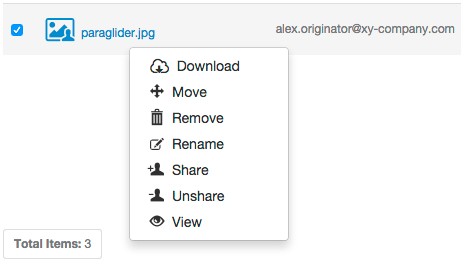
OR
- Highlight the item, by clicking on the item’s row (to the right of its name):
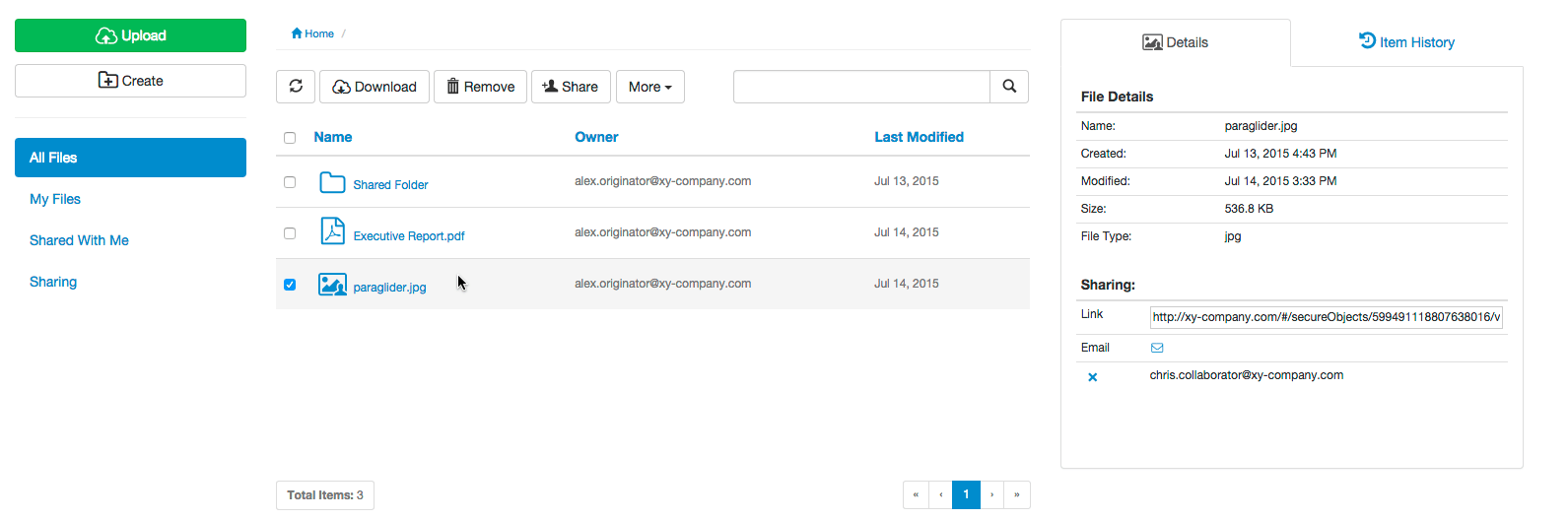
- In the toolbar above the list of items, click the More button and from the drop-down menu, choose Unshare.
-
Right-click on the item’s row and choose Unshare from the pop-up menu:
-
To remove specific collaborators from this item, either:
- Highlight the item by clicking on the item’s row (to the right of its name).
- In the Sharing section of the Details tab on the right, click the x associated with the collaborator(s) to remove from this item.
- Right-click on the item’s row and choose Share from the pop-up menu.
- On the Share dialog box, click the x associated with the collaborator(s) to remove from this item.
- Click Save to record your modifications on this dialog box.
-
To remove all collaborators from this item, either:
Renaming an item
An item can be renamed if:- you own the item or
- a Covata user has shared the item with you (as a collaborator) with Manage permissions on the item.
- Sign in to the Safe Share web application.
- Locate the item to rename.
-
Do one of the following to begin renaming this item:
-
Right-click on the item’s row and choose Rename from the pop-up menu:
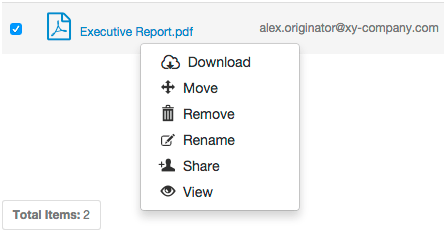
Note: If the Rename menu option is missing, then it is not possible to rename this item as its owner did not grant you Manage permissions when they shared the item (or one of its ancestral folders) with you.
OR
- Highlight the item, by clicking on the item’s row (to the right of its name):
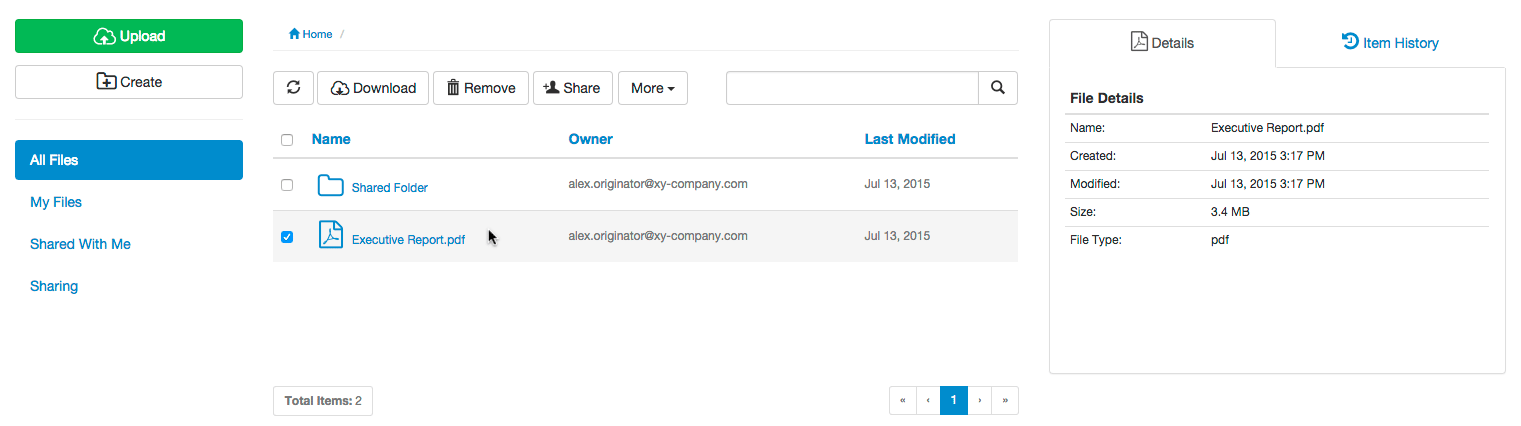
- In the toolbar above the list of items, click the More button and from the drop-down menu, choose Rename. Note that this option will not be available if the owner did not grant Manage permissions when they shared the item (or one of its ancestral folders) with you.
-
Right-click on the item’s row and choose Rename from the pop-up menu:
-
In the Rename File/Folder dialog box, specify a new name for the item.
Note: If the item is a file, it is not possible to change the file’s extension. It is only possible to alter a file name extension with the Safe Share web application before the file is uploaded to the application. Safe Share for Windows may also be used to alter file extensions.
- Click Save to complete renaming the item.
Removing personally owned content
Removing personally owned secure content which you or a collaborator had previously uploaded (using any Safe Share application), both:- Removes this content from storage managed by the Covata Platform and also
- Prevents other people you have shared this content with from being able to access it.
- Sign in to the Safe Share web application.
- Locate the personally owned file (which you or a collaborator had previously uploaded) or folder to be removed.
-
Do one of the following to begin removing this item:
-
Right-click on the item’s row and choose Remove from the pop-up menu:
OR
- Highlight the item, by clicking on the item’s row (to the right of its name):
- In the toolbar above the list of items, click the Remove button.
-
Right-click on the item’s row and choose Remove from the pop-up menu:
Removing content shared through another user’s folder
Removing secure content that you have Manage permissions on, which either you or someone else had previously uploaded to another user’s folder or created (through any Safe Share application), both:- Removes this content from storage managed by the Covata Platform and also
- Prevents other people who were collaborators on this content from being able to access it.
- Sign in to the Safe Share web application.
- Locate the file (which you or someone else had previously uploaded to another user’s folder) or subfolder (created within that other user’s folder) to be removed.
-
Do one of the following to begin removing this item:
-
Right-click on the item’s row and choose Remove from the pop-up menu:
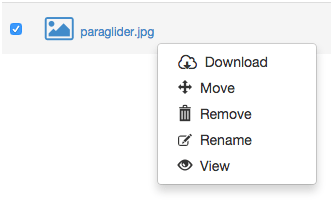
Note: If the Move or Rename menu options are missing (as well as Link under the Sharing section on the Details tab), then the owner of this item did not grant you Manage permissions when they shared the item (or one of its ancestral folders) with you. Therefore, clicking Remove will instead remove your access to this content.
OR
- Highlight the item, by clicking on the item’s row (to the right of its name):
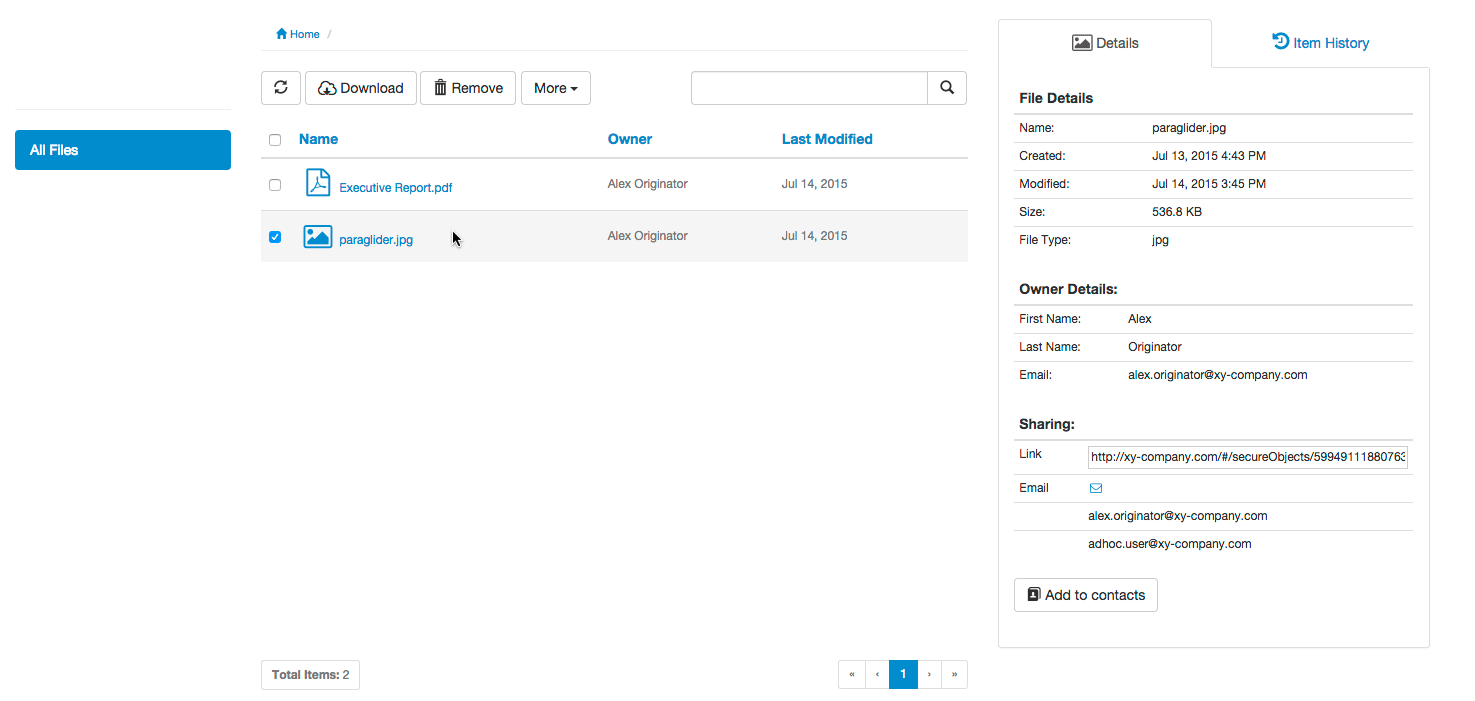
- In the toolbar above the list of items, click the Remove button. Note that if the Move or Rename options are missing from the More menu (as well as Link under the Sharing section on the Details tab), then the owner of this item did not grant you Manage permissions when they shared the item (or one of its ancestral folders) with you. Therefore, clicking Remove will instead remove your access to this content.
-
Right-click on the item’s row and choose Remove from the pop-up menu:
Removing your access to secure content (shared with you)
Removing your access to secure content which someone else has shared with you (through any Safe Share application):- Removes this content from your list of items only.
- Is similar to the owner of this content removing you as a collaborator from it (see Unsharing secure content above for more information).
- Sign in to the Safe Share web application.
- Locate the file or folder (which someone else had previously shared with you using the Safe Share web application or Safe Share for Windows) to be removed from your list of items.
-
Do one of the following to begin removing this item:
-
Right-click on the item’s row and choose Remove from the pop-up menu:
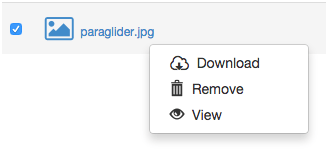
OR
- Highlight the item, by clicking on the item’s row (to the right of its name):
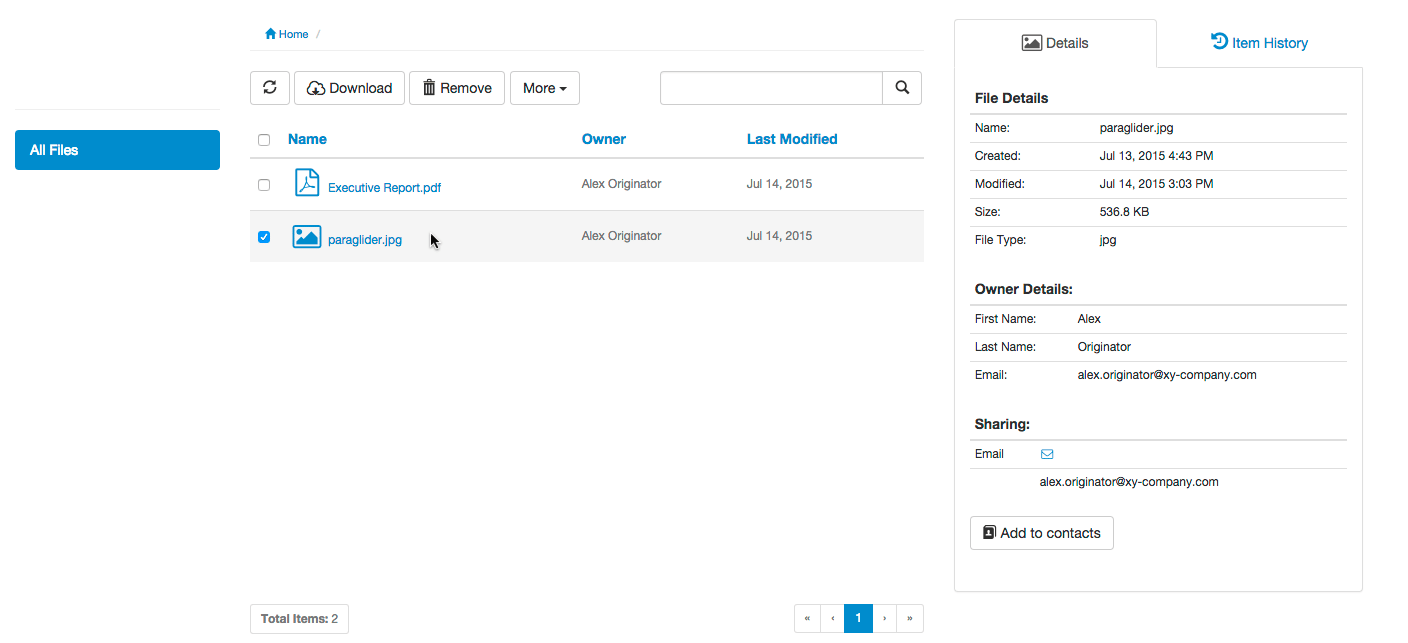
- In the toolbar above the list of items, click the Remove button.
-
Right-click on the item’s row and choose Remove from the pop-up menu: