

Finding secure content
Use Windows Explorer’s search features to search for a specfic item by its name. Be aware that within theSafe Share folder:
- All items that you own are located inside the
My Secured Filessubfolder. - All items owned by other people who have shared these items with you as a collaborator are located inside the
Shared With Mesubfolder. Within this folder, items are grouped (i.e. into folders) by the owners who shared these items with you. See Decrypting or viewing/printing secure content (shared with you) for more information.
- Access Safe Share Web.
-
On the left of the main Safe Share page, click Sharing to filter for all items that you have shared with other people.
From this page, you can perform any of the following Safe Share web application functions:- Further search the subset of items (already filtered for those you have shared).
- Open the ‘Share’ dialog box on an item to modify the item’s collaborators and/or their permissions.
- Unshare, rename or remove the item - see the Managing secure content page of the Safe Share User’s Guide for the web application for more information.
Organizing content with folders
To help organize your files in storage (managed by the Covata Platform), in theSafe Share folder, you can create folders within the My Secured Files subfolder, which also facilitates the ability to share multiple items of your securely stored content with a group of people. (You can also create folders within the Shared With Me subfolder, assuming you have the appropriate permissions to do so.)
These folders can be created using Windows Explorer’s New > Folder feature and added to either:
- The
My Secured Filessubfolder for organizing your own content and also sharing it with groups of people. - A subfolder within the
Shared By ...folder of theShared With Mesubfolder, if the owner of this content has granted you Manage permissions as a collaborator (on this subfolder).
Unsharing secure content
‘Unsharing’ an item that you own effectively removes all or specific collaborators from the item and its contents, so that only you as the owner of this item can control who can access it. Using Safe Share’s Unshare feature on a folder removes all collaborators from not only this folder, but also all collaborators from every item contained within this folder (which had been set explicitly on these items). For more information about explicit versus implicit sharing, refer to the main Tip towards the end of the step on selecting permissions for a collaborator (of the Sharing secure content procedure). To unshare your securely stored content:-
Access the
Safe Sharefolder. -
Within the
My Secured Filessubfolder, locate to the file or folder to unshare. -
Do one of the following to begin unsharing this item:
-
To remove all collaborators from a file or folder (including every item contained within this folder):
- Right-click on the item and choose Safe Share from the pop-up menu.
- On the Safe Share dialog box, click the Unshare button towards the lower left left.
- Click both OK on the confirmation message box and the Save button on the Safe Share dialog box to complete the change.
-
To remove specific collaborators from a file or folder:
- Right-click on the item and choose Safe Share from the pop-up menu.
-
On the Safe Share dialog box, click the x button associated with the collaborators to remove them from this item.
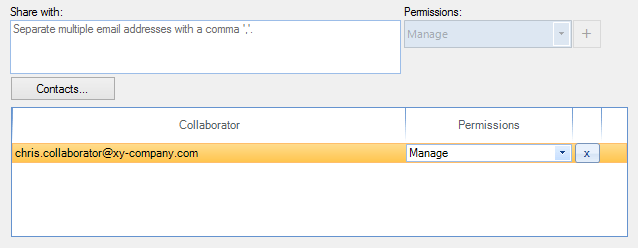
- Click the Save button to complete the change.
-
To remove all collaborators from a file or folder (including every item contained within this folder):
Renaming an item
An item can be renamed if:- you own the item or
- a Covata user has shared the item with you (as a collaborator) with Manage permissions on the item.
-
Access the
Safe Sharefolder. -
Locate the item within the
My Secured FilesorShared With Mesubfolders to rename.
Tip: If you intend to rename an item within a subfolder ofShared With Me, then you need to have the Rename permission on the item, which you can determine by right-clicking the item and choosing Show permissions from the pop-up menu. For more information about this process, see the procedure on determining if you have permissions to upload content to another user’s folder. -
Use Windows Explorer’s file/folder renaming features to rename the item.
Notes:- Unlike the Safe Share web application, Safe Share for Windows permits changes to file name extensions. Be aware, however that changes to the file name extension of a viewable file may result in the file no longer being able to open in the read-only content viewer of Safe Share for windows or the web application.
- It may take some minutes for this change to be visible to all collaborators.
- If you are renaming an item within the
Shared With Mefolder and you receive the following message ‘You do not have permission to rename this item’, then the owner of this item did not grant you Manage permissions when they shared the item (or its parent folder) with you.
Important: An issue in this version of Safe Share for Windows results in a Windows Rename message box appearing with the message ‘The file or folder does not exist.’ Ignore this message box and close it by clicking its OK button.
Removing personally owned content
Removing personally owned secure content which you or a collaborator had previously stored/uploaded (using any Safe Share application), both:- Removes this content from storage managed by the Covata Platform and also
- Prevents other people you have shared this content with from being able to access it.
-
Access the
Safe Sharefolder. -
Within the
My Secured Filessubfolder, locate the personally owned file or folder (which you or a collaborator had previously stored/uploaded) to be removed. -
Right-click on the item and choose Safe Delete from the pop-up menu:
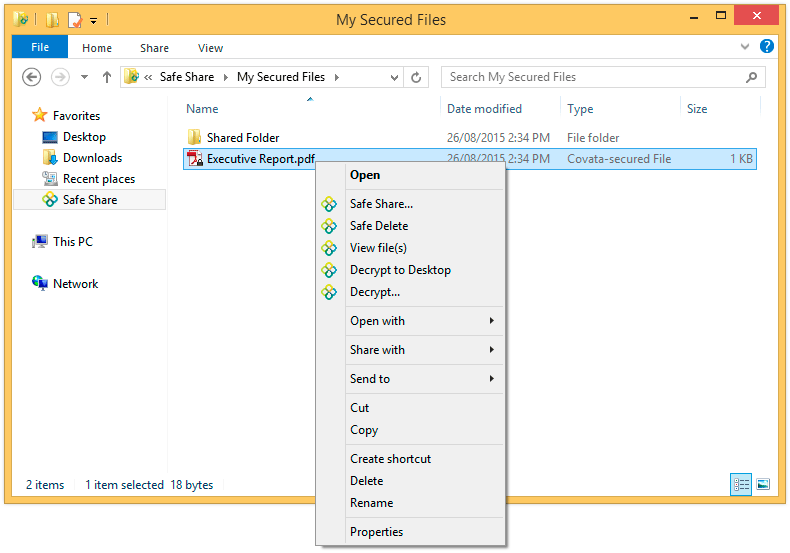
Safe Share for Windows prompts you to confirm this removal and upon clicking Yes, your item and its content is removed from storage. Any people you shared this item’s content with will no longer be able to access the item.
Removing content shared through another user’s folder
Removing secure content that you have Manage permissions* on, which either you or someone else had previously uploaded to another user’s folder or created (through any Safe Share application), both:- Removes this content from storage managed by the Covata Platform and also
- Prevents other people who were collaborators on this content from being able to access it.
- Access the
Safe Sharefolder. - Within the relevant
Shared By ...folder of theShared With Mesubfolder, locate the file (which you or someone else had previously uploaded to another user’s folder) or subfolder (created inside that other user’s folder) to be removed.
Note: To determine if you have the Remove permission on this item (which is required to remove the item and its content from storage), right-click the item and choose Show permissions from the pop-up menu. If you do not have this permission, proceeding with the next step instead will only remove your access to this item and its content. For more information about showing permissions on an item, see the procedure on determining if you have permissions to upload content to another user’s folder. - Right-click on the item and choose Safe Delete from the pop-up menu.
Safe Share for Windows prompts you to confirm this removal and upon clicking Yes, the item and its content is removed from storage. Any people who had access to this item’s content will no longer have access to it.
Removing your access to secure content (shared with you)
Removing your access to secure content which someone else had shared with you (through any Safe Share application):- Removes this content from your list of items only.
- Is similar to the owner of this content removing you as a collaborator from it (see Unsharing secure content above for more information).
- Access the
Safe Sharefolder. - Within the relevant
Shared By ...folder of theShared With Mesubfolder, locate the file or folder (which you or someone else had previously shared with you using Safe Share for Windows or the web application) from which to remove your access.
Note: If you have the Remove permission on this item, which you can determine by right-clicking the item and choosing Show permissions from the pop-up menu, then proceeding with the next step will instead remove this item and its content from storage. For more information about showing permissions on an item, see the procedure on determining if you have permissions to upload content to another user’s folder. - Right-click on the item and choose Safe Delete from the pop-up menu.
Safe Share for Windows prompts you to confirm this removal and upon clicking Yes, your access to this item is removed, which also removes the item from within the relevantShared By ...folder.