

- Generated locally within the
My Secured Filessubfolder whenever the user stores personally owned content securely. - Present locally within the user’s
Shared With Mesubfolder (for decryption) whenever another Covata user shares secure content (through any Safe Share application) with the currently signed-in Covata user. If this encrypted content is not locally available, Safe Share for Windows first downloads the content from remote storage managed by the Covata Platform before decryption.
Accessing cache policy settings
To access Safe Share for Windows’ cache policy settings feature:- Ensure Safe Share for Windows has been started and that you are signed in.
-
Right-click its


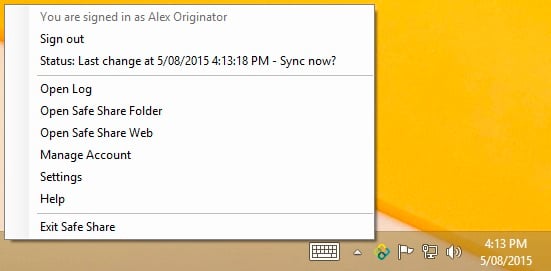
The Cache Policy Settings dialog box opens, showing the cache policy feature’s current settings:
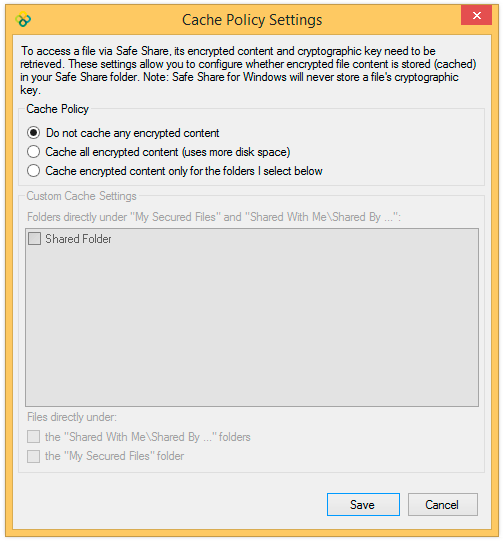
Since Safe Share for Windows does not to cache any encrypted content locally by default, the Do not cache any encrypted content option is selected upon first accessing this dialog box.
Modifying cache policy settings
Cache policy settings are specific to the Covata user account with which you are currently signed in. To modify Safe Share for Windows’ cache policy settings:- Access the cache policy settings feature.
-
In the Cache Policy section towards the top of this dialog box, choose one of the following options:
- Do not cache any encrypted content - this is the default option, which results in all local encrypted content being automatically deleted after it is no longer required.
- Cache all encrypted content (uses more disk space) - this option results in all local encrypted content (i.e. within the
Safe Sharefolders) being retained, such that whenever any file’s encrypted content needs to be decrypted, its content does not need to be downloaded from remote storage.
Note: Be aware that when this option is selected, the encrypted content of any file (within theSafe Sharefolders) whose encrypted content is not (yet) stored locally, will be downloaded and subsequently cached when you next decrypt that file. - Cache encrypted content for the folders I select below - selecting this option activates the Custom Cache Settings section of the Cache Policy Settings dialog box. This section of the dialog box allows you to selectively specify which locations/folders within the two
Safe Sharesubfolders (My Secured FilesandShared With Me) will retain encrypted content.
Note: If your Covata user account does not have the Originator role, then any references to aMy Secured Filesfolder and content will be absent from this dialog box.
-
If you chose the Cache encrypted content for the folders I select below option, you can do any combination of the following:
-
Select one or more folders in the box under Folders directly under (“My Secured Files” and) “Share With Me\Shared By …” whose encrypted content will be retained and stored locally by Safe Share for Windows.
Notes:- Only folders which are immediate children of
My Secured FilesandShared With Me\Shared By ...are listed in the box. Therefore, choosing one of these folders makes Safe Share for Windows cache every file contained within this folder, including all of its subfolders. - The check boxes of any new immediate child folders of
My Secured FilesandShared With Me\Shared By ...will be clear (i.e. not cache any encrypted content) until you explicitly set these folders to do so through this dialog box.
- Only folders which are immediate children of
-
Select any combination of the following options under Files directly under:
- the “Shared With Me\Shared By …” folders - Choosing this option makes Safe Share for Windows cache every file which is an immediate child of each
Shared By ...folder contained within theShared With Mesubfolder. - the “My Secured Files” folder - Choosing this option makes Safe Share for Windows cache every file which is an immediate child of the
My Secured Filessubfolder.
- the “Shared With Me\Shared By …” folders - Choosing this option makes Safe Share for Windows cache every file which is an immediate child of each
- Like the Cache all encrypted content option in step 2 (above), when this option is selected, the encrypted content of any file (within the locations specified in this step) whose encrypted content is not (yet) stored locally, will be downloaded and subsequently cached when you next decrypt that file.
- Be aware that the locations specified in this step are lost when a different Covata user account signs in to Safe Share for Windows. Otherwise, these locations are retained - even after exiting and restarting Safe Share for Windows.
-
Select one or more folders in the box under Folders directly under (“My Secured Files” and) “Share With Me\Shared By …” whose encrypted content will be retained and stored locally by Safe Share for Windows.
- Click Save to save the updated cache policy settings.